
Ever opened your WordPress dashboard, spotted a menu item called Editor, and wondered what it actually does? That little link is the front door to a WordPress block theme, and behind it sits the biggest shake-up in WordPress design since the platform launched.
Here is the good news: you do not need to be a developer to understand it. A WordPress block theme lets you redesign your header, footer, blog layout and fonts with the same drag-and-drop blocks you already use to write posts. No PHP. No hunting through the Customizer. No extra page builder just to move a menu.
Quick answer: A WordPress block theme is a theme built entirely from blocks. You edit every part of your site visually in the Site Editor, and a theme.json file keeps colors, fonts and spacing consistent across every page.
In this guide you will learn what block themes are, how they stack up against classic themes, what makes them tick, the honest pros and cons, how to get started safely, and ten WordPress block themes worth trying in 2026. Let us dive in.
What Is a WordPress Block Theme?
A WordPress block theme uses blocks for everything, not just the content area. Menus, headers, footers, sidebars and every page template are made of blocks, and you can edit all of them visually. The idea arrived with WordPress 5.9 in January 2022, together with Twenty Twenty-Two, the first block-based default theme. Every default theme since has followed the same approach, and the official WordPress theme handbook now calls block themes the modern way to build themes.
The momentum is real. A mid-2026 count from the Nexter team put the number of block themes in the WordPress.org directory at more than 1,600, and WordPress 7.0, released in May 2026, added handy editor controls such as device visibility and block-level custom CSS.
What makes a block theme different?
- It unlocks the Site Editor. Activate a block theme and Appearance → Editor appears. This is your visual control room for the whole site, and it replaces the Customizer.
- It uses HTML templates, not PHP. Files like
single.htmlhold block markup instead of PHP code, so most changes happen visually, not in a code editor. - It is configured by
theme.json. One file defines your palette, typography, spacing and layout widths. - It powers Full Site Editing (FSE). FSE is the umbrella name for editing every part of a site with blocks, and a WordPress block theme is what switches it on.
Quick check: go to Appearance in your dashboard. See Editor? You are already running a block theme. See only Customize? You are on a classic theme.

If you are brand new to the platform, start with our plain-English explainer on what WordPress is, then come back here.
Block Themes vs. Classic Themes
The core difference is how your site gets built and edited. A classic theme spreads your settings across several screens: the Customizer for colors, Appearance → Menus for navigation, Widgets for sidebars, and PHP files for anything structural. A block theme pulls all of that into a single visual workspace.
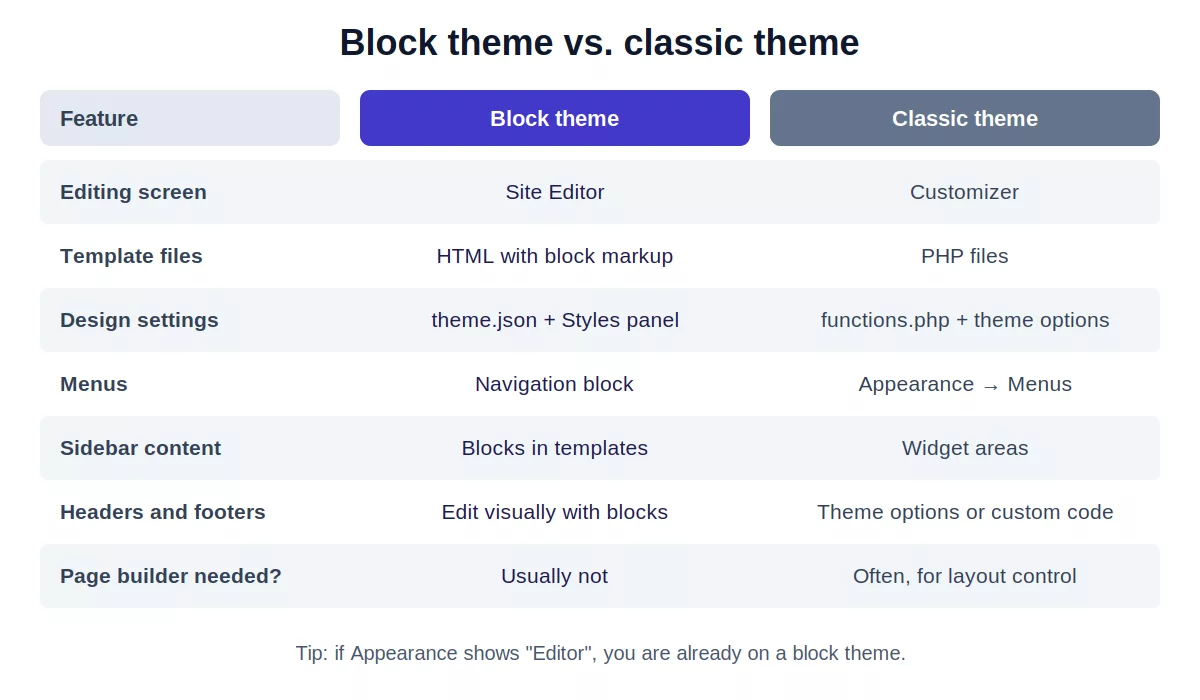
| Feature | Block theme | Classic theme |
|---|---|---|
| Editing interface | Site Editor (Appearance → Editor) | Customizer (Appearance → Customize) |
| Templates | HTML files with block markup | PHP template files |
| Configuration | theme.json |
functions.php and theme options |
| Headers and footers | Edited visually with blocks | Theme options, widgets or code |
| Menus | Navigation block | Appearance → Menus |
| Sidebars | Blocks inside templates | Widget areas |
| Global design | Styles panel | Custom CSS or theme panel |
| Page builder needed? | Usually not | Often, for layout control |
Which one should you pick?
Classic themes are not going away. They still work, they still get updates, and plenty of great sites run on them. But WordPress core development now puts its energy into the block-based approach, so new features land there first.
- Choose a WordPress block theme if you are starting a new site, want visual control without code, or care about long-term compatibility.
- Stay classic if your current site works well, depends on a page builder like Elementor, or relies on plugins built around widgets and the Customizer.
Planning a move? Our guide to changing your WordPress theme walks through the safe way to switch, and our roundup of Gutenberg-compatible themes covers options that sit between classic and fully block-based.
Key Components of WordPress Block Themes
Five building blocks make every WordPress block theme work. Understand these and the whole system clicks.
1. The Site Editor
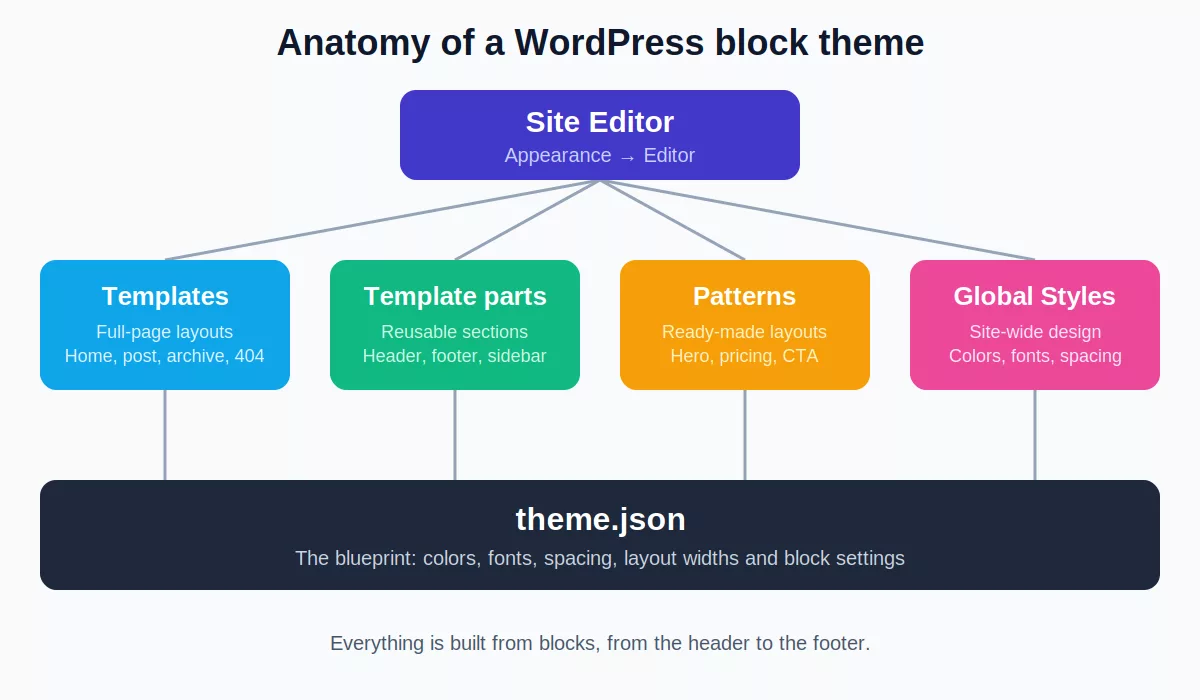
Found at Appearance → Editor, the Site Editor is where you design the parts of your site that repeat across pages. Its main areas are:
- Navigation: build and reorder menus, and control mobile behavior.
- Styles: set colors, typography, spacing and layout for the entire site.
- Pages: edit page content without leaving the editor.
- Templates: control how the homepage, posts, archives, search results and 404 page look.
- Patterns: manage reusable layouts and template parts like headers and footers.
Think of the regular block editor as the place for content and the Site Editor as the place for structure and design.
2. Templates and template parts
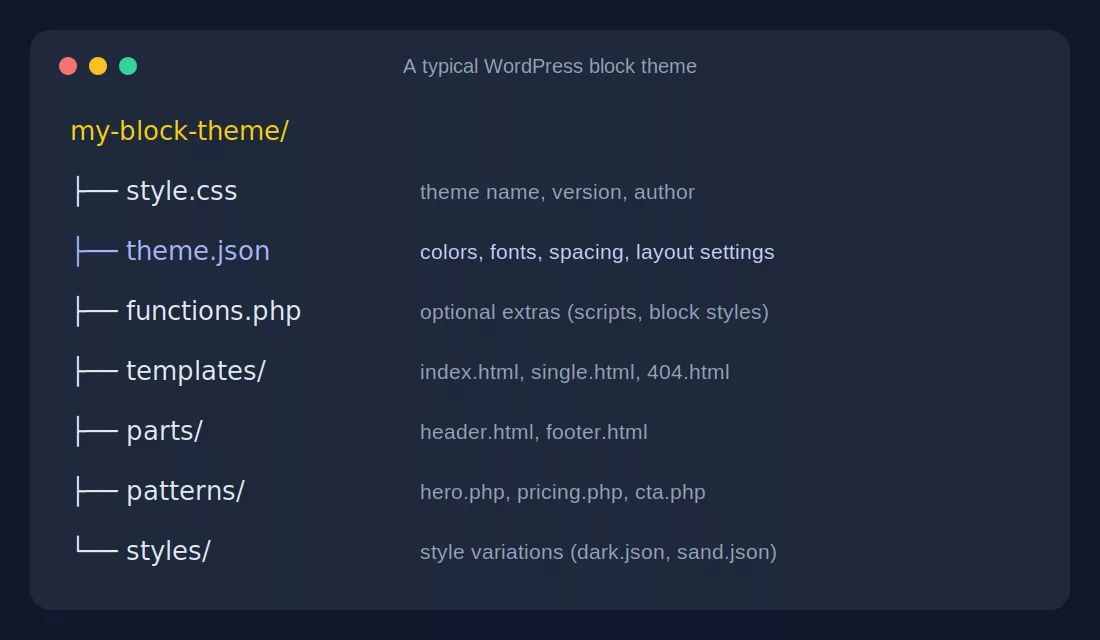
Templates are full-page layouts, such as your blog index, single post or 404 page. Template parts are reusable chunks inside those templates, most often the header and footer. Edit a template part once and every page that uses it updates instantly. Change your header on Monday morning, and the whole site looks fresh by Monday lunch.
3. theme.json
Every WordPress block theme ships with a theme.json file, the blueprint of its design system. It sets the available colors, fonts, spacing and layout widths, and decides which controls show up in the editor. You rarely need to touch it, because the Styles panel reads from it and writes back to it. Developers can dig deeper in the official global settings and styles documentation.
4. Block patterns
Patterns are pre-designed layouts made of blocks: hero sections, pricing tables, testimonial grids and more. Insert one, swap the text and images, and you are done. There are two flavors:
- Unsynced patterns act like starter templates. Once inserted, each copy lives its own life.
- Synced patterns stay linked. Update one and every copy across your site updates too, which is perfect for a call-to-action banner.
Beyond what your theme bundles, you can browse thousands of free layouts in the WordPress Pattern Directory.
5. Global Styles and style variations
Global Styles is the Styles panel inside the Site Editor. Change your heading font once and it updates everywhere. Many themes also include style variations, ready-made looks such as light, dark or a bold accent palette, that you can switch with one click and then fine-tune. It is a bit like repainting a room without moving the furniture.
Pros and Cons of Using WordPress Block Themes
Block themes are exciting, but nothing is perfect. Here is the honest picture.
The pros
- Visual, no-code editing. Redesign headers, footers and templates by dragging blocks, with no FTP and no PHP.
- Fewer plugins. Headers, navigation, layouts and footers are built in, which means fewer conflicts and simpler updates.
- Performance potential. Block themes often load styles only for the blocks on the page, and they can replace heavy page builders. Pair that with good hosting and you have a solid base. See our list of the fastest WordPress themes for speed-focused picks.
- One consistent design system.
theme.jsonand Global Styles keep fonts, colors and spacing uniform. - Future-proof. New core features, from pattern improvements to template controls, are built for this architecture first.
- Easier theme switching. Because block themes share the same architecture, more of your styling and layout choices can carry over.
The cons
- A learning curve. If you grew up on the Customizer, the Site Editor takes a little time to learn, and many older tutorials no longer apply.
- Plugin and builder compatibility. Plugins that depend on widget areas or classic theme hooks may need alternatives, and page builders like Elementor work differently from the Site Editor.
- Migration effort. Widgets, Customizer settings and some menus must be rebuilt after switching.
- Freedom needs discipline. With total layout control, it is easy to end up with inconsistent pages unless you lean on patterns and Global Styles.
- Some advanced features need extra blocks. Mega menus, complex store layouts and fancy sliders may call for a block plugin on top of the theme.
The bottom line: for most new sites the pros outweigh the cons. For a busy classic site that already works, switch only when you have time to test.
How to Get Started with Block Themes
Ready to try one? Follow these steps and you will be up and running without drama.
- Check what you have. Look under Appearance. “Editor” means block theme, “Customize” means classic.
- Back up and use staging. Test the change on a staging copy first, especially if you are leaving a classic theme.
- Find a block theme. Go to Appearance → Themes → Add New and use the block theme filter, or browse the full-site-editing tag in the theme directory. Need a walkthrough? Here is how to install a WordPress theme step by step.
- Activate it and open Appearance → Editor. Spend five minutes clicking through Navigation, Styles, Pages, Templates and Patterns before you change anything.
- Start with Styles. Tweak colors and fonts. It is low risk, easy to undo, and it builds confidence fast.
- Edit a template. Open the homepage or single post template, rearrange blocks and insert a pattern.
- Rebuild what does not carry over. Recreate sidebar widgets as blocks, redo Customizer settings in Styles and double-check your navigation.
- Test plugins and speed. Click through key pages, forms and checkout, then run a speed test before going live.
What carries over when you leave a classic theme?
- Posts and pages: they stay exactly where they are.
- Widgets: they do not carry over, so rebuild them with blocks.
- Customizer settings: colors, fonts and header images need redoing in the Styles panel.
- Menus: they usually convert to a Navigation block, but verify them.
Top 10 WordPress Block Themes
Here are ten solid options across beginners, bloggers, developers and business sites. Features and pricing change, so always confirm the latest details on each theme page before you commit.
| # | Theme | Best for | Standout |
|---|---|---|---|
| 1 | Twenty Twenty-Five | Learning block themes | Free, official, always current |
| 2 | Ollie | Beginners | Setup wizard and many patterns |
| 3 | Frost | Developers | Clean minimal starter |
| 4 | Spectra One | Business sites | Pairs with Spectra blocks |
| 5 | Raft | Flexible layouts | Works with Otter Blocks |
| 6 | Blockbase | Child themes | Solid parent theme |
| 7 | Nexter Theme | Speed-minded sites | Lightweight build |
| 8 | Gutenify Copilot | All-round projects | Part of a block theme family |
| 9 | Stewart | Bloggers | Minimal reading-first design |
| 10 | UniBlock PRO | Business and portfolios | Premium patterns and color schemes |
1. Twenty Twenty-Five
Best for: anyone exploring a WordPress block theme for the first time.
The current default theme from the WordPress team ships free with every install and shows off what the Site Editor can do, including a big library of built-in patterns. It is well maintained, well documented and the safest place to practice. View Twenty Twenty-Five.
Heads-up: its look is intentionally neutral, so expect to customize it.
2. Ollie
Best for: beginners who want a polished site quickly.
Ollie is a community-built theme designed to be friendly, with a guided setup wizard, dozens of block patterns and several style variations. It is a great pick if you want a professional look without a steep learning curve. View Ollie.
Heads-up: check which extras are included in the free version before you build around them.
3. Frost
Best for: developers and agencies who want a clean base.
Created by WP Engine, Frost is minimal by design. It gives you a tidy foundation for custom client builds without getting in the way. View Frost.
Heads-up: beginners may find it too bare-bones out of the box.
4. Spectra One
Best for: business and brochure sites.
From the team behind Astra, Spectra One is a block theme built to work hand in hand with the Spectra blocks plugin, which adds extra design blocks and layouts. Search for Spectra One.
Heads-up: you get the best experience when the companion plugin is installed.
5. Raft
Best for: flexible layouts with extra blocks.
Raft comes from Themeisle and pairs with the Otter Blocks plugin for added design options. If you like starting with a theme and extending it with one trusted block library, Raft fits that workflow. Search for Raft.
Heads-up: some features rely on the companion blocks plugin.
6. Blockbase
Best for: building and using child themes.
Blockbase is a block theme from Automattic that works as a parent for a family of child themes. If you want multiple looks that share one reliable foundation, it is worth a closer look. View Blockbase.
Heads-up: the parent theme alone is plain, so most people choose a child theme on top.
7. Nexter Theme
Best for: speed-minded sites that want a light foundation.
Nexter is a lightweight block theme that keeps things lean. It suits site owners who want the benefits of the Site Editor without extra bulk. Search for Nexter.
Heads-up: compare its free features with any paid add-ons before deciding.
8. Gutenify Copilot
Best for: all-round projects, including stores.
Gutenify offers a family of block themes, and Copilot is positioned as its versatile all-rounder. Most Gutenify themes advertise WooCommerce compatibility, which is handy if you plan to sell online. Search for Gutenify.
Heads-up: test your checkout flow carefully before launch.
9. Stewart
Best for: bloggers who want a reading-first layout.
Stewart is a minimal blogging theme with a clean, distraction-free look that puts your words front and center. It is free and quick to set up. View Stewart.
Heads-up: a minimal design means fewer ready-made business layouts.
10. UniBlock PRO
Best for: business sites, portfolios and blogs that want a premium finish.
UniBlock PRO from WPZOOM is a premium block theme with multiple color schemes, more than 30 custom block patterns and one-click demo content to speed up setup. View UniBlock PRO.
Heads-up: it is a paid theme, so weigh the license against free options like Ollie.
Prefer free choices only? Browse our curated free WordPress themes, and if you want to tweak colors and layouts further, see these customizable WordPress themes.
How to Choose the Right Block Theme
Ten options can still feel like a lot. Run your shortlist through this quick checklist:
- True block theme? Confirm it shows the Editor option after activation.
- Update history. Look for recent releases and a “tested up to” version close to the latest WordPress.
- Patterns and variations. A good library saves hours.
- Plugin needs. Does it require a companion blocks plugin, and are you happy with that?
- Speed. Run the demo through a speed test before installing.
- Standards. Well-built themes follow the official WordPress theme standards, which keeps them secure and compatible.
- Support and documentation. You will thank yourself later.
Frequently Asked Questions
What is a WordPress block theme?
A WordPress block theme is a theme built entirely from blocks. Headers, footers, menus and page templates are all edited visually in the Site Editor, and a theme.json file controls colors, fonts and spacing, so you do not need PHP templates or the Customizer.
How do I know if my theme is a block theme?
Open Appearance in your dashboard. If you see Editor, you are using a block theme. If you only see Customize, you are using a classic theme.
What is the difference between a block theme and a classic theme?
Block themes use HTML templates, theme.json and the Site Editor. Classic themes use PHP templates, functions.php, widget areas and the Customizer. Block themes give you visual control over the whole site, while classic themes rely on theme options, widgets or page builders.
Do I need coding skills to use a WordPress block theme?
No. You can change templates, headers, footers, colors and fonts by dragging and dropping blocks in the Site Editor. Code only becomes useful for advanced customizations beyond what the editor offers.
Are block themes faster than classic themes?
Often, yes. Block themes tend to load styles only for the blocks used on a page and reduce the need for heavy page builders. Real speed still depends on your hosting, images and plugins.
Can I switch from a classic theme to a block theme without losing content?
Yes. Posts and pages stay in place. Widgets, Customizer settings and some menus need to be rebuilt in the Site Editor, so test the switch on a staging site first.
What is theme.json in WordPress?
theme.json is the configuration file of a block theme. It defines the color palette, typography, spacing, layout widths and which design controls appear in the editor. The Styles panel in the Site Editor reads from and writes to it.
Are block themes good for SEO?
They can be. Clean markup, lighter code and better Core Web Vitals potential help, but rankings still depend on content quality, hosting speed and sensible on-page optimization.
Final Thoughts
A WordPress block theme is not a passing trend. It is where WordPress is heading: visual control over your entire site, fewer plugins to babysit and a design system that stays consistent from page to page. Whether you are launching a fresh site or planning your next redesign, a block theme gives you a flexible, future-ready foundation.
Start small. Activate Twenty Twenty-Five or Ollie on a staging site, open the Editor and change a color. Ten minutes later you will wonder why you waited. And when you are ready to go deeper, explore our guides above to build a site that looks great and loads fast.


