
The best WordPress security plugins do three jobs: they block attacks with a firewall, find infected files with a malware scanner, and lock down your login page. Pick the wrong one and you either slow your site down or leave a gap a bot can walk through. Pick the right one and a hacked site becomes a non-event.
This WordPress security plugins review compares ten options we would actually put on a client site: Wordfence, WP Guard, Cloudflare, Patchstack, MalCare, Sucuri, Solid Security, All-In-One Security, Jetpack Protect and NinjaFirewall. For each one you get what it is genuinely good at, what it costs, where it falls short, and who should install it. We also cover the question many readers ask first: how to secure a WordPress site without a plugin.
Quick Picks: Best WordPress Security Plugins at a Glance
| Plugin | Best for | Free version | Paid from (approx.) |
|---|---|---|---|
| Wordfence | All-in-one firewall + malware scanner | Yes | About $149/year |
| WP Guard | Standalone WAF, ban system and anti-spam | No (one-time purchase) | $49 one-time (Regular licence) |
| Cloudflare | Network-level firewall, DDoS, CDN | Yes | About $20/month |
| Patchstack | Virtual patching of plugin and theme flaws | Alerts only | Per-site plans from a few dollars/month |
| MalCare | Off-server scanning, one-click cleanup | Yes (scan) | Cleanup tier is the pricier plan |
| Sucuri | Cloud firewall plus human cleanup | Yes (plugin) | About $229.99/year |
| Solid Security | Beginner-friendly hardening wizard | Yes | About $99/year |
| All-In-One Security (AIOS) | Free hardening and login rules | Yes | About $70/year |
| Jetpack Protect | Simple vulnerability scanning | Yes | From about $9.95/month |
| NinjaFirewall | Lightweight firewall that loads before WordPress | Yes | Pro tier available |
Prices change often and differ by region and billing cycle. Check the vendor page before you buy.
What Are WordPress Security Plugins and What Do They Do?
A WordPress security plugin is software that watches your site for attacks and weak spots. WordPress itself is solid: according to figures quoted by Patchstack, only a handful of vulnerabilities hit WordPress core in a typical year, against thousands in third-party plugins and themes. That is why a WP security plugin exists. It protects the layer where most breaches actually happen.
Most security WordPress plugins combine some of the following:
- Firewall (WAF): filters malicious requests such as SQL injection and cross-site scripting before they run.
- Malware scanning: compares your files and database against known-good code and known malware signatures.
- Login protection: rate limits, CAPTCHA, two-factor authentication and lockouts against brute-force attacks.
- Vulnerability monitoring: alerts you when an installed plugin or theme has a known flaw.
- Activity logs and file integrity monitoring: show what changed, who changed it and when.
- Hardening: one-click fixes such as disabling the file editor or hiding the WordPress version.
Do You Really Need a WP Security Plugin?
Strictly, no. You can lock WordPress down by hand (see our no-plugin guide below). But for most owners a plugin is the more reliable option, for two reasons. First, scanning every file for tampering is not something you can do by eye. Second, a plugin keeps working while you sleep and emails you the moment something changes.
One honest caveat from our testing and from the competitor reviews we studied: you can still get hacked with a security plugin installed. Weak passwords, outdated plugins, nulled themes and poor hosting beat any plugin. Treat the plugin as your alarm system, not your front door. If you are not sure where to start, our WordPress security checklist covers the basics a plugin cannot do for you.
How We Reviewed These WordPress Security Plugins
We installed each plugin (or studied its documented behaviour where it is a hosted service), and scored it against the same criteria:
- Detection quality: does it scan files and the database, and does it explain what it finds?
- Where protection runs: at the network edge, on your server before WordPress loads, or inside WordPress.
- Performance cost: some scanners run on your server and can slow shared hosting.
- Free tier honesty: what is actually blocked for free, and how delayed is the threat data?
- Cleanup: detection is common; automatic removal usually costs extra.
- Ease of use: a plugin you cannot configure is a plugin you will switch off.
- Support and vendor transparency: in-house research, update cadence, clear pricing.
Pricing and feature notes below reflect vendor pages and published reviews at the time of writing. Always confirm current plans before you buy.
The Four Types of WordPress Security Plugin
It helps to know what you are comparing. Security plugins fall into four groups:
- Full-featured plugins bundle firewall, scanner and checklists (Wordfence, Solid Security, AIOS).
- Scanner and firewall plugins do only those two jobs, which is often all a technical user needs (Sucuri, MalCare, NinjaFirewall).
- Checklist plugins apply common hardening tweaks, many of which are simple
.htaccessrules. Useful for beginners, but be wary of ones that call themselves a "scanner" without scanning for malware. - Single-function plugins do one job well: change the login URL, disable XML-RPC, add 2FA, or log activity.
The 10 Best WordPress Security Plugins Reviewed
1. Wordfence Security Best all-in-one
If you search for the best security plugin for WordPress free of charge, Wordfence is the name that comes up first, and for good reason. It is installed on millions of sites and combines an endpoint firewall, a malware scanner, brute-force protection and two-factor authentication in a single plugin. The scanner compares core, plugin and theme files with the official repository versions and flags changes, backdoors and known malware.
The firewall runs on your own server, just before WordPress loads. That is effective for exploit attempts but, as other reviewers point out, it is less efficient than a cloud firewall like Cloudflare because bad traffic still reaches your hosting first. Live Traffic shows who is hitting your site in real time, and you can block individual IPs, countries or fake search-engine crawlers. Wordfence Central lets agencies manage many sites from one screen.
- Strong free firewall and scanner
- Built-in two-factor authentication
- Country and IP blocking, Live Traffic
- Central dashboard for multiple sites
- Free users receive new signatures and IP blocklists after a delay; premium is real-time
- Can use noticeable server resources on small shared hosting if left on defaults
- Malware removal is a separate paid service, not in the plugin tiers
Verdict: the safest default for a single site. Lower the scan intensity if your host is tight on resources. Official listing: Wordfence on WordPress.org and wordfence.com.
2. WP Guard Best one-time-fee WAF
WP Guard is a different animal from the subscription plugins on this list. It is a web application firewall sold as a premium plugin on CodeCanyon, from author Antonov_WEB, with a one-time price and six months of included support. Its pitch is broad request filtering: SQL injection and XSS protection, intelligent pattern recognition aimed at unknown and zero-day attacks, and checks on proxy, VPN and TOR visitors.
The feature list is long. A ban system blocks IP addresses, ranges, countries, ISPs, browsers, operating systems and referrers. Bad-bot and fake-bot protection verifies whether a visitor claiming to be a search engine really is one. Threat logs record browser, OS, country, city and a map location for each event, and email notifications fire when an attack is detected. You also get live traffic, visit analytics, login history, an .htaccess editor, a PHP configuration checker and a whitelist for trusted IPs and files. The author states it is lightweight, and the listing shows regular updates and compatibility with WordPress 6.9.x, WooCommerce, Elementor and common form plugins.
- One-time fee instead of yearly renewals
- Detailed ban system and threat logs
- Proxy/VPN/TOR and bad-bot controls
- Anti-spam and DNSBL integration
- Firewall only: it is not a full malware scanner or cleanup service
- No free tier, and a much smaller user base than Wordfence
- Blocking VPN/TOR visitors can affect legitimate privacy-minded users
Verdict: a good fit as an extra firewall and spam layer on a budget, especially if you pair it with a separate scanner. Use only one firewall-style plugin on the same site, so choose it instead of, not alongside, Wordfence’s firewall.
3. Cloudflare Best network firewall
Cloudflare is not a plugin in the usual sense. You point your domain’s nameservers at it, and it filters traffic in the cloud. The free plan includes DDoS protection, a managed ruleset, free SSL and a global CDN, which is why several of the reviews we compared name it the best place to start. Turnstile CAPTCHA adds a low-friction challenge to login and comment forms.
Limitations: the free firewall rules are narrower than the paid managed rulesets, and Cloudflare does not scan your WordPress files for malware. Pair it with a scanner. If you are still choosing infrastructure, our comparison of Nginx vs LiteSpeed shows how server choice interacts with a CDN and firewall.
4. Patchstack Best for vulnerabilities

Patchstack (formerly WebARX) focuses on the real source of most breaches: known vulnerabilities in plugins and themes. Its "virtual patches" are targeted firewall rules that block exploitation of a flaw even before you can install the vendor’s update. It runs a bug bounty programme, acts as a CVE Numbering Authority, and is light on server resources because it does not run heavy file scans.
The free plan alerts you but does not block, and it is not a malware scanner, so pair it with Wordfence or MalCare. Many hosts bundle it, which is often the easiest way to get it.
5. MalCare Best off-server scanner
MalCare runs its scans on its own servers, so your site stays fast while it works. That makes it a smart pick on cheap shared hosting with strict resource limits. Paid tiers add daily scans, a firewall, login protection and one-click removal.
Be aware of the pricing model: the free plan tells you whether malware exists but will not remove it, and some independent reviewers found the interface pushy and its first scans slower than expected. Know that before you rely on it during an emergency. If you are already hacked, read our guide on how to recover a hacked WordPress site first.
6. Sucuri Security Best managed cleanup
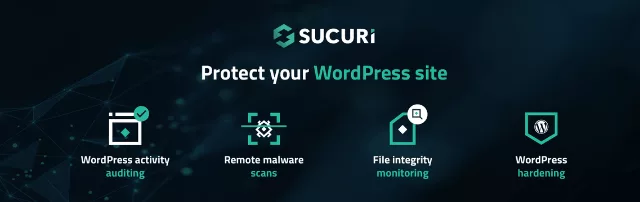
Sucuri’s free plugin offers auditing, file-integrity monitoring, malware scanning and hardening. The real value is the paid cloud firewall, which sits in front of your site as a proxy, and the human-assisted cleanup. If your site is revenue-critical and you would rather pay than learn incident response, that flat yearly fee is cheaper than a freelance emergency call-out.
The free plugin on its own does not include the network firewall, so do not mistake it for full protection.
7. Solid Security (formerly iThemes Security)
Solid Security walks you through a setup wizard, then gives you a tidy dashboard with site scans, file-change detection, user bans and strong login controls. It is excellent for hardening, but it is not a malware scanner and its firewall is basic. Note that some industry coverage reports the brand is being consolidated under a parent company, so check the vendor’s current roadmap and security-patch commitments before building a long-term stack on it.
8. All-In-One Security (AIOS)
All-In-One Security offers a clear security score, brute-force prevention, two-factor authentication, login URL renaming, a PHP-based firewall, country blocking and file-change detection. The settings are grouped into basic, intermediate and advanced, so you can tighten things gradually. The catch: no real-time malware scanning in the free version, and the malware scan is an off-site add-on. Pair it with a scanner if you pick it.
9. Jetpack Protect
Jetpack bundles backups, malware scanning, brute-force blocking, spam filtering and a CDN, all managed through a WordPress.com account. It is the easiest option if you want one vendor for several jobs. If you only want security, it can feel heavy, and the stronger features sit behind paid plans.
10. NinjaFirewall
NinjaFirewall works as a standalone web application firewall that loads ahead of WordPress, so it can stop requests before the core even starts. Readers of the competitor reviews repeatedly recommend it for keeping resource use low. It rewards people who know what they are doing: aggressive settings can break functionality that relies on serialized data, so test changes on staging.
WordPress Security Plugins Comparison Table
| Feature | Wordfence | WP Guard | Cloudflare | Patchstack | MalCare |
|---|---|---|---|---|---|
| Malware scanning | Yes | No | No | No | Yes (off-server) |
| Firewall | Endpoint WAF | Request-filter WAF | Cloud WAF | Virtual patches | Yes (paid) |
| Login protection / 2FA | Yes | Login history | Via rules / Turnstile | No | Yes |
| One-click cleanup | No (service) | No | No | No | Paid tier |
| Server load | Medium | Low (per vendor) | None (improves speed) | Low | Very low |
| Pricing model | Free + yearly | One-time | Free + monthly | Free alerts + paid | Free + yearly |
| Feature | Sucuri | Solid Security | AIOS | Jetpack | NinjaFirewall |
|---|---|---|---|---|---|
| Malware scanning | Yes | No | Limited | Yes (paid) | File check only |
| Firewall | Cloud (paid) | Basic | PHP firewall | Brute-force block | Pre-WordPress WAF |
| Login protection / 2FA | Limited | Strong | Strong | Yes | Basic |
| One-click cleanup | Paid | No | No | Backups restore | No |
| Ease of use | Easy | Very easy | Easy | Very easy | Technical |
Best Security Plugin for WordPress Free: What You Get Without Paying
If budget is the main constraint, here is the honest free stack:
- Cloudflare Free: network firewall, DDoS mitigation, SSL and CDN.
- Wordfence Free: malware scanner, endpoint firewall, 2FA, login limits. Free users get signatures and blocklists later than paying customers.
- Two-Factor (WordPress.org): only needed if your main plugin does not add 2FA.
- Patchstack Free: vulnerability alerts for installed plugins and themes.
- A free backup plugin sending copies off-site.
That combination gives a surprising amount of protection for nothing. Check out our roundup of must-have WordPress plugins for more free tools worth installing.
WordPress Security Scanner: What It Should Actually Check
A proper WordPress security scanner does more than tick off a checklist. Look for these checks:
- Core file integrity: compares WordPress files with the official release.
- Plugin and theme integrity: flags modified or abandoned code.
- Malware signatures and suspicious patterns: backdoors, obfuscated PHP, injected JavaScript.
- Database scan: spam links and malicious scripts hiding in posts and options.
- Known vulnerabilities: installed versions matched to public vulnerability databases.
- Blacklist status: whether Google Safe Browsing or spam lists flag your domain.
- Configuration: file permissions, debug mode, exposed backup files.
Security tools often export scan logs and API responses as XML or JSON. If you need to move that data between formats for a report or script, our free XML to JSON converter turns an XML export into clean JSON in a click.
How to Secure a WordPress Site Without Plugin Help
You can harden WordPress a long way without installing anything. These steps work on any host, and they are the foundation even plugin users should apply.
1. Keep everything updated
Update WordPress core, themes and plugins promptly, and delete any you do not use. Outdated plugins are the number one entry point. If you are about to update a theme, see our guide to upgrading a WordPress theme safely.
2. Use strong, unique passwords and a non-default username
Never use admin as a username, and use a password manager. If you lose access, follow our steps to reset a WordPress admin password.
3. Turn off the built-in file editor
Add this line to wp-config.php so an attacker with dashboard access cannot edit theme and plugin code:
define( 'DISALLOW_FILE_EDIT', true );4. Block direct access to sensitive files (Apache / LiteSpeed)
Add to your .htaccess file after making a backup:
# Protect wp-config.php
<files wp-config.php>
order allow,deny
deny from all
</files>

# Disable XML-RPC if you do not use Jetpack or the mobile app
<files xmlrpc.php>
order allow,deny
deny from all
</files>

# Stop directory browsing
Options -Indexes
On Nginx, use equivalent location blocks. Disabling XML-RPC can break Jetpack features and some mobile apps, so only do it if you do not need them.
5. Stop PHP from running in the uploads folder
Create wp-content/uploads/.htaccess containing:
<Files *.php>
deny from all
</Files>
6. Set correct file permissions
Directories at 755, files at 644, and wp-config.php at 440 or 400 where your host allows it.
7. Force HTTPS
Install an SSL certificate and redirect all traffic to HTTPS. See how to install an SSL certificate for the step-by-step.
8. Enable two-factor authentication and limit login attempts at the server
Many hosts offer server-level brute-force protection (ModSecurity, fail2ban) and 2FA for the hosting panel. Choose a host that takes this seriously: our list of cheap WordPress hosting under $5 helps you compare affordable options.
9. Write safe code if you build your own plugins or themes
Most self-inflicted vulnerabilities come from missing input checks. Learn sanitizing, escaping and validating data in WordPress, and follow the OWASP Top 10 web risks.
10. Back up off-site and test restores
Backups stored on the same server can be wiped in the same attack. Send them to separate storage and test a restore occasionally.
Is the no-plugin route enough? For a small, rarely changed site on a well-managed host, it can be. But you lose automatic malware scanning, alerting and file-integrity monitoring, which are exactly the things that catch problems early. For most people the best approach is both: hardening and one good plugin.
Must Have WordPress Security Plugins: A Stack That Works
No single plugin is the answer. Here are three proven stacks, depending on your site:
| Site type | Recommended stack |
|---|---|
| Blog or portfolio, tight budget | Cloudflare Free + Wordfence Free + a free off-site backup |
| WooCommerce store taking payments | Cloudflare paid or Sucuri firewall + Patchstack + Wordfence Premium or MalCare + activity log + off-site backups |
| Agency managing many client sites | Patchstack + MalCare or Wordfence Central + managed host with server-level firewall |
One rule matters more than the list: do not install two plugins that do the same job. Two scanners or two firewalls waste resources and can conflict. A network firewall plus a scanner is fine; two overlapping scanners are not. If your theme is also part of the risk, browse our cyber security WordPress themes for clean, well-coded designs.
Security and Privacy Notes for the USA, Germany, Switzerland, France and Austria
Choosing a security plugin is not only technical. Where your visitors live changes what you must disclose and how you handle logs.
- United States: state privacy laws vary, and breach-notification rules apply if customer data is exposed. Document your security measures; a store should log and retain activity records.
- Germany and Austria: the EU GDPR (DSGVO in German-speaking countries) applies. Security plugins store IP addresses in logs and live traffic views, which is personal data. Disclose it in your privacy policy, set a sensible log retention period and check whether a data-processing agreement is needed for any cloud service.
- France: GDPR applies, supervised by the CNIL. The same logging, retention and consent points apply, and hosting inside the EU simplifies data-transfer questions.
- Switzerland: the revised Federal Act on Data Protection (nDSG/FADP) governs personal data. Cloud firewalls and CDNs process visitor IPs outside Switzerland, so review transfers and your notices.
Practical tips for these markets: choose a host with data centres in or near your audience, enable HTTPS everywhere, keep log retention short, and make sure your cookie and privacy notices mention security tooling. For official guidance, see GDPR.eu. This section is general information, not legal advice, so speak to a qualified adviser for your situation.
Common WordPress Security Plugin Mistakes
- Installing several overlapping plugins and then wondering why the dashboard is slow.
- Ignoring alerts. A plugin that emails you daily is useless if the emails go to spam.
- Using nulled themes or plugins. They routinely contain backdoors. No plugin fixes that.
- Skipping updates because a scanner says the site is clean.
- Forgetting off-site backups. Detection without a clean restore point is half a plan.
- Locking yourself out by enabling country blocks or 2FA without a recovery path. Keep backup codes safe.
If something already looks wrong, your first stops are the hacked-site recovery guide and a calm look at the security checklist.
WordPress Security Plugins FAQ
What is the best WordPress security plugin?
It depends on your risk. Wordfence is the best all-in-one free choice, Cloudflare is the best network-level firewall, Patchstack is best for plugin vulnerabilities, and MalCare or Sucuri are best when you want cleanup handled for you.
What is the best security plugin for WordPress free?
Wordfence Free is the most complete free plugin because it includes a scanner, firewall and 2FA. Add the free Cloudflare plan in front of it for network protection.
Do I need a WordPress security plugin at all?
Not strictly, but it adds malware scanning, alerting and file monitoring that are hard to do manually. A host with strong server-level security reduces the need, yet a plugin remains a useful second layer.
Can I use more than one security plugin?
Use one plugin per job. A cloud firewall plus a scanner plus a login tool is fine. Two scanners or two firewalls can conflict and slow your site.
How often should I scan my WordPress site?
Daily. Most plugins can schedule this automatically. Also scan after installing any new plugin or theme.
How can I secure a WordPress site without a plugin?
Update everything, use strong passwords and 2FA, disable the file editor, block access to wp-config.php, stop PHP in uploads, set correct file permissions, force HTTPS, use a secure host and keep off-site backups.
Will a security plugin slow down my site?
Plugins that scan on your server (like Wordfence) can use resources, while off-server scanners (MalCare) and cloud firewalls (Cloudflare) barely touch your host. Tune scan frequency on shared hosting.
I have a security plugin and still got hacked. Why?
Plugins reduce risk; they do not remove it. Weak passwords, outdated plugins, nulled software and insecure hosting are the usual causes. Clean the site, patch the entry point, change all credentials and restore from a clean backup.
Is WP Guard a replacement for Wordfence?
They overlap in firewall features, but WP Guard is firewall and ban-focused while Wordfence also includes a malware scanner. Many owners pick one firewall plugin and add a separate scanner.
How much does WordPress security cost?
You can start free with Cloudflare and Wordfence. Full protection for a business site commonly lands in the range of roughly $70 to $300 per year, depending on firewall and cleanup needs.
Final Thoughts: Which WordPress Security Plugin Should You Choose?
If you only remember one thing, remember this: layers beat any single tool. Start with a secure host and a network firewall, add one scanning plugin, harden your logins, keep everything updated and back up off-site. For most sites that means Cloudflare plus Wordfence, with Patchstack added when the plugin count grows. If you like a one-time licence, WP Guard is worth a look as a firewall and anti-spam layer, and if you want a vendor to clean up for you, Sucuri or MalCare earn their fee.
Security is a habit, not a purchase. Run your scan, read the alert, apply the update. If this WordPress security plugins review helped, explore the rest of our WordPress security guides and share it with the person who manages your site.