A WordPress security checklist is the fastest way to find the gaps hackers actually exploit: weak logins, outdated plugins, exposed files, missing backups and an unprotected server. This guide walks you through 35+ practical steps, from a 10-minute quick-win list to advanced WordPress hardening code you can copy into wp-config.php, .htaccess and functions.php. It works for a personal blog, a client site or a busy WooCommerce store, and it doubles as a simple WordPress pentest checklist you can run against your own site every quarter.
Before you start, take a full backup. Several steps below edit core configuration files, and a backup turns any mistake into a two-minute fix instead of an outage. Not sure how to test changes safely? Set up a copy on your computer first with our WordPress localhost guide and try the edits there.
Why a WordPress Security Checklist Matters
WordPress powers a very large share of the web (see our breakdown of the percentage of websites using WordPress), which makes it a favourite target. Attackers rarely pick sites one by one. They run automated scanners that look for the same few weaknesses everywhere: an outdated plugin with a known vulnerability, a guessable password, an exposed backup file, or a login page with no rate limiting.
The good news is that this works in your favour. If you close the common doors, automated attacks move on to easier targets. Public vulnerability databases such as WPScan and Wordfence Intelligence consistently show that most successful WordPress compromises trace back to vulnerable plugins and themes and to stolen or weak credentials, not to flaws in WordPress core itself. A checklist makes sure nothing slips through the cracks.
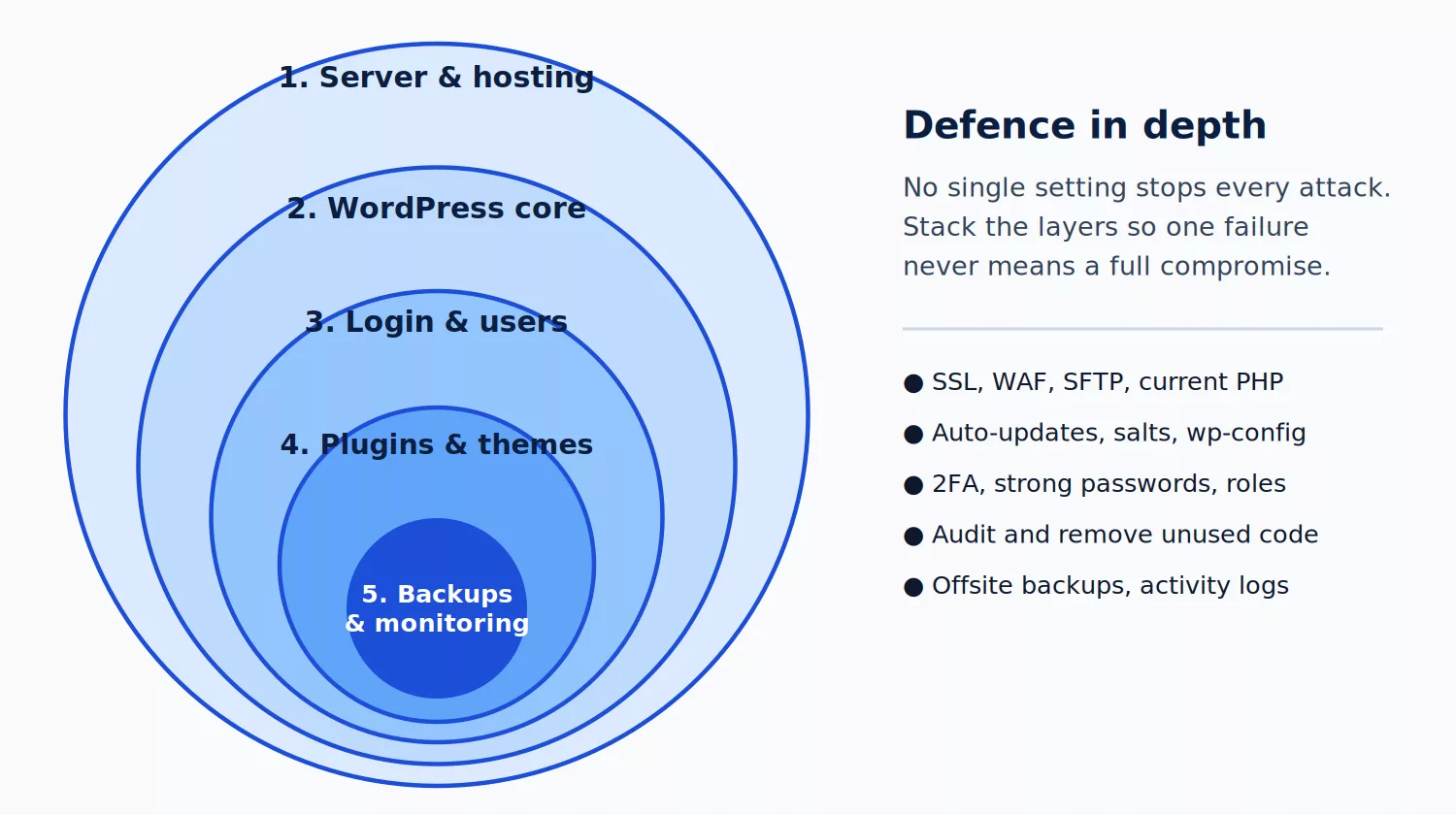
Think in layers, not single fixes. The checklist below follows the same structure as the diagram: server, WordPress core, login and users, plugins and themes, then backups and monitoring. If one layer fails, the next one still protects you. The official WordPress hardening documentation and the OWASP Top 10 are the two best references if you want to go deeper.
The 10-Minute Quick-Win Checklist
Short on time? Do these seven things today. They block the majority of real-world attacks and need no coding.
| # | Quick win | Time | Section |
|---|---|---|---|
| 1 | Update WordPress core, every plugin and every theme | 3 min | Updates |
| 2 | Delete unused plugins and themes | 2 min | Plugins and themes |
| 3 | Replace the admin username and set strong, unique passwords | 2 min | Admin area |
| 4 | Turn on two-factor authentication for every admin and editor | 3 min | Admin area |
| 5 | Confirm your site loads over HTTPS everywhere | 1 min | HTTPS |
| 6 | Confirm automatic offsite backups are running | 2 min | Backups |
| 7 | Install one reputable security plugin with a firewall and scanner | 3 min | Firewall |
1.) Keep WordPress Core, Themes and Plugins Updated
Outdated software is the single most common way sites get hacked. When a vulnerability is disclosed, attackers start scanning for unpatched sites within hours. Updating quickly closes that window.
1.1 :- Enable Automatic Updates
WordPress installs minor core security releases automatically. You can extend automatic updates to plugins and themes from Dashboard → Updates or the Plugins screen. On a WooCommerce store, test major updates on a staging copy first (our guide to upgrading a WordPress theme shows a safe workflow). To force automatic updates for every plugin and theme, add this to a small must-use plugin or your child theme:
add_filter( 'auto_update_plugin', '__return_true' );
add_filter( 'auto_update_theme', '__return_true' );
1.2 :- Use a Child Theme for Customisations
Editing a parent theme means your changes, and any security patches, fight each other on update. A child theme keeps your code separate so you can update the parent theme the moment a fix ships.
1.3 :- Track Versions of What You Run
Know exactly which plugin and theme versions are installed on each site. Our article on version control for WordPress plugins explains how to keep a reliable record and roll back a bad update.
1.4 :- Run a Supported PHP Version
Old PHP versions stop receiving security patches. Check Tools → Site Health → Info → Server and ask your host to move you to a currently supported PHP release. Test first, because very old plugins may not run on newer PHP.
2.) Protect Your WordPress Admin Area
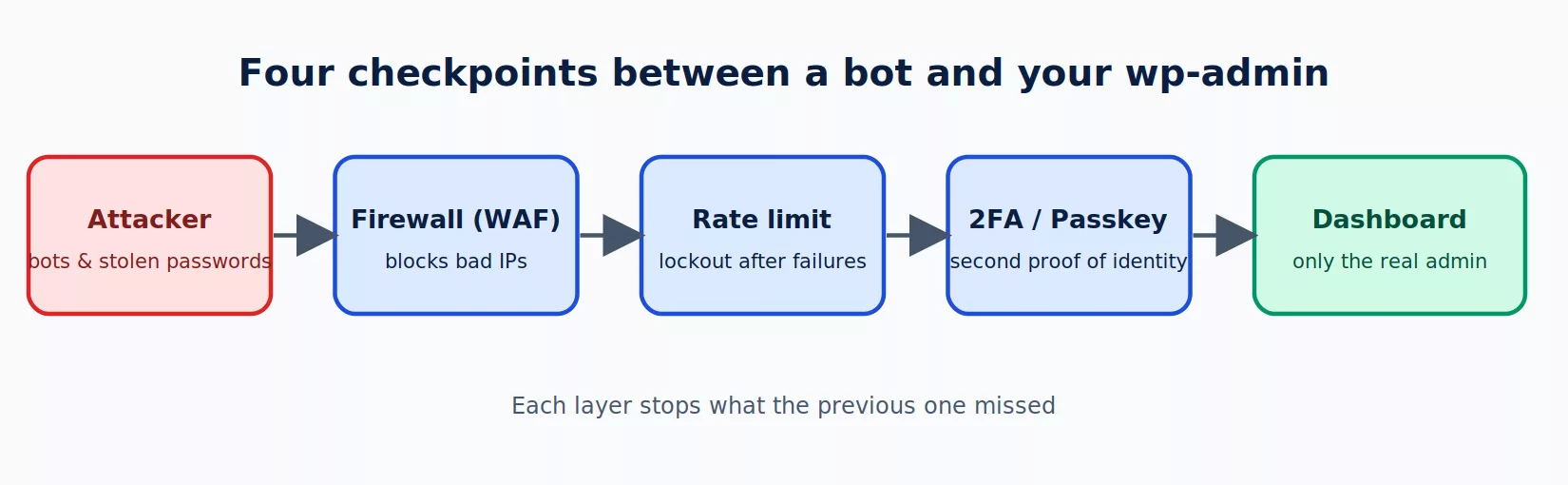
The WordPress admin area is the front door to your whole site. In this WordPress hardening checklist we make that door harder to find, harder to guess and harder to walk through even with a stolen password.
2.1 :- Use a Unique Username and a Strong Password
Never use admin as a username, and never reuse a password from another site. Use a password manager to generate a long random password or passphrase of 16 or more characters. If you are not sure whether a password has leaked, check the email address at Have I Been Pwned. If you ever get locked out, follow our WordPress admin password reset guide.
2.2 :- Turn On Two-Factor Authentication (2FA)
2FA means a stolen password alone is useless. Use an authenticator app or a hardware key rather than SMS where possible. The free official Two-Factor plugin supports authenticator apps, email codes and security keys, and many security plugins bundle 2FA too. Enforce it for every Administrator, Editor and Shop Manager account.
2.3 :- Limit Failed Login Attempts
Brute-force bots try thousands of passwords. Lock an IP address out after a few failures with a plugin such as Limit Login Attempts Reloaded, or use the rate-limiting feature of your firewall or CDN.
2.4 :- Change the Default Login URL
Every WordPress site has /wp-login.php and /wp-admin. Moving them to a custom slug with a plugin such as WPS Hide Login removes most automated noise from your logs. Treat this as a bonus layer, not a replacement for 2FA, because a determined attacker can still discover a custom URL.
2.5 :- Restrict wp-login.php by IP Address
If only you or your team log in, allow just those IP addresses. The old trick of calling a third-party geo-IP service from functions.php is slow and unreliable, so do it at the server level instead. On Apache 2.4 add this to the .htaccess file in your site root:
<Files wp-login.php>
    Require ip 203.0.113.10
    Require ip 198.51.100.0/24
</Files>
Replace the example addresses with your own. For /wp-admin/, place a separate .htaccess inside the wp-admin folder and keep admin-ajax.php reachable, otherwise front-end features that use AJAX will break:
Require ip 203.0.113.10

<Files admin-ajax.php>
    Require all granted
</Files>
On Nginx the equivalent is an allow / deny all pair inside location = /wp-login.php. If your IP changes often, use a VPN with a fixed address or skip this step and rely on 2FA.
2.6 :- Disable Application Passwords if You Do Not Use Them
Application Passwords let tools authenticate to the REST API. If nothing on your site needs them, turn the feature off:
add_filter( 'wp_is_application_passwords_available', '__return_false' );2.7 :- Log Out Idle Sessions and Review Active Logins
Shorter sessions limit the damage of a stolen cookie. Check Users → Profile → Log Out Everywhere Else after any suspicious event, and use an activity-log plugin (see firewall and monitoring) to review who logged in and from where.
3.) Users, Roles and Permissions
Give every person the lowest role that lets them do their job. A writer needs Author, not Administrator. Fewer administrators means fewer high-value accounts to steal.
| Role | Can do | Give it to |
|---|---|---|
| Administrator | Everything, including installing plugins and editing users | 1 to 2 trusted people |
| Editor | Publish and manage all posts and pages | Content managers |
| Author | Publish and manage their own posts | Regular writers |
| Contributor | Write posts but not publish | Guest writers |
| Subscriber / Customer | Manage their own profile or orders | Members and shoppers |
Audit the user list every quarter, delete accounts of people who have left, and never share one login between several people.
4.) Enable HTTPS Encryption with an SSL Certificate
In any WordPress website security checklist, HTTPS is non-negotiable. It encrypts data between the visitor and your server, so passwords, form entries and card details cannot be read or altered in transit. It also builds visitor trust and is a lightweight search ranking signal. Most hosts now provide a free certificate from Let’s Encrypt. If you need step-by-step help, follow our guide to install an SSL certificate on WordPress.
After the certificate is active, force secure logins and admin sessions by adding this to wp-config.php:
define( 'FORCE_SSL_ADMIN', true ); // Force SSL for wp-admin and the login pageNote that the older FORCE_SSL_LOGIN constant is deprecated, and FORCE_SSL_ADMIN already covers the login page. Then confirm the whole site, including images and scripts, loads without “mixed content” warnings. If you have recently moved from HTTP to HTTPS, our guide on how to change URLs in the WordPress database shows how to update old links safely. Test your configuration with the free Qualys SSL Labs test.
5.) Harden wp-config.php
Your wp-config.php file holds database credentials and security keys, so it deserves special care. Back it up before editing.
5.1 :- Disable the Built-In File Editor
The theme and plugin editor lets anyone with admin access change PHP files from the dashboard. If an attacker steals an admin session, that editor is an instant backdoor. Switch it off:
define( 'DISALLOW_FILE_EDIT', true ); // Disable the theme and plugin code editorAbout DISALLOW_FILE_MODS: this stronger constant also blocks installing and updating plugins, themes and core from the dashboard. It is useful on locked-down sites updated through Git or WP-CLI, but it will stop automatic updates, so do not enable it unless you have another update process.
5.2 :- Block Unwanted Outgoing Requests
Malicious code often “phones home” to download more malware. You can block external HTTP requests and allow only the hosts you trust:
define( 'WP_HTTP_BLOCK_EXTERNAL', true );
define( 'WP_ACCESSIBLE_HOSTS', 'api.wordpress.org,*.wordpress.org,*.github.com' );
Be careful: licence checks, payment gateways, shipping APIs and update servers for premium plugins also make external requests. Add every host your site really needs to WP_ACCESSIBLE_HOSTS and test checkout, updates and forms afterwards.
5.3 :- Turn Off Error Display in Production
Visible PHP errors can leak file paths, plugin names and database details. On a live site use:
define( 'WP_DEBUG', false );
define( 'WP_DEBUG_LOG', false );
define( 'WP_DEBUG_DISPLAY', false );
@ini_set( 'display_errors', 0 );
If you are troubleshooting a white screen or an HTTP 500 internal server error, enable WP_DEBUG_LOG temporarily, read the log, then switch it off again. Our list of common WordPress errors covers the usual suspects.
5.4 :- Move wp-config.php Above the Web Root
WordPress will load wp-config.php from one directory above the install folder. Moving it there means the file can never be served by the web server, even if a rule breaks. Skip this on hosts where you cannot access the folder above public_html.
5.5 :- Limit Post Revisions and Empty the Trash (Optional)
This is more of a hygiene step than a security one, but leaner databases back up and restore faster. A common setting is define( ‘WP_POST_REVISIONS’, 5 );.
6.) Proper File Permissions and Ownership
Correct permissions stop other users on a shared server, and any compromised script, from rewriting your files. The standard recommendation is 755 for folders and 644 for files, with wp-config.php at 400 or 440 (use the strictest value your host allows).
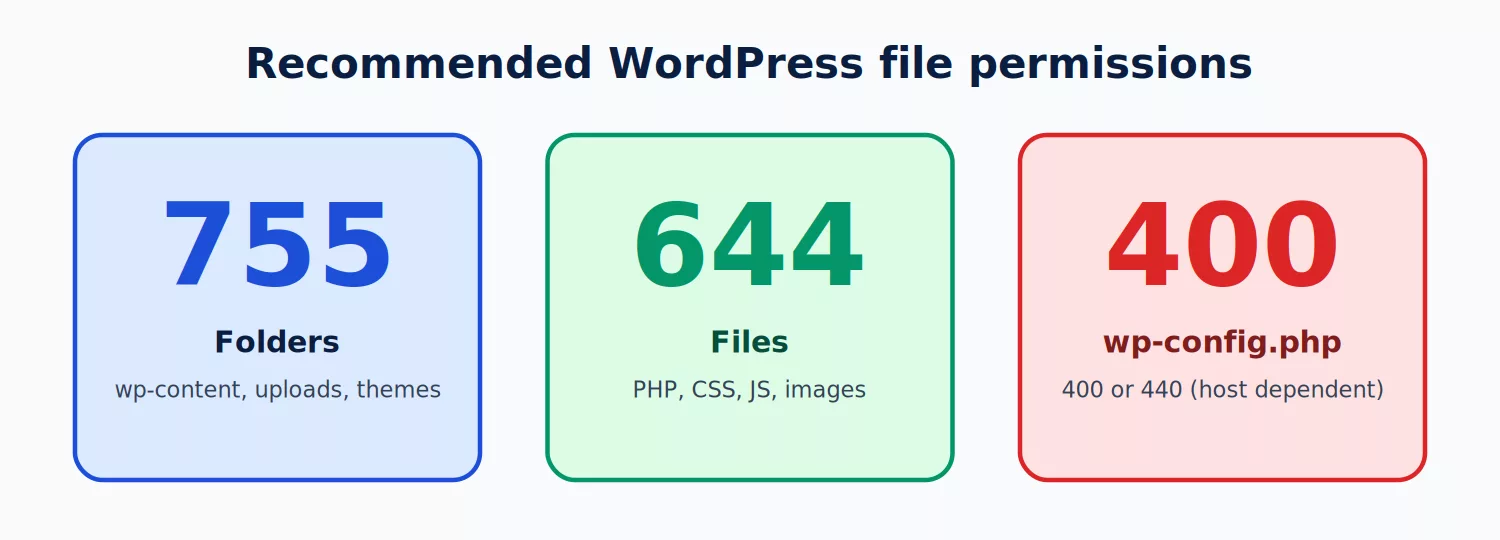
Over SSH, run these from your WordPress root:
find . -type d -exec chmod 755 {} \;
find . -type f -exec chmod 644 {} \;
chmod 400 wp-config.php
Never use 777. It lets anyone write to the file. Also make sure files are owned by your hosting user, not by root. If you share files with clients or teammates, our roundup of the best WordPress file sharing plugins shows safer ways than opening up permissions.
6.1 :- Block PHP Execution in the Uploads Folder
The wp-content/uploads folder should only ever contain media. If an attacker uploads a PHP shell there, blocking execution stops it from running. Create wp-content/uploads/.htaccess with:
<Files *.php>
    Require all denied
</Files>
On Nginx add location ~* /wp-content/uploads/.*\.php$ { deny all; } to your server block. If you raise upload limits for large media, our guide to the maximum upload file size in WordPress explains how to do it without weakening security.
7.) Tune .htaccess (and Nginx) for WordPress Security
On Apache and LiteSpeed hosting the .htaccess file is a powerful security layer. The snippets below use modern Apache 2.4 syntax. Always keep a copy of your working file before adding rules.
7.1 :- Disable Directory Browsing
Directory listing lets anyone browse folders that have no index file and find sensitive files. Turn it off:
Options -IndexesTest by opening yourdomain.com/wp-content/uploads/. You should see a 403 error, not a file list.
7.2 :- Protect wp-config.php and .htaccess
<FilesMatch "^(wp-config\.php|\.htaccess|readme\.html|license\.txt)$">
    Require all denied
</FilesMatch>
This also hides readme.html and license.txt, which reveal your WordPress version. WordPress recreates those two files on each core update, so blocking them in .htaccess is more durable than deleting them by hand.
7.3 :- Block Suspicious Query Strings
This classic rule set blocks common script-injection and global-variable probes. Place it above the # BEGIN WordPress block:
<IfModule mod_rewrite.c>
RewriteEngine On
RewriteCond %{QUERY_STRING} (<|%3C).*script.*(>|%3E) [NC,OR]
RewriteCond %{QUERY_STRING} GLOBALS(=|\[|\%[0-9A-Z]{0,2}) [OR]
RewriteCond %{QUERY_STRING} _REQUEST(=|\[|\%[0-9A-Z]{0,2})
RewriteRule ^(.*)$ - [F,L]
</IfModule>
Treat this as a light filter, not real SQL-injection protection. A proper web application firewall and safe code are the real defence. If you build plugins or themes, read our guide on sanitizing, escaping and validating data in WordPress, because that is where injection bugs are actually prevented.
7.4 :- Block Hotlinking
Hotlinking lets other sites embed your images and burn your bandwidth. On Apache:
RewriteEngine On
RewriteCond %{HTTP_REFERER} !^$
RewriteCond %{HTTP_REFERER} !^https?://(www\.)?yourdomain\.com/ [NC]
RewriteRule \.(jpg|jpeg|png|gif|webp|mp4)$ - [F,NC,L]
On Nginx:
location ~* \.(jpg|jpeg|png|gif|webp|mp4)$ {
    valid_referers none blocked yourdomain.com *.yourdomain.com;
    if ($invalid_referer) {
        return 403;
    }
}
If you run Nginx, our posts on optimizing performance with Nginx and Nginx vs LiteSpeed help you pick and tune the right stack. Remember that Nginx ignores .htaccess entirely, so every rule in this section needs an Nginx version in your server config.
8.) Disable XML-RPC and Stop User Enumeration
8.1 :- Disable XML-RPC
xmlrpc.php is a legacy remote-access endpoint that attackers abuse for brute-force amplification and DDoS pingbacks. Most sites do not need it. Disable it in PHP:
add_filter( 'xmlrpc_enabled', '__return_false' );That filter stops XML-RPC from working, but the file still receives requests. To block them before WordPress loads, add this to .htaccess:
<Files xmlrpc.php>
    Require all denied
</Files>
Skip this step if you use the Jetpack plugin or an older mobile app that relies on XML-RPC.
8.2 :- Hide Usernames from Public Endpoints
Bots find valid usernames through /?author=1 and the REST route /wp-json/wp/v2/users. Once they have a username, they only need the password. Hide the REST user list from logged-out visitors:
add_filter( 'rest_endpoints', function ( $endpoints ) {
    if ( ! is_user_logged_in() ) {
        unset( $endpoints['/wp/v2/users'] );
        unset( $endpoints['/wp/v2/users/(?P<id>[\d]+)'] );
    }
    return $endpoints;
} );
Also make sure your public display name is different from your login name under Users → Profile.
8.3 :- Hide the WordPress Version
Version numbers help attackers match your site to known exploits. Remove the generator tag from both your page head and your feeds:
remove_action( 'wp_head', 'wp_generator' );
add_filter( 'the_generator', '__return_empty_string' );
Put these in a child theme or a small custom plugin so they survive theme changes. For more snippets like these, browse our collection of useful code snippets for WordPress. Hiding the version is only security through obscurity, so keep WordPress updated either way.
9.) Secure the Database
9.1 :- Change the Default Table Prefix
By default WordPress tables begin with wp_, which blind SQL-injection scripts expect. A custom prefix such as a7x_ removes that easy guess. The cleanest time to do it is during installation. On an existing site, take a full backup first, because changing the prefix means updating $table_prefix in wp-config.php, renaming every table, and fixing prefixed rows in the options and usermeta tables. Use a reputable plugin or WP-CLI for the job rather than editing by hand.
9.2 :- Use a Dedicated Database User with Limited Rights
Each site should have its own database and its own user, with a long random password. Never reuse the database credentials across sites, and never use the MySQL root account for WordPress.
9.3 :- Write Safe Queries
If you or your developer write custom queries, always use $wpdb->prepare() with placeholders and never concatenate user input into SQL. Prepared statements are the most reliable way to prevent SQL injection.
9.4 :- Keep Database Tools Private
Do not leave phpMyAdmin, Adminer or database dump files on a public URL. Remove them when you are done, or protect them with IP restrictions and a separate password.
10.) Update SALT Security Keys
Authentication keys and salts protect login cookies and sessions. Rotating them logs everyone out and invalidates any stolen cookies, which is exactly what you want after a suspected compromise or when a staff member leaves. To refresh them:
- Open the WordPress SALT key generator to get a fresh set.
- Open wp-config.php and find the eight lines beginning with AUTH_KEY through NONCE_SALT.
- Replace them with the new values and save the file.
define( 'AUTH_KEY',         'put your unique phrase here' );
define( 'SECURE_AUTH_KEY',  'put your unique phrase here' );
define( 'LOGGED_IN_KEY',    'put your unique phrase here' );
define( 'NONCE_KEY',        'put your unique phrase here' );
define( 'AUTH_SALT',        'put your unique phrase here' );
define( 'SECURE_AUTH_SALT', 'put your unique phrase here' );
define( 'LOGGED_IN_SALT',   'put your unique phrase here' );
define( 'NONCE_SALT',       'put your unique phrase here' );
With WP-CLI installed, the one-line shortcut is wp config shuffle-salts.
11.) Add Security Headers
HTTP security headers tell the browser how to treat your pages, which blocks clickjacking, MIME sniffing and some cross-site scripting. Add these to .htaccess (requires mod_headers):
<IfModule mod_headers.c>
    Header always set X-Content-Type-Options "nosniff"
    Header always set X-Frame-Options "SAMEORIGIN"
    Header always set Referrer-Policy "strict-origin-when-cross-origin"
    Header always set Permissions-Policy "camera=(), microphone=(), geolocation=()"
    Header always set Strict-Transport-Security "max-age=31536000; includeSubDomains"
</IfModule>| Header | What it prevents |
|---|---|
| X-Content-Type-Options | Browsers guessing file types and running disguised scripts |
| X-Frame-Options | Clickjacking through hidden iframes |
| Referrer-Policy | Leaking full URLs to other sites |
| Permissions-Policy | Unwanted access to camera, microphone and location |
| Strict-Transport-Security (HSTS) | Downgrade attacks to plain HTTP |
| Content-Security-Policy (CSP) | Cross-site scripting by restricting script and style sources |
Only enable HSTS once HTTPS works on every page and subdomain, because browsers will refuse HTTP for the full max-age period. A Content-Security-Policy is the most powerful header but also the easiest to break, since WordPress themes and plugins load many inline scripts. Start with Content-Security-Policy-Report-Only and fix violations before enforcing it. Check your result at securityheaders.com.
12.) Vet Plugins and Themes
Vulnerable plugins and themes are the leading cause of WordPress compromises, so choose and maintain them carefully. Apply these rules every time you install something:
- Use trusted sources. Download from the WordPress.org directory or a reputable developer. Never install “nulled” or pirated premium plugins, which very often ship with hidden backdoors.
- Check activity. Look at the last update date, active installs, support responses and the changelog. Abandoned code is a risk.
- Search known vulnerabilities. Look the plugin up in the WPScan plugin database before installing.
- Remove what you do not use. Deactivated plugins can still be exploited. Delete them, do not just switch them off.
- Keep your stack lean. Every extra plugin adds attack surface and slows your site. Our list of must-have WordPress plugins is a good starting point, and WooCommerce owners should review the essential plugins for WooCommerce.
Choosing a theme? Pick one that follows the official coding rules. Our guide to WordPress theme standards explains what a well-built theme looks like, and you can browse well-coded options in our lists of free WordPress themes and the fastest WordPress themes. If you need to switch, follow our step-by-step guide to changing your WordPress theme.
13.) Firewall, Malware Scanning and Monitoring
Once the basics are in place, add automatic protection and visibility. A security plugin or cloud firewall gives you a web application firewall (WAF), malware scanning, login protection and alerts in one place. The table compares popular options. Features and pricing change, so check each vendor’s current plan details before buying.
| Tool | Best for | Link |
|---|---|---|
| Wordfence | Endpoint firewall, malware scanner and login security in one plugin | wordpress.org |
| All-in-One Security (AIOS) | Beginner-friendly hardening checklist with many one-click fixes | wordpress.org |
| Jetpack Protect (WPScan data) | Vulnerability scanning powered by the WPScan database | wordpress.org |
| Sucuri | Cloud firewall, malware cleanup and hardening | sucuri.net |
| Patchstack | Virtual patching for newly disclosed plugin vulnerabilities | patchstack.com |
| Cloudflare | CDN, DDoS protection and edge WAF rules in front of your server | cloudflare.com |
| WP Activity Log | Audit trail showing who changed what and when | wordpress.org |
Install one main security plugin, not three. Overlapping firewalls conflict and slow your site. Pair it with an activity log so you can see logins, plugin changes and user edits, and enable email or Slack alerts for critical events such as a new administrator being created. A CDN also helps performance as well as protection, see our cloud hosting providers comparison for a hosting layer that includes network-level protection. Running a store? Our list of the fastest WooCommerce hosting options covers hosts with built-in security tooling.
14.) Backups: Your Safety Net
No security setup is perfect. A clean, recent backup is the difference between a bad afternoon and losing your business. Follow the 3-2-1 rule.
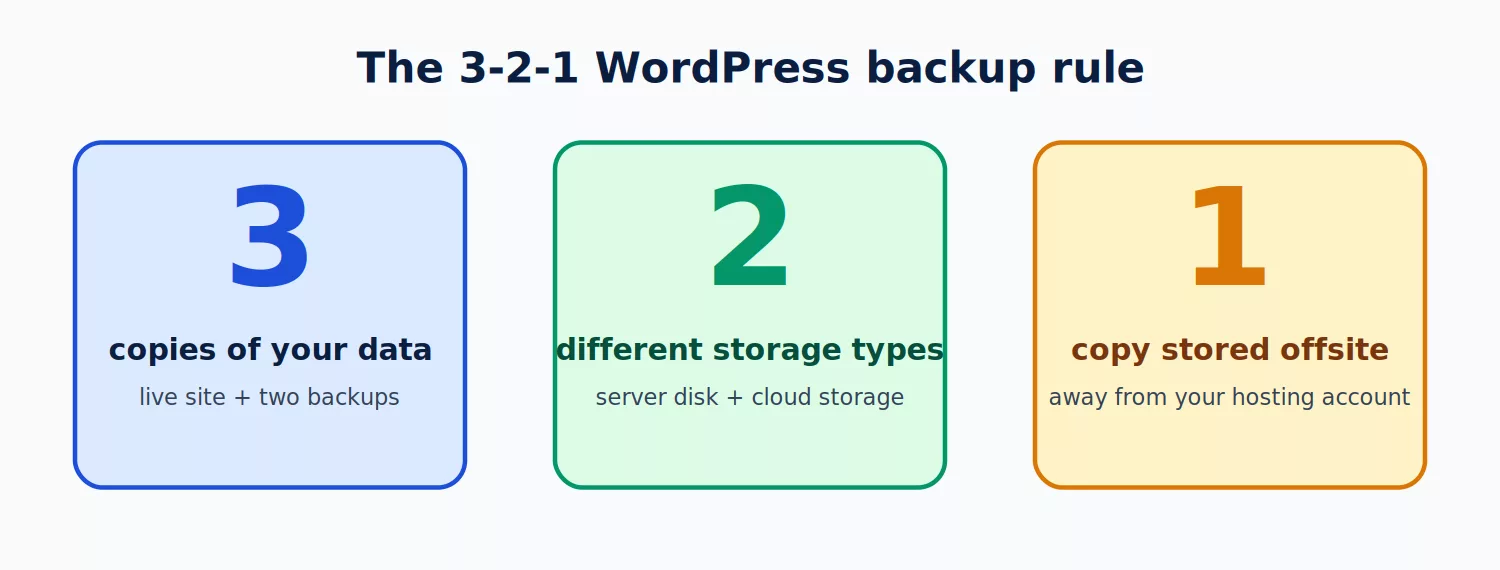
- Back up both files and database. Plugins such as UpdraftPlus automate both and send copies to cloud storage.
- Schedule by how often you change content. A static brochure site may need weekly backups. A WooCommerce store needs daily or real-time backups so no order is lost.
- Store a copy offsite. Backups kept only on the same server disappear with it.
- Test your restore. A backup you have never restored is only a hope. Try a restore on a staging site at least twice a year.
15.) Server and Hosting Security
Even a perfectly hardened WordPress install is exposed if the server is weak. Check these basics with your host:
- Use SFTP or SSH, never plain FTP. FTP sends your password in clear text. Disable it if your host allows.
- Keep file transfers and the control panel protected with 2FA and strong passwords.
- Isolate sites. On shared servers, choose a host that isolates accounts so a neighbouring hacked site cannot reach yours. A hacked site in the same account can infect all the others, so avoid stacking many unrelated sites in one account.
- Choose a host with server-level firewall, malware scanning and daily backups. These save you from paying twice for the same protection in plugins.
- Update server software. Make sure PHP, MySQL or MariaDB and the web server are on supported versions. If you manage your own server, our guide to installing Nginx, PageSpeed, MariaDB and PHP is a solid base.
- Multisite owners: a compromised network affects every site in it. Read our guide to a WordPress multisite network and limit Super Admin access tightly.
16.) What to Do If Your Site Is Hacked
Despite your best efforts, an incident can still happen. Stay calm and work through this order:
- Put the site in maintenance mode or block public access so visitors are not exposed.
- Change every password: WordPress admins, hosting panel, SFTP, database and email.
- Rotate the SALT keys to kill all active sessions.
- Scan and clean with a malware scanner, then remove unknown users, plugins and files.
- Reinstall core, plugins and themes from fresh official copies.
- Restore from a clean backup if cleanup is not certain.
- Find the cause (usually an outdated plugin or stolen password) and close it so it cannot repeat.
We cover the process in detail in our guide to how to recover a hacked WordPress site.
17.) Security Maintenance Schedule
Security is a habit, not a one-time project. Use this schedule to keep it that way.
| How often | Task |
|---|---|
| Daily (automated) | Offsite backup, malware scan, firewall rules and login protection |
| Weekly | Apply plugin and theme updates, review activity log and failed logins |
| Monthly | Check backups restore correctly, review user list and delete unused plugins |
| Quarterly | Review roles and permissions, test security headers and SSL, scan with a vulnerability tool, rotate salts if needed |
| Yearly | Review hosting plan, PHP version, 2FA coverage and this whole checklist |
18.) Printable Master Checklist
Copy this list into a document and tick items off as you go.
Updates and software
- ☐ WordPress core, plugins and themes updated
- ☐ Automatic updates enabled where safe
- ☐ Supported PHP version running
- ☐ Unused plugins and themes deleted
- ☐ Child theme used for customisations
Login and users
- ☐ No admin username
- ☐ Strong unique passwords with a password manager
- ☐ 2FA on all privileged accounts
- ☐ Login attempts limited
- ☐ Custom login URL or IP restriction (optional extra)
- ☐ Lowest necessary user roles assigned
- ☐ Application Passwords disabled if unused
Configuration and files
- ☐ HTTPS with FORCE_SSL_ADMIN
- ☐ DISALLOW_FILE_EDIT set
- ☐ Debug display off in production
- ☐ Permissions 755 / 644, wp-config.php 400 or 440
- ☐ Directory browsing disabled
- ☐ PHP execution blocked in uploads
- ☐ wp-config.php and .htaccess not publicly readable
- ☐ XML-RPC disabled if unused
- ☐ Usernames hidden from REST and author URLs
- ☐ Security headers added
- ☐ Fresh SALT keys
Database, backups and monitoring
- ☐ Custom table prefix and a dedicated database user
- ☐ Daily or real-time backups stored offsite and tested
- ☐ One firewall and malware scanner active
- ☐ Activity log and alerts enabled
- ☐ SFTP/SSH only, no plain FTP
- ☐ Hosting provider with server-level protection
Frequently Asked Questions
What is the most important WordPress security step?
Keeping WordPress core, plugins and themes updated, together with strong passwords and two-factor authentication. Together these block the large majority of attacks. After that, reliable offsite backups protect you from everything else.
Is WordPress secure?
WordPress core is actively maintained and generally secure. Most breaches come from outdated or poorly coded plugins and themes, weak passwords and insecure hosting. Following a checklist like this one removes those weak points.
Do I need a security plugin?
It is strongly recommended. A good plugin adds a firewall, malware scanning, login protection and alerts that are hard to replicate manually. It is not a substitute for updates, backups and strong credentials.
How often should I run a WordPress security check?
Automate daily scans and backups, check updates and logs weekly, and do a full review of this checklist quarterly. Run an extra check after installing new plugins, changing hosts or removing a team member.
Should I change the WordPress login URL?
It reduces automated bot traffic and log noise, so it is a useful extra layer. It should not be your only protection. Pair it with 2FA and login-attempt limits.
Is it safe to disable XML-RPC?
Yes, for most sites. Only keep it enabled if you use Jetpack or an older app that depends on it. Disabling it removes a common brute-force and DDoS entry point.
What file permissions should WordPress use?
Use 755 for directories, 644 for files and 400 or 440 for wp-config.php. Avoid 777, which gives everyone write access.
Does an SSL certificate make my site fully secure?
No. SSL encrypts data in transit, which is essential, but it does not stop vulnerable plugins, weak passwords or malware. HTTPS is one layer of the checklist, not the whole thing.
What should I do first if I think my site was hacked?
Take the site offline or into maintenance mode, change all passwords, rotate the SALT keys, scan and clean, then restore from a known-clean backup. Our hacked WordPress recovery guide has the full process.
Conclusion
A solid WordPress security checklist is not about doing everything in one weekend. It is about closing the biggest gaps first (updates, passwords, 2FA, backups), then layering in hardening, headers, monitoring and good hosting. Start with the 10-minute quick wins, work through the sections that match your setup, and put the maintenance schedule in your calendar so protection never lapses.
Building something new? Start secure by choosing quality code from the beginning: see how to create a WordPress website, learn what WordPress is and how it works, and pick a trustworthy design from our guide to WordPress theme providers. Bookmark this page and share it with anyone who manages a WordPress site, because the best security plan is the one that actually gets followed.