
Chrome’s built-in DevTools are great, but they are only the starting line. The right chrome web developer extension can turn a 10-minute debugging session into a 30-second one: inspect React state without console.log, spot the theme and plugins behind a WordPress site, mock an API response, or test a layout at six screen sizes without leaving the tab.
The problem is the Chrome Web Store is crowded. Thousands of tools claim to be essential, and many are abandoned, bloated or ask for permissions they do not need. So we narrowed it down. This guide covers the 15 best Chrome extensions for web developers, grouped by what you actually do all day: debug frameworks, inspect and design, test requests and APIs, check quality and accessibility, and work with WordPress.
Quick answer: if you only install three, start with React Developer Tools (framework debugging), Lighthouse (performance and SEO audits) and Requestly (headers, redirects and API mocking). WordPress developers should add WordPress Theme Detector and Plugin Detector and InstaWP Launcher.
Chrome Developer Tools: What You Already Have
Before adding anything, know what Chrome developer tools already do. Press F12 (or Ctrl+Shift+I on Windows and Linux, Cmd+Option+I on Mac) and you get a full toolkit that is documented in detail on the official Chrome DevTools documentation:
- Elements: inspect and live-edit the DOM and CSS.
- Console: run JavaScript, read errors and warnings.
- Sources: set breakpoints and step through code.
- Network: watch every request, check status codes, headers and timing.
- Performance and Lighthouse: profile rendering and audit pages.
- Application: inspect cookies, local storage, service workers and caches.
Extensions do not replace DevTools. They add what DevTools does not know about, such as your React component tree, your Redux store, or which CMS a website runs on, and they save clicks on tasks you repeat every day.
How We Picked the Best Chrome Extensions for Developers
We compared the three best-known roundups on this topic and noticed two gaps: they lean on bug-reporting and feedback products, and they barely mention React tooling or WordPress. So we built this list differently. Each extension had to meet most of these tests:
- Solves a real, repeated developer task, not a nice-to-have.
- Actively maintained and compatible with Chrome’s current extension platform.
- Asks only for permissions that match what it does.
- Works well alongside DevTools instead of duplicating it.
- Free to start, or free for the features most developers need.
- Useful for modern stacks: React and Redux, REST APIs, WordPress and responsive front ends.
Extension features, pricing and ratings change often, so always check the live Chrome Web Store listing before you install.
Quick Comparison of All 15 Chrome Extensions for Web Developers
| Extension | Category | Best For |
|---|---|---|
| React Developer Tools | Framework debugging | Inspecting React components, props, state and hooks |
| Web Developer | Inspect and design | One-click toolbar to disable CSS, JS, cookies and outline elements |
| Lighthouse | Quality | Performance, accessibility, best practices and SEO audits |
| WordPress Theme Detector and Plugin Detector | WordPress | Finding the theme and plugins on any WordPress site |
| InstaWP Launcher | WordPress | Spinning up a test WordPress site for a theme or plugin |
| Wappalyzer | Tech detection | Identifying CMS, frameworks, libraries and analytics tools |
| Redux DevTools | Framework debugging | Tracing state changes and time-travel debugging |
| Requestly | Network and APIs | Redirects, header edits, API mocking and throttling |
| ModHeader | Network and APIs | Modifying HTTP request and response headers |
| JSONView | Network and APIs | Reading raw JSON in a clean, collapsible tree |
| CSSViewer | Inspect and design | Hover-to-read CSS properties without opening DevTools |
| ColorZilla | Inspect and design | Eyedropper, color history and gradients |
| Window Resizer | Inspect and design | Testing breakpoints at preset screen sizes |
| WAVE Evaluation Tool | Quality | Spotting accessibility errors visually on the page |
| VisBug | Inspect and design | Editing and mocking up a live page visually |
1. React Developer Tools: Best Chrome Extension for Debugging React Apps
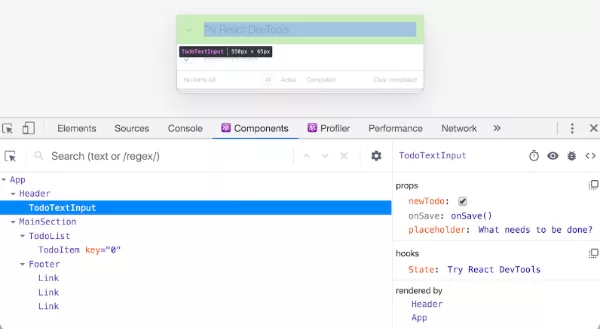
If you build with React, this is the first react developer tools chrome install you should make. It adds Components and Profiler tabs to Chrome DevTools, so you can browse your component tree like a file explorer instead of guessing what rendered what. The official React documentation on developer tools explains setup for browsers and for apps running in other environments.
Key features:
- Inspect and edit props, state and hooks in real time.
- Search the component tree and jump from a DOM node to its component.
- Highlight components that re-render and use the Profiler to find slow ones.
- Works with Next.js, Vite and Create React App projects.
Pro tip: pair it with the Profiler when a page feels sluggish. Often a single parent component re-renders a long list unnecessarily, and the flame graph shows it in seconds.
Check It Now (React Developer Tools)
2. Web Developer: Best All-in-One Toolbar for Quick Page Checks
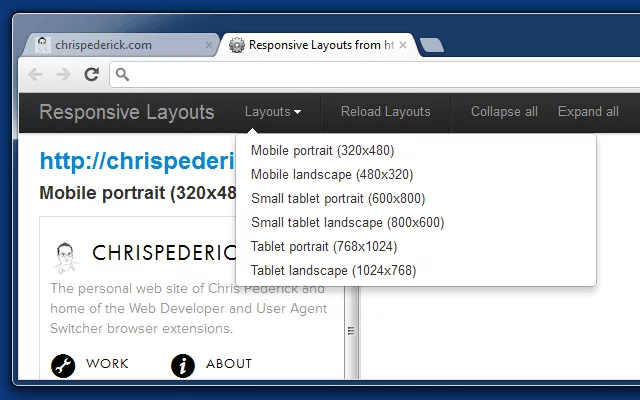
The classic web developer extension for Chrome, created by Chris Pederick, puts dozens of small utilities in one toolbar menu. It is not flashy, but it handles the tiny jobs that would take several clicks in DevTools.
Key features:
- Disable JavaScript, CSS, cookies or images to see how a page behaves without them.
- Outline headings, tables, links or block-level elements with one click.
- Find broken images, display image dimensions and view alt text.
- Show form details, resize the window and display rulers.
Pro tip: use “Disable JavaScript” to check what search engines and slow connections see first. It is a quick way to catch content that only appears after scripts run. If you work on markup often, a free HTML minifier and beautifier is a handy companion for cleaning up what you find.
3. Lighthouse: Best Chrome Extension for Performance and SEO Audits
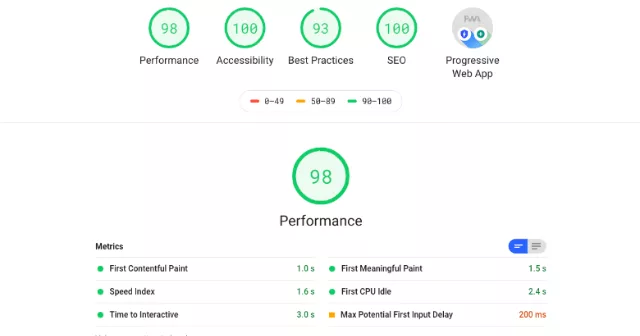
Lighthouse scores a page for performance, accessibility, best practices and SEO, then lists exactly what to fix. It is also built into DevTools, but the extension is convenient for running a quick audit without opening the full panel. The official Lighthouse overview explains each score and metric.
Key features:
- Core Web Vitals-related metrics such as Largest Contentful Paint and Cumulative Layout Shift.
- Prioritized opportunities, like resizing images or removing unused JavaScript.
- Separate mobile and desktop runs.
- Shareable HTML reports for clients and teammates.
Pro tip: run Lighthouse in an Incognito window so other extensions do not skew the score. Then minify your code and re-test. Our free CSS minifier and JavaScript minifier can shave bytes off assets Lighthouse flags as too large.
4. WordPress Theme Detector and Plugin Detector: Best WordPress Chrome Extension for Research
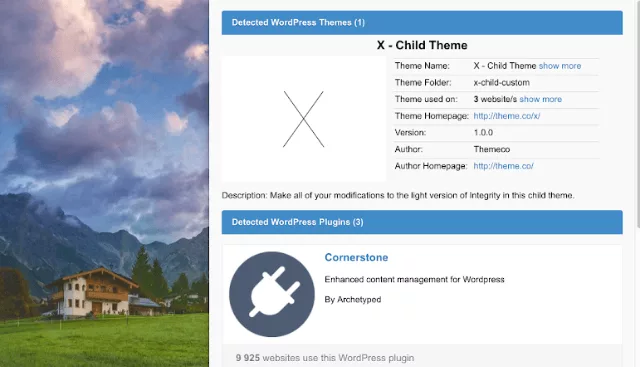
Ever wondered which theme or plugins power a site you admire? This WordPress Chrome extension tells you in one click. It detects the active theme (including child themes) and the plugins running on the page you are viewing, so you can study how a layout or feature was built.
Key features:
- Detects the theme name, version and parent or child relationship.
- Lists visible plugins and links to their directory pages.
- Shows other sites using the same theme, which is useful for design research.
Pro tip: this type of extension usually relies on an external lookup service, so avoid running it on private, staging or client-confidential URLs. And note that detection only shows what a page exposes publicly. If you are curious how exposed your own site is, run it through our WordPress security audit tool.
Check It Now (WordPress Theme Detector and Plugin Detector)
5. InstaWP Launcher: Best WordPress Extension for Instant Test Sites
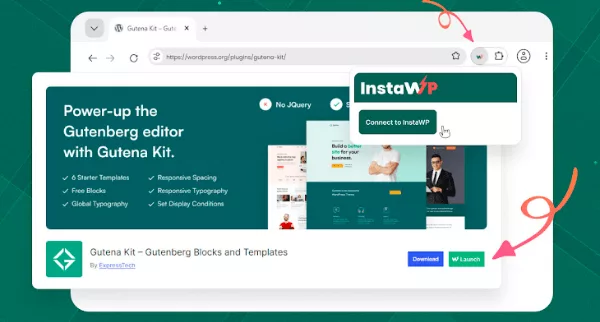
Testing a theme or plugin on your live site is risky. InstaWP’s Chrome extension adds a launch button to WordPress.org theme and plugin pages so you can create a throwaway WordPress site with that item pre-installed. It is one of the most practical WordPress extensions for Chrome because it removes the whole “set up a local environment” step.
Key features:
- Launch a temporary WordPress site straight from a directory listing.
- Try themes and plugins without touching a production site.
- Great for reproducing bugs and demoing a setup to a client.
Pro tip: before you commit to a design approach, spin up a test site and compare a block theme against a classic one. Our guide to the WordPress block theme format explains what to look for.
Check It Now (InstaWP Launcher)
6. Wappalyzer: Best Chrome Extension for Detecting Any Website’s Tech Stack
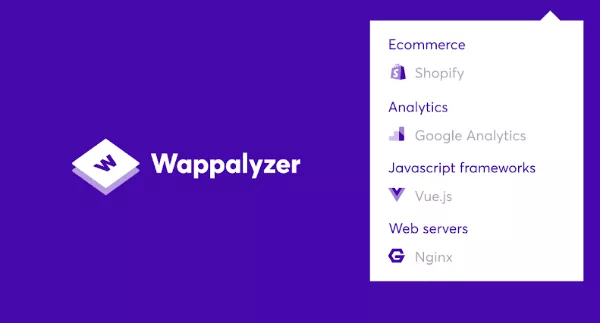
Wappalyzer works on every site, not just WordPress. It identifies content management systems, ecommerce platforms, JavaScript frameworks and libraries, web servers, CDNs and analytics tools. Agencies use it before pitching a redesign, and developers use it when a client says “build it like this site.”
Key features:
- Detects hundreds of technologies across categories.
- Shows version numbers when the site exposes them.
- Helps benchmark competitors and plan migrations.
Pro tip: Wappalyzer’s plans and free limits have changed over time, so check the current listing before relying on it for heavy use. If it tells you a client site runs WooCommerce, a modern store theme and a ready-made eCommerce website template are good starting points for a redesign.
7. Redux DevTools: Best Chrome Extension for State Debugging
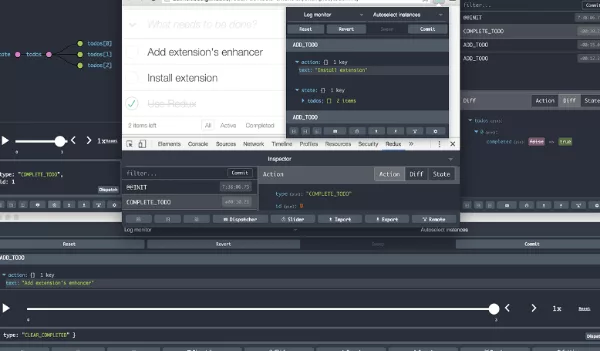
Redux DevTools turns invisible state changes into a timeline you can read. Every dispatched action is logged with the state before and after, so tracking down “why did this value change?” takes moments. It also works with other state libraries that follow similar patterns. The project is open source on GitHub.
Key features:
- Action history with state diffs.
- Time-travel debugging: jump back and forth between states.
- Import and export state for reproducing bugs.
- Works well alongside React Developer Tools.
Pro tip: export a problematic session as JSON and attach it to a bug ticket. A teammate can replay your exact state. If the file is large, our JSON formatter makes it readable.
8. Requestly: Best Chrome Extension for Mocking APIs and Rewriting Requests
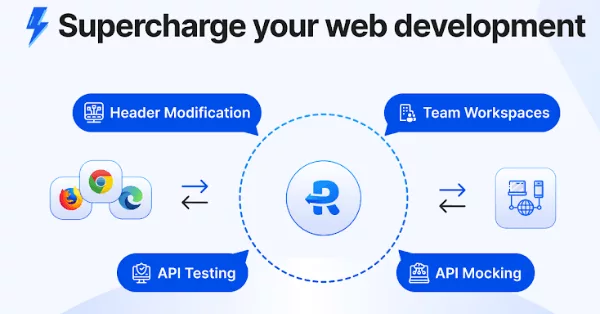
Requestly sits between your browser and the network. You create rules, and Requestly changes what the page sends or receives. That makes it ideal when the backend is not ready, a bug only happens with certain headers, or you want to test a production page against a local script.
Key features:
- Redirect URLs and swap hosts, for example to load a local JS file on a live site.
- Modify request and response headers.
- Mock API responses and delay or throttle requests.
- Inject scripts or styles into pages and share rule sets with teammates.
Pro tip: mock an error response (500 or a slow timeout) to see how your UI handles failure. Most front ends look perfect on the happy path and break on the first error.
9. ModHeader: Best Lightweight Extension for Editing HTTP Headers
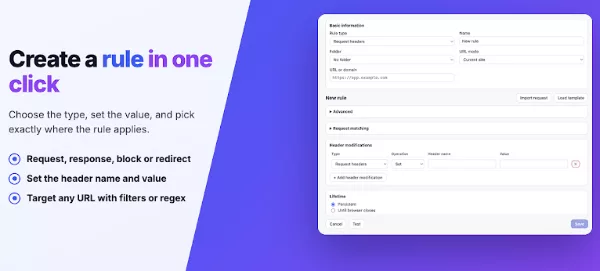
When all you need is to add an Authorization header, switch a User-Agent or test CORS behavior, ModHeader does it with less setup than a full rule engine. You add a header name and value, toggle it on, and reload.
Key features:
- Add, change or remove request and response headers.
- Create profiles for different environments such as staging and production.
- Filter headers by URL pattern so they only apply where needed.
Pro tip: always switch ModHeader off when you are done. A forgotten auth header can cause confusing behavior on unrelated sites.
10. JSONView: Best Extension for Reading JSON APIs in the Browser
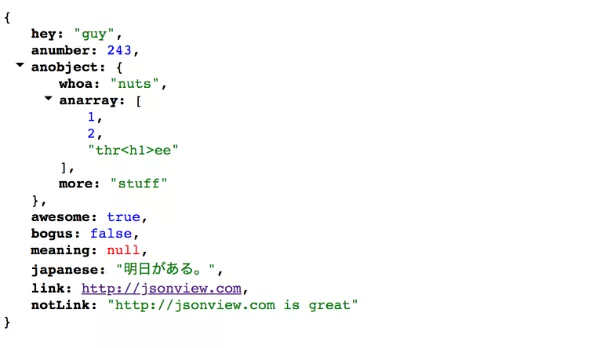
Open a REST endpoint in Chrome and you normally get a wall of text. JSONView formats it into a tree with colors, collapsible nodes and clickable links. It is small, quiet and useful every single day if you work with APIs, including the WordPress REST API.
Key features:
- Syntax highlighting for strings, numbers and booleans.
- Collapse and expand arrays and objects.
- Clickable URLs inside JSON values.
Pro tip: need to convert a response? Our XML to JSON converter helps when you are moving between older feeds and modern APIs.
11. CSSViewer: Best Extension for Reading CSS by Hovering
DevTools is powerful, but sometimes you only want a quick answer: what font size is this heading, and what color is that button? CSSViewer shows a floating panel with the CSS of whatever you hover over, with no panel switching and no clicking through the Styles tab.
Key features:
- Instant font, color, background, box and positioning details.
- Read-only, so you cannot accidentally break the page.
- Great for quick design reviews and learning how other sites are styled.
Pro tip: found a CSS snippet worth borrowing? Paste it into our CSS beautifier to clean it up before adapting it for your own project.
12. ColorZilla: Best Eyedropper and Color Tool for Front-End Developers
ColorZilla is a long-time favorite for a reason. Click the eyedropper, point at any pixel, and you get the HEX and RGB value ready to paste. It also keeps a color history and includes a gradient generator, which saves time when matching a brand palette.
Key features:
- Eyedropper that samples any pixel on the page.
- Color history and built-in palettes.
- CSS gradient generator.
Pro tip: sample the same color from a few places on the page. Small differences between a logo, a button and a banner can tell you whether a site uses one consistent brand color or several.
13. Window Resizer: Best Extension for Testing Responsive Breakpoints
Responsive design is a daily task, and dragging a window edge is imprecise. Window Resizer gives you presets (and lets you add your own) so you can jump between phone, tablet and laptop widths with one click and check that your media queries fire exactly where you expect.
Key features:
- Custom size presets for the breakpoints you actually use.
- Quick switching without opening the device toolbar.
- Useful for screenshots at exact dimensions.
Pro tip: Chrome’s device toolbar is better for emulating touch and device pixel ratios, while Window Resizer is faster for checking raw widths. Use both. And to test a page on a real phone, generate a link with our QR code generator and scan it.
14. WAVE Evaluation Tool: Best Extension for Accessibility Checks
Accessibility is part of quality, and it affects usability and SEO. WAVE, from WebAIM, overlays icons directly on your page to flag missing alt text, empty links, low contrast, skipped heading levels and more, so you see problems in context instead of reading a long report. Its checks align with the Web Content Accessibility Guidelines (WCAG).
Key features:
- Visual markers for errors, alerts and structural elements.
- Contrast checking and heading structure outline.
- Runs in the browser, so pages stay private.
Pro tip: automated tools catch only part of accessibility issues. Treat WAVE as a first pass, then test with keyboard navigation and a screen reader.
Check It Now (WAVE Evaluation Tool)
15. VisBug: Best Extension for Editing and Mocking Up a Live Page
VisBug turns any page into a design canvas. Click an element and you can nudge its margin, change its font, swap text or move it, all visually, without writing CSS first. It is a fast way to try ideas, then copy the winning values into your stylesheet.
Key features:
- Visual editing of spacing, typography and alignment.
- Guides, measuring tools and accessibility hints.
- Great for quick mockups and client demos on a real page.
Pro tip: changes are temporary and reset on reload, so jot down values you like or take a screenshot before refreshing.
Honorable Mentions: More Chrome Extensions Worth Trying
These did not make the top 15 but earn a spot in the right workflow:
- Vue.js devtools: the Vue equivalent of React Developer Tools. Find it in the Chrome Web Store.
- Fake Filler: fills forms with dummy data for faster sign-up and checkout testing. Get Fake Filler.
- Octotree: adds an IDE-style file tree to GitHub repositories. Get Octotree.
- Dark Reader: forces dark mode on any site for late-night coding. Get Dark Reader.
- BrowserStack: tests pages on real devices and browsers. Get BrowserStack. This is a commercial service, so treat it as a paid tool.
- Web Developer Checklist: scans a page for launch-readiness basics like favicon and meta tags. Get Web Developer Checklist.
The Best Chrome Extension Stack for WordPress Developers
Many searches for wordpress extension chrome or wordpress chrome extension are really asking one question: what should I install to build WordPress sites faster? Here is a practical stack, using tools from this list plus a few of our own utilities:
- Research: WordPress Theme Detector and Plugin Detector plus Wappalyzer, to see what a reference site uses.
- Test safely: InstaWP Launcher, to try a theme or plugin on a disposable site.
- Debug: JSONView for the WordPress REST API, ModHeader or Requestly for header and redirect tests, and React Developer Tools if you build Gutenberg blocks (the block editor is built on React).
- Query and data: build custom loops quickly with our WordPress query generator, and tidy PHP with the PHP formatter.
- Quality: Lighthouse and WAVE before launch.
- Security: after you ship, scan your own site with the WordPress security audit tool to see what it exposes publicly.
If you are building client shops, start from a solid foundation: a flexible store theme or a polished eCommerce website template saves hours before you even open DevTools.
How to Install and Manage Chrome Extensions
- Open the Chrome Web Store and search for the extension, or click any “Check It Now” button above.
- Click Add to Chrome, read the permission prompt, then confirm.
- Click the puzzle-piece icon in the toolbar and pin the extensions you use daily.
- Type
chrome://extensionsin the address bar to enable, disable, remove or update extensions and review their permissions. - Use Details on each extension to limit site access, for example “on click” instead of “on all sites.”
- Create a separate Chrome profile for development so your work extensions do not slow down everyday browsing.
Extension Safety, Permissions and Performance
Extensions can read and change what you see in the browser, so install them with care:
- Check permissions. A color picker does not need access to your browsing history. If the permission list looks excessive, skip it.
- Prefer maintained tools. Look at the last update date, the developer’s website and recent reviews. Chrome now requires extensions to follow its newer Manifest V3 platform, so abandoned extensions may stop working. The Chrome extensions documentation explains the current rules.
- Do not run everything everywhere. Restrict extensions to the sites where you need them.
- Test in Incognito. Enable only the extensions you need there so audits and bug reproductions are clean.
- Remove what you do not use. Fewer extensions means a faster, safer browser.
- Be careful with header and request tools. ModHeader and Requestly can change authentication behavior. Turn them off when you finish.
How to Build Your Own Chrome Extension
If you cannot find a tool that fits your workflow, writing a chrome extension developer project is more approachable than it looks. An extension is just a folder with a manifest and a few HTML, CSS and JavaScript files. Here is a minimal Manifest V3 starter:
{
  "manifest_version": 3,
  "name": "My Dev Helper",
  "version": "1.0",
  "description": "A tiny helper for my daily dev tasks.",
  "action": {
    "default_popup": "popup.html"
  },
  "permissions": ["activeTab"]
}- Create a folder and add
manifest.jsonwith the content above. - Add
popup.html(the small window that opens when you click the icon). - Open
chrome://extensions, switch on Developer mode, and click Load unpacked. - Select your folder. Your extension appears in the toolbar. Edit files, then click the reload icon to see changes.
- Add content scripts, a background service worker or a side panel only when you need them, and request the fewest permissions possible.
The official getting-started guide walks through each step. Want ideas? Most of the best developer extensions started as a one-person fix for an annoying repeated task.
FAQs About Chrome Extensions for Web Developers
What are the best Chrome extensions for developers?
For most web developers, the strongest starter set is React Developer Tools, Lighthouse, Requestly, JSONView and Window Resizer. Add Redux DevTools if you use Redux, and WordPress Theme Detector and InstaWP Launcher if you work with WordPress.
What is the best Chrome web developer extension?
If you want a single all-purpose tool, the Web Developer toolbar is the classic answer because it bundles many small utilities. For framework debugging, React Developer Tools is the most important one.
Are Chrome developer tools the same as extensions?
No. Chrome DevTools are built into the browser (press F12). Extensions are optional add-ons from the Chrome Web Store, and many of them add panels or features to DevTools.
Which Chrome extensions are best for WordPress developers?
Good picks include WordPress Theme Detector and Plugin Detector for research, InstaWP Launcher for disposable test sites, JSONView for the REST API, Lighthouse for speed checks and Wappalyzer for general technology detection.
Do I need React Developer Tools for Chrome?
If you build or debug React apps, yes. It shows the component tree, props, state and hooks, and its Profiler helps you find components that re-render too often. If you do not use React, you can skip it.
Do Chrome extensions slow down the browser?
They can, especially ones that run on every page. Keep only the extensions you use, limit site access in chrome://extensions, and use a dedicated development profile.
Are Chrome extensions safe to install?
Most are fine, but extensions have real access to your browsing. Check permissions, developer reputation, update history and reviews, and avoid extensions that ask for more than they need.
How do I see which extensions are installed?
Type chrome://extensions in the address bar, or click the puzzle-piece icon and choose Manage extensions.
Can I use these extensions in other browsers?
Many of them also work in Chromium-based browsers such as Edge and Brave, and some have Firefox versions. Check each listing for support.
How do I create my own Chrome extension?
Create a folder with a manifest.json (Manifest V3), add a popup or content script, turn on Developer mode at chrome://extensions, and use Load unpacked to test it.
Wrapping Up: Build Your Own Developer Toolkit
The best chrome extensions for developers are the ones that remove a repeated annoyance from your day. Start small: pick one tool from each category that matches your stack, use it for a week and keep only what earns its place in your toolbar.
- Front-end and React: React Developer Tools, Redux DevTools, CSSViewer, VisBug.
- APIs and networking: Requestly, ModHeader, JSONView.
- Quality: Lighthouse, WAVE, Window Resizer.
- WordPress and research: WordPress Theme Detector and Plugin Detector, InstaWP Launcher, Wappalyzer.
Pair your new toolkit with the right foundation for your next build: a fast store theme or a conversion-ready eCommerce website template, plus our free developer tools for formatting, converting and testing code. Which extension could you not live without? Tell us in the comments and we will consider adding it to the next update.