
Your customer wants a mug engraved with a name, a hoodie in a custom colour, or a cake with a message on top. A standard WooCommerce product page can’t collect any of that. It gives you a price, a quantity box and, at best, a few variations. So you end up taking orders over email, chasing artwork in WhatsApp, and fixing prices by hand.
WooCommerce custom product fields solve this. They add text boxes, dropdowns, image pickers, file uploads, date pickers and more directly to the product page, and each one can carry its own extra price. The shopper fills in the form, watches the total update live, and the details land in the cart, the checkout and the order email automatically.
In this guide you will learn what WooCommerce custom fields are, when to use them instead of variations, and how to build a complete custom product options form step by step with Extend Product Options for WooCommerce Pro. Every step uses real screenshots from the plugin, so you can follow along on your own store.
What You’ll Learn
- What are WooCommerce custom product fields?
- Custom fields vs variations vs checkout fields
- Where custom product fields make money
- The plugin we use: 22 field types
- How live pricing works (flat, percentage, per unit)
- Step-by-step tutorial: build the form
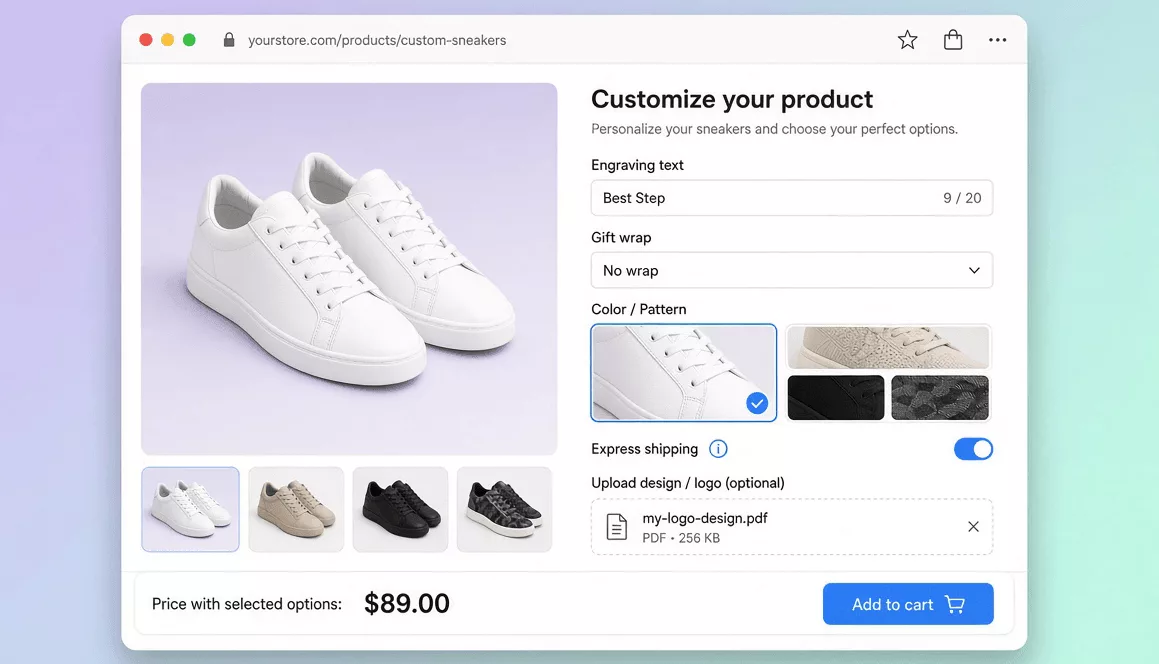
- Worked example: a custom sneaker product
- Using custom fields on variable products
- 12 best practices for higher conversions
- Common mistakes and quick fixes
- Three ways to add custom fields compared
- FAQs
What Are WooCommerce Custom Product Fields?
WooCommerce custom product fields (also called product options, product add-ons or extra product fields) are input elements you attach to a product page. The shopper uses them to describe exactly what they want before clicking Add to cart. Typical fields include a text box for engraving, a dropdown for gift wrap, a colour picker, a date for delivery, or an upload button for a logo.
Out of the box, WooCommerce only offers attributes and variations. Those are great for size and colour, but they can’t take free text, a file or a date. That gap is why almost every store that sells personalised or configurable items ends up adding a WooCommerce product custom fields plugin. The official Product Add-Ons extension exists for the same reason, and so do several third-party options.
What makes a good implementation is not just the fields themselves. It is what happens after the click. The extra price must be added to the cart line, the values must show up at checkout, and your team must see everything on the order screen. If any of those steps is missing, you are back to manual follow-ups.
WooCommerce Custom Fields vs Variations vs Checkout Fields
Before you build anything, pick the right tool. These three features sound similar but solve different problems.
| Feature | Best for | Customer input | Separate SKU / stock |
|---|---|---|---|
| Variations | Size, colour, material that you stock and track | Pick from a fixed list | Yes |
| Custom product fields | Engraving, uploads, add-ons, dates, personalisation | Text, numbers, files, dates, choices | No (same product) |
| Checkout fields | Order-level data such as delivery notes or VAT ID | Once per order, not per product | Not applicable |
The rule of thumb is simple. If the choice changes what you physically pull off the shelf, use variable products. If the choice is information or an optional extra attached to the same item, use custom product fields. Many stores use both on the same product, and that works well. We cover that setup later in this post.
Where WooCommerce Custom Product Fields Make Money
Custom fields are not only for print shops. Any store where buyers have preferences can use them to raise the average order value, because every optional extra is a small upsell. Here are the most common use cases we see:
- Personalised gifts: engraved names, monograms, messages on cards, gift wrap options.
- Print on demand and branding: logo or artwork upload, colour picker for the print, text on shirts and mugs.
- Food and bakery: flavour, size, message on the cake, delivery date and time.
- Furniture and home decor: fabric swatches via image select, custom dimensions using a number field priced per unit.
- Services and digital products: project brief in a textarea, reference URL, contact phone, urgency switch with a rush fee.
- Electronics and accessories: extended warranty checkbox, case colour, install service.
If you are still choosing a look for this kind of shop, start with a clean store theme whose product page leaves room for an options form. A cramped layout makes even a great form feel heavy. Our guide on block themes vs classic themes explains which theme type plays nicer with WooCommerce templates, which matters when a plugin hooks into the single product page.
The Plugin We Use: Extend Product Options for WooCommerce Pro
For this tutorial we use Extend Product Options for WooCommerce Pro. It adds an “Extend Product Options” box to the product edit screen. There are no shortcodes and no separate rule builder: you open a product, add fields, set prices and save. It works with simple and variable products, and requires WooCommerce 4.6 or newer, PHP 7.4 or newer and a current WordPress version.
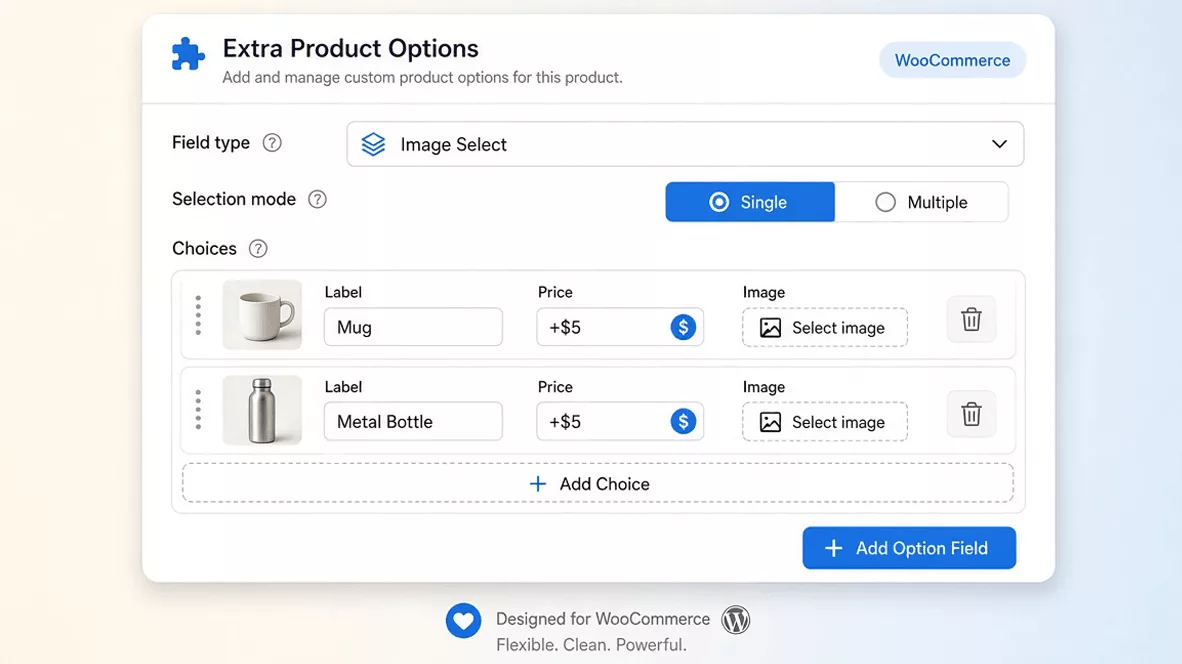
All 22 field types at a glance
The plugin supports 22 field types. The table shows how each group behaves and when the price is applied, so you can plan your form before you open the editor.
| Field type | Typical use | How pricing works |
|---|---|---|
| Text, Textarea, Email, URL, Telephone, Password, Hidden | Engraving text, notes, contact details, reference links | Extra price added only when the field has content |
| Number, Slider / Range | Quantity of extras, length, width, number of items | Flat, percentage, or per unit (value x price) |
| Select, Radio Button, Checkbox Group | Flavour, material, add-on bundles | A different price for each choice |
| Image Select (single or multiple) | Swatches, designs, product variants shown as pictures | A different price for each image choice |
| Checkbox, Switch | Gift wrap, express shipping, warranty | Price added only when ticked or switched on |
| Date Picker, Time Picker, Color Picker | Delivery slot, event date, print colour | Price added when a value is chosen |
| File Upload | Logo, artwork, reference photo | Price added when a file is attached |
| Heading, Paragraph, Separator | Group and explain long forms | Layout only, no price |
How Live Pricing Works for WooCommerce Product Options
The feature that sets a good options form apart is transparent pricing. Shoppers hate surprises at checkout, so the total should update the moment they tick a box. With this plugin, the product page shows a “Price with selected options” line that recalculates as the customer fills the form.
Three price types
- Flat amount: adds a fixed sum, for example +$5 for engraving.
- Percentage of product price: adds a share of the base price, for example +10% for express production. It scales automatically when you change the product price.
- Per unit (value x price): available for Number and Range fields. If the buyer enters 3 and the price is $2, the extra is $6.
For Select, Radio, Checkbox Group and Image Select fields you set the price per choice. A “Standard wrap” can be free while “Premium wrap” adds $4, all inside one field.
The “only when used” rule
An extra price is applied only when the customer actually uses the option. A text field must contain text, a checkbox or switch must be ticked, a select or radio must have a choice, and a file field must have a file attached. Leaving a field empty never adds its price. This keeps totals honest and prevents the classic support ticket, “why was I charged for something I did not choose?”
Step-by-Step: How to Add WooCommerce Custom Product Fields
This walkthrough builds a complete options form on one product. You do not need to write code. Allow about 15 minutes for your first product, and a few minutes for each one after that.
Step 1: Install and activate the plugin
- Make sure WooCommerce is installed and active.
- Download the plugin zip from your athemeart account.
- In WordPress go to Plugins > Add New > Upload Plugin, choose the zip, then click Install Now and Activate.
After activation, a new Extra Product menu appears in the admin sidebar with Settings and License pages, and every product edit screen gets an Extend Product Options box.
Step 2: Open a product and find the options box
Go to Products > All Products and edit the product you want to customise. Scroll below the main product data and you will find the Extend Product Options box. Click + Add Option Field to create your first field.
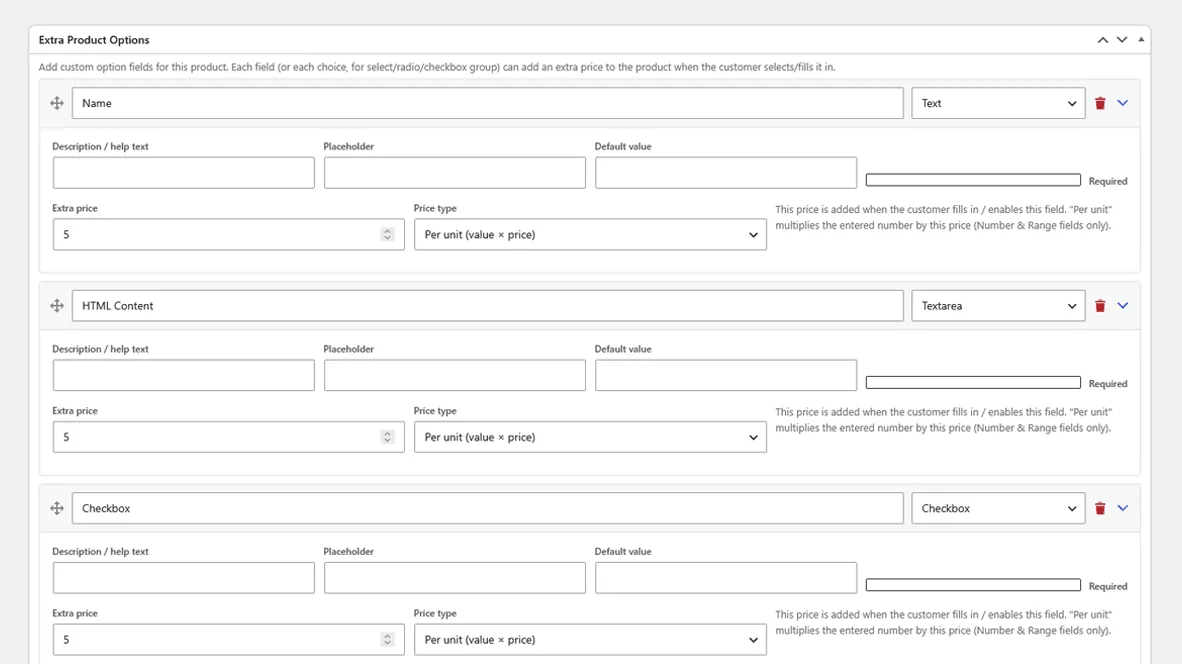
Each field is a row. Every row has a label, a field type selector and a few settings that change depending on the type. You can collapse rows to keep a long form tidy.
Step 3: Add a text field for engraving or personalisation
A text field is the simplest custom product field and the one most stores add first.
- Click + Add Option Field and set the type to Text.
- Enter a clear label such as “Engraving text”.
- Fill in the Description / help text to explain limits, for example “Up to 20 characters”.
- Add a Placeholder and, if useful, a Default value.
- Set an Extra price (for example 5) and a Price type of Flat amount.
- Tick Required only if every buyer must fill it in.
Because the price applies only when the field has content, you can leave this optional and let people who want engraving pay for it.
Step 4: Add a dropdown with a different price per choice
Now add a Select field named “Gift wrap”. Select, Radio and Checkbox Group fields do not have a single price. Instead, you add choices, and each choice gets its own label and price.
- Set the field type to Select.
- Click Add Choice and enter “No wrap” with a price of 0.
- Add “Standard wrap” and “Premium wrap” with their own prices.
- Pick which choice is the Default so the form opens in a sensible state.
Each choice can use a flat price or a percentage of the product price. Use Radio buttons instead of Select when you have only two or three choices, because everything stays visible without an extra click.
Step 5: Add an Image Select field for swatches and designs
Image Select turns text choices into pictures. It is perfect for colour and pattern swatches, logo styles, cake shapes or product variants that look different from each other.
- Add a field and choose Image Select as the type.
- Choose the Selection mode: Single lets the customer pick one image, Multiple lets them pick several.
- Click Add Choice, enter a label and a price, then click Select image to pick a picture from the Media Library.
- Repeat for every choice. You can change or remove an image at any time.
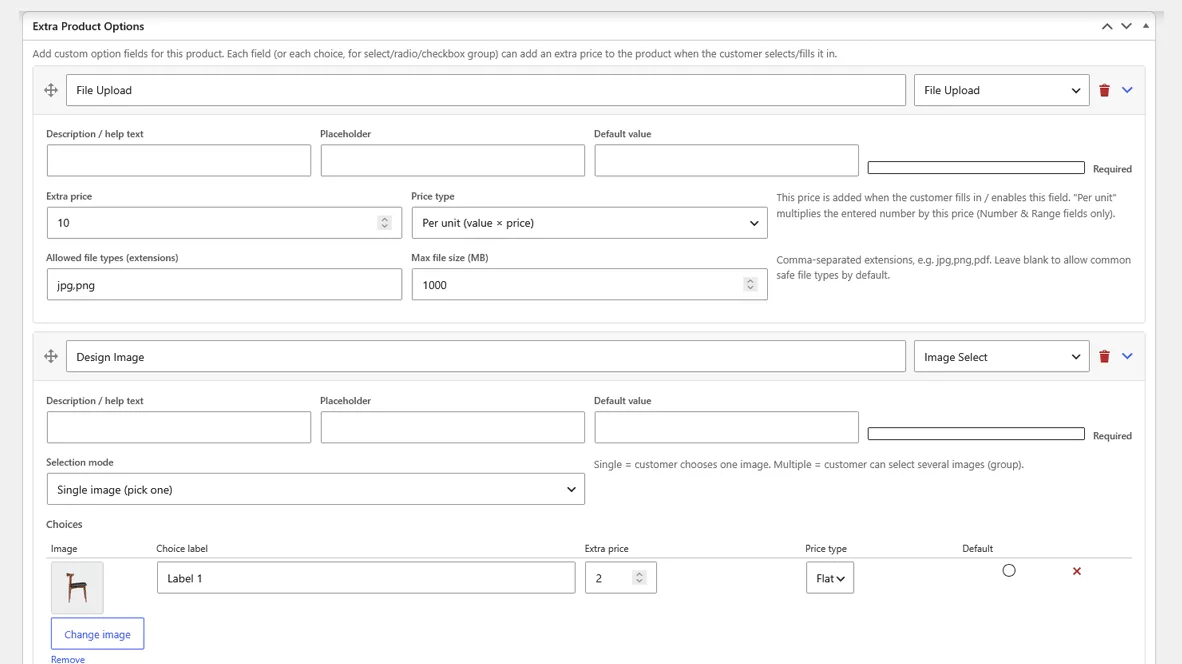
Use square images of the same size so the grid looks neat on mobile. Compress them before uploading, because these thumbnails load on the product page and affect speed.
Step 6: Add a file upload field for logos and artwork
A file upload field lets customers attach a logo, artwork or a reference photo while they add the product to the cart.
- Add a field with the type File Upload.
- In Allowed file types enter comma-separated extensions, for example
jpg,png,pdf. Leave it blank to allow common types. - Set a Max file size (MB) that matches your hosting limits and your print workflow.
- Optionally set an extra price so uploads are charged only when a file is attached.
The plugin validates type and size before the item can be added to the cart. It also keeps a hard-coded blocklist of executable and script extensions that can never be allowed, whatever you type in the field. Files are saved to the normal wp-content/uploads/year/month/ folder, and a link to the file shows in the cart, at checkout, on the order admin screen and in order emails. If you want to understand why upload hygiene matters, read the WordPress plugin security handbook and the MDN guide to the HTML file input.
Step 7: Add number, date, colour and switch fields
These four fields cover most remaining needs:
- Number or Slider: set Min, Max and Step, then choose the Per unit (value x price) price type to charge by quantity, such as per extra patch, per metre or per name.
- Date Picker and Time Picker: collect delivery or event dates. Add an extra price if same-day or weekend service costs more.
- Color Picker: let buyers choose an exact print colour instead of typing a name.
- Switch: a modern on/off toggle that is ideal for “Express shipping” or “Add gift message”. The price applies only when it is on.
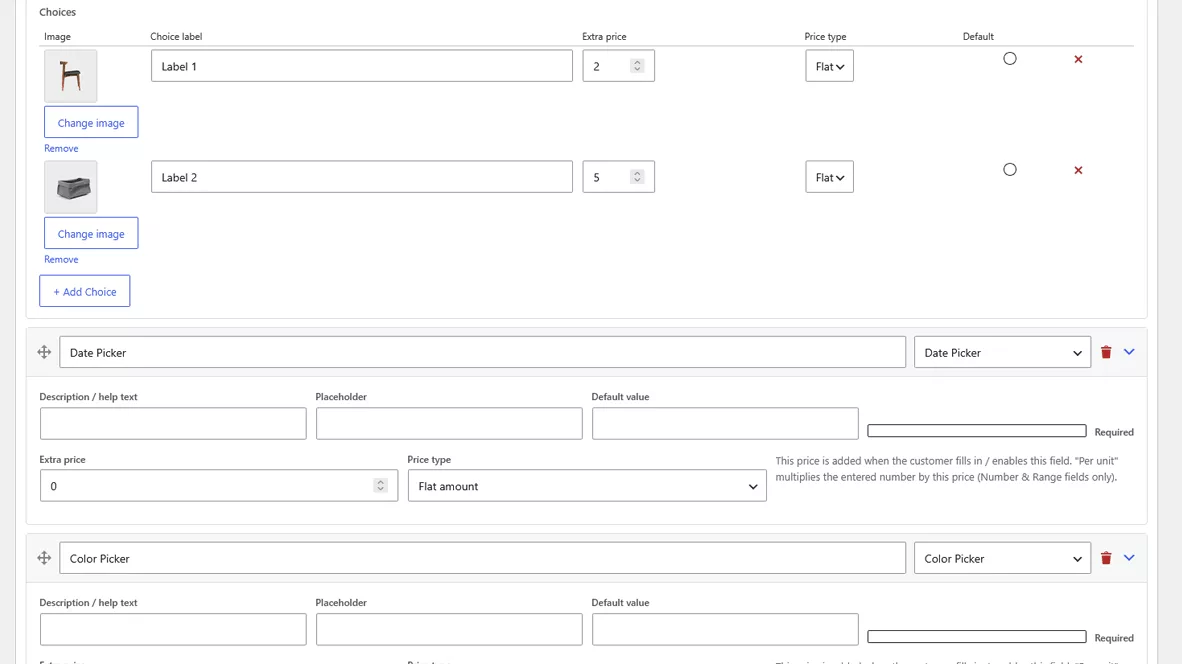
Step 8: Organise long forms with Heading, Paragraph and Separator
A form with ten fields can feel like homework. Group related options with a Heading such as “Personalise it” or “Delivery”, add a short Paragraph for instructions, and drop a Separator between sections. These layout elements carry no price. You can also drag rows with the move handle to change their order, which means you can put the most important options first.
Step 9: Configure the global display settings
Open Extra Product > Settings. Four settings control how every options form behaves across your store:
- Show fields: before or after the Add to cart button.
- Show in cart: summarises the filled-in options on the cart page.
- Show on checkout: repeats the summary on the checkout page.
- Price with selected options text: change the live total label to match your store’s voice, for example “Your custom price”.
We recommend placing the fields before the Add to cart button so the form flows naturally into the purchase action, and leaving cart and checkout summaries on so customers can re-check their choices.
Step 10: Save, then test as a customer
Click Update on the product and open it on the front end. Fill in each field and watch the “Price with selected options” line change. Test the required fields by leaving them empty, and test file uploads with an allowed and a blocked file type.
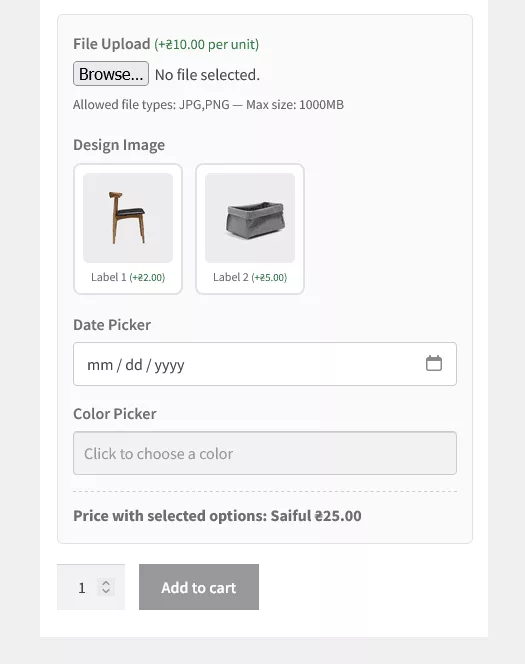
Check the result on a phone too. If you work on stores regularly, a few of the Chrome extensions for web developers make responsive testing and form debugging much faster.
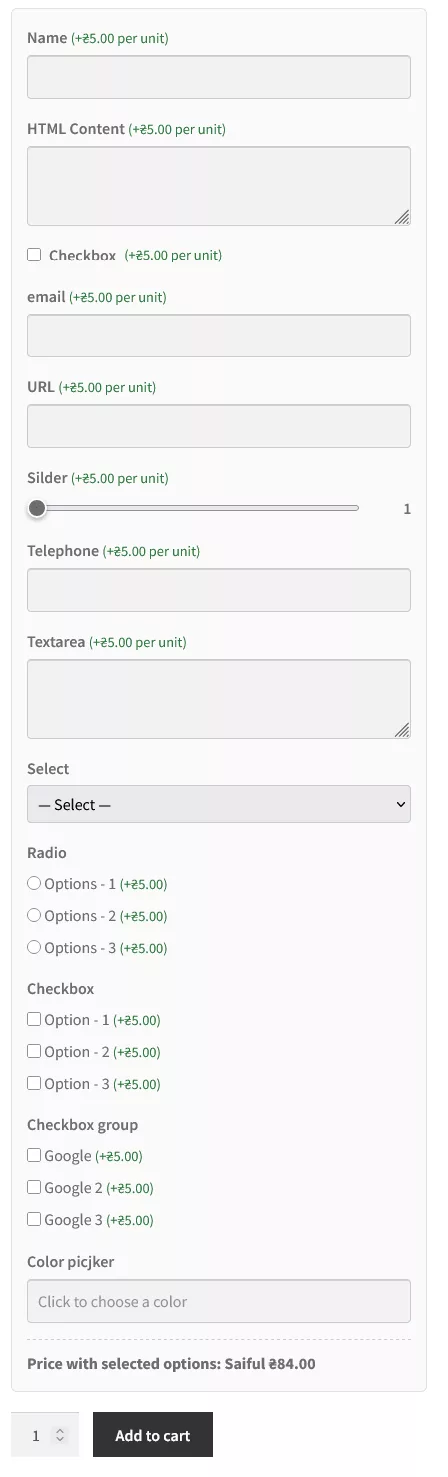
Step 11: Check the cart, checkout and order
Add the product to the cart and confirm four things:
- Selected values are listed under the product name in the cart.
- The extra price is included in that cart line.
- The same details repeat on the checkout page.
- After placing a test order, the values and any uploaded file link appear in the order admin screen and the email.
Different combinations of options create separate cart line items, so a customer who orders two mugs with different names gets two correct lines instead of one merged line with the wrong text.
Worked Example: A Custom Sneaker Product
To see how the pieces fit, here is a complete field plan for a customisable sneaker. You could build it in about ten minutes with the steps above.
| Field label | Type | Price setup | Required |
|---|---|---|---|
| Personalise it | Heading | None (layout) | – |
| Engraving text | Text (max 20 characters) | Flat +$5 when filled | No |
| Gift wrap | Select | No wrap $0, Standard +$4, Premium +$7 | No |
| Colour / pattern | Image Select (single) | Per choice, some free, some +$6 | Yes |
| Extra patches | Number (min 0, max 5) | Per unit, $2 each | No |
| Express shipping | Switch | Percentage, +10% of product price | No |
| Upload design or logo | File Upload (jpg, png, pdf) | Flat +$6 when attached | No |
The mix matters. Only one field is required, which keeps the form quick, while six optional fields each give the shopper a reason to spend a little more. That is how custom product fields lift average order value without pressure.
Using Custom Fields on Variable Products
Custom fields and variations work together. On a variable product, the option fields appear below the variation add-to-cart area, the same way they do on a simple product. A hoodie can have size and colour as normal variations, with an engraving field, a back-print upload and a rush switch added on top. Stock stays accurate because it lives in the variations, while personalisation lives in the custom fields.
Keep the split clear: anything that you physically stock belongs in a variation, and everything else belongs in a custom field. That keeps your inventory reports clean and your options form short.
12 Best Practices for WooCommerce Custom Product Fields
- Keep the form short. Every extra field adds friction. Make only the essential ones required.
- Write helpful labels and hints. “Engraving text” plus “Up to 20 characters” beats “Text 1”.
- Show prices next to choices. Buyers decide faster when each option states its cost.
- Offer a free default. A “No wrap” choice at $0 makes upgrades feel optional, not forced.
- Use Image Select for visual choices. People pick patterns faster by looking than by reading names.
- Use per-unit pricing for measurable extras. It replaces many near-duplicate fields.
- Restrict upload types and size. Allow only the formats your team can actually use, such as jpg, png or pdf.
- Group long forms with headings. Two or three sections feel far lighter than one tall column.
- Design for mobile first. Most shoppers will see the form on a phone, so test tap targets and the keyboard type for number and email fields.
- Make forms accessible. Use clear labels and descriptions, and follow the W3C WAI forms tutorial principles.
- Test every price path. Try each field alone, then together, and compare the total with a calculator.
- Back up before big changes. Test on a staging site first, especially if you edit many products.
Once your product pages convert well, support them with other conversion tools. A WooCommerce live sales notifications plugin adds social proof beside your form, and an AJAX product search plugin helps shoppers find your customisable products in the first place. If you sell high-value configurable items, a price negotiation extension lets buyers send an offer on the final configured price.
Want a complete storefront to host it all? Pair your form with a ready-made eCommerce website template so the product page, cart and checkout are already designed to work together.
Common Mistakes and Quick Fixes
| Problem | Likely cause | Fix |
|---|---|---|
| Price does not change when the customer fills a field | Field has no extra price, or the field is empty | Set an extra price and remember prices apply only when the field is used |
| Fields do not show on the product page | Options saved on a different product, or theme overrides the template | Re-save the product, clear caches, and test with a default theme |
| File upload is rejected | Extension not allowed, file too large, or blocked type | Check allowed file types and max size; executable and script types are always blocked |
| Same product shows as one cart line with the wrong text | Old cache or custom cart code interfering | Clear cache and test with other cart plugins disabled |
| Totals look wrong with percentages | Percentage is based on the product price, not the running total | Recalculate the example by hand and adjust the percentage |
| Options not visible in order emails | Email template customised by another plugin | Test with the default WooCommerce emails first |
For deeper debugging, the official WooCommerce developer documentation explains the product page and cart hooks that plugins rely on.
Three Ways to Add WooCommerce Custom Fields Compared
| Approach | Cost | Skill needed | Pros | Cons |
|---|---|---|---|---|
| Variations only | Free (built in) | Low | Inventory control per option | No text, file or date input; slow to manage with many combinations |
| Custom code (hooks and filters) | Developer time | High | Total control | You maintain validation, pricing, cart and email output yourself |
| Product options plugin | Plugin licence | Low | Fields, live pricing, cart, order and email display out of the box | Another plugin to keep updated |
For most store owners the plugin route is the sensible middle ground. You get a tested pricing engine and order display without paying a developer to rebuild them.
FAQs About WooCommerce Custom Product Fields
How do I add custom fields to WooCommerce products?
Install a product options plugin, edit a product, open the options box, click to add a field, choose its type, set a label and price, then save. The fields appear on the product page immediately.
Can WooCommerce custom fields change the product price?
Yes. With a plugin such as Extend Product Options Pro, each field or choice can add a flat amount, a percentage of the product price, or a per-unit amount. The total updates live on the product page and carries through to the cart.
Do custom product fields work with variable products?
Yes. The fields display below the variation add-to-cart area, so you can sell size and colour as variations and add engraving, uploads or rush fees as custom fields.
Can customers upload files to a WooCommerce product?
Yes. A file upload field lets them attach artwork or a photo while adding to the cart. You control allowed extensions and maximum size, and the file link shows in the cart, checkout, order screen and emails.
Are the selected options shown in the order and email?
Yes. Selected values appear in the cart, at checkout, on the order admin screen and in order emails, so your team never has to ask for details again.
Will an empty field still add its price?
No. Prices are applied only when the customer uses the option: text has content, a checkbox or switch is on, a choice is selected or a file is attached.
What is the difference between WooCommerce custom fields and variations?
Variations are fixed choices that you stock and track by SKU. Custom fields collect free input and optional extras on one product, with no separate stock level.
How many fields can I add to one product?
The plugin lets you add unlimited option fields to any product, and you can drag them into any order.
Start Selling Customisable Products Today
WooCommerce custom product fields turn a plain product page into a mini configurator. Shoppers get exactly what they want, you get all the details in one place, and every optional extra adds a little more to the order value. With a text field, a priced dropdown, an image picker and a file upload, you can launch a personalised product in an afternoon.
Ready to try it? Get Extend Product Options for WooCommerce Pro, add your first field, and watch the live price do the selling for you.