
You open the WordPress theme directory, pick something that looks great, and then hit a fork in the road: is it a block theme or a classic theme? Pick wrong and you may end up hunting for a Customizer that does not exist, or fighting PHP files when you only wanted to move a logo.
The block themes vs classic themes debate is not about which one is “modern” and which one is “old.” It is about how you want to build, edit and grow your website. In this guide we compare block theme vs classic theme setups across 10 practical differences, look at what each means for WooCommerce stores, add a comparison table and usage numbers, and finish with a clear answer on whether you should switch.
Quick answer: choose a block theme if you want to edit your header, footer, templates and global styles visually in the Site Editor. Choose a classic theme if your site depends on custom PHP, older plugins or a workflow that already works. For a new WooCommerce store with no legacy code, a true block theme is usually the safer long-term bet.
1. What Are WordPress Block Themes?
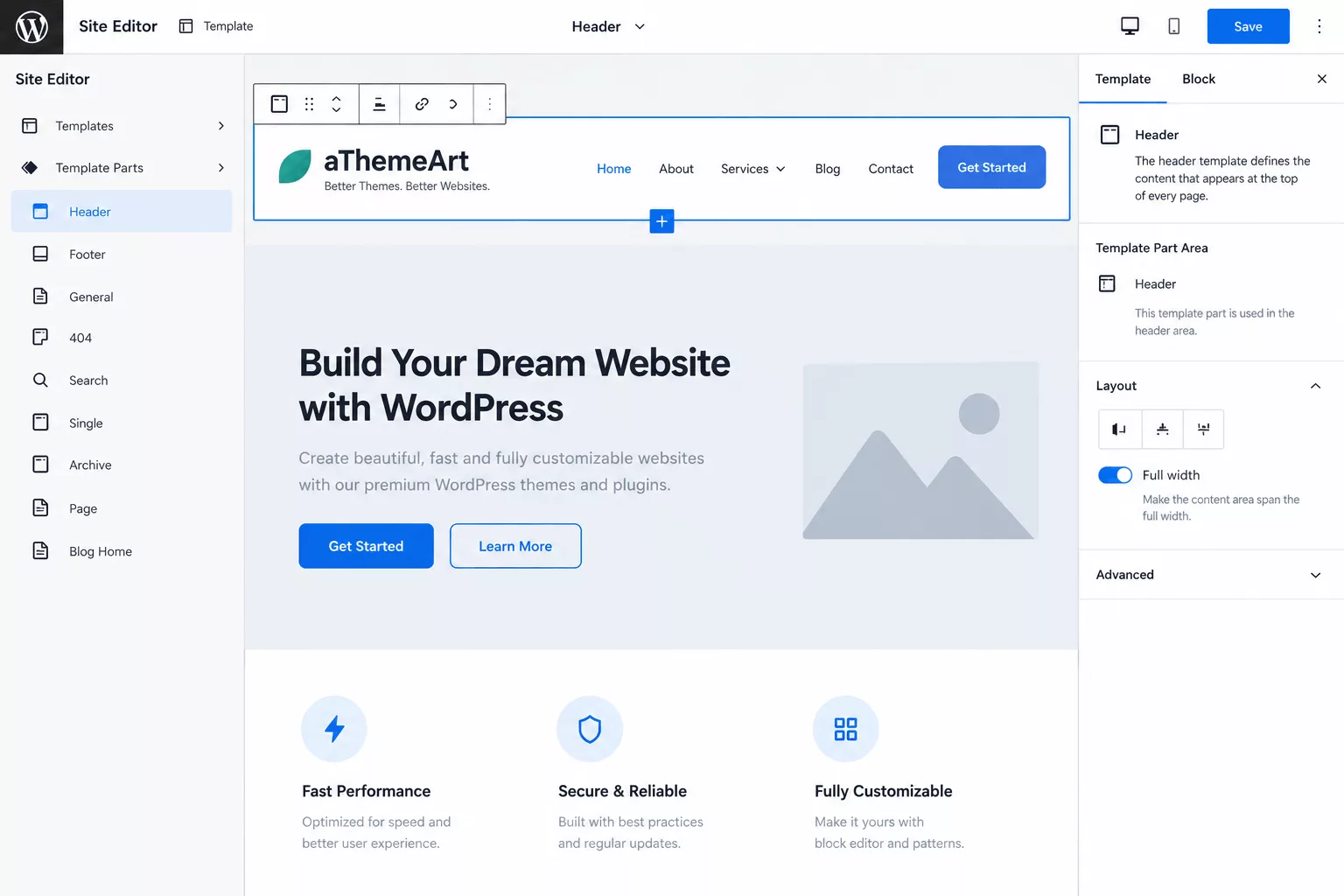
A block theme is a WordPress theme where everything is built from blocks: the header, the footer, the blog template, the single post layout, even the 404 page. Instead of editing those parts through PHP files or the Customizer, you open the Site Editor (Appearance → Editor) and work on them the same way you write a post.
Block themes arrived with WordPress 5.9 in early 2022, and Twenty Twenty-Two was the first default theme built this way. Since then the format has matured quickly, and the official block theme handbook now treats it as the standard way to build new themes. If you want the full background, read our dedicated guide to WordPress block themes.
How Block Themes Work
Under the hood, a block theme swaps PHP template files for HTML files that contain block markup, and moves design settings into a single configuration file called theme.json. WordPress reads those files, renders the blocks, and lets you override any of them from the Site Editor. Your overrides are saved in the database, so the original theme files stay untouched.
my-block-theme/
├── style.css          (theme name and basic info)
├── theme.json         (colors, fonts, spacing, layout)
├── templates/
│   ├── index.html
│   ├── single.html
│   ├── page.html
│   └── 404.html
├── parts/
│   ├── header.html
│   └── footer.html
└── patterns/          (reusable block layouts)
Three ideas make this structure work:
- Templates decide what a type of page looks like (blog archive, single post, search results).
- Template parts are reusable chunks such as the header and footer.
- Global Styles (from
theme.json) control typography, colors and spacing for the entire site from one panel. See the global settings and styles documentation for the full list of options.
Customizing a Block Theme
Customizing a block theme is mostly point-and-click:
- Go to Appearance → Editor to open the Site Editor.
- Pick Templates or Patterns and choose the page type you want to change.
- Click into any block and edit it directly: move the logo, swap the navigation, add a call-to-action row.
- Open Styles to change fonts, colors and spacing sitewide, or try a ready-made style variation.
- Press Save. Your changes apply to every page that uses that template.
You do not need to touch code for any of that, which is exactly why block themes appeal to store owners, bloggers and small agencies who want design control without a developer on retainer.
2. What Are Classic WordPress Themes?
A classic theme is the traditional WordPress theme format that powered the platform for well over a decade. It is built from PHP template files such as header.php, footer.php, single.php and functions.php. Design options live in the Customizer and the Widgets screen, and menus are managed under Appearance → Menus.
Classic themes are still extremely common. Many of the most-installed themes on WordPress sites, including the WooCommerce team’s own Storefront, are classic themes. The official classic theme documentation remains fully supported.
How Classic Themes Work
When someone visits a page, WordPress walks through the template hierarchy and picks the most specific PHP file that matches: a single post uses single.php, a page uses page.php, and everything else falls back to index.php. Each of those files calls get_header(), runs The Loop and then calls get_footer().
my-classic-theme/
├── style.css
├── functions.php      (enqueue scripts, register menus, theme supports)
├── index.php
├── header.php
├── footer.php
├── sidebar.php
├── single.php
├── page.php
├── template-parts/
└── woocommerce/       (optional WooCommerce overrides)
Because everything is code, a developer can change absolutely anything with hooks, filters and template overrides. That power is the main reason many agencies still ship classic themes today.
Customizing a Classic Theme
Customization usually happens in three places:
- Appearance → Customize for logo, colors, layout switches and header options exposed by the theme author.
- Appearance → Widgets for sidebars and footer columns.
- Theme files or a child theme for anything deeper. Never edit a parent theme directly; follow our guide to creating a child theme in WordPress so updates do not wipe your work.
3. What Are Hybrid WordPress Themes?
Between the two camps sits a third group: hybrid themes. A hybrid theme is a classic PHP theme that borrows pieces of the block world, such as a theme.json file, block patterns, editor styles that match the front end, or a few template parts that can be edited in the Site Editor.
Hybrid themes are a practical stepping stone. They let theme authors modernize without rewriting years of tested PHP, and they let site owners enjoy block-based content creation while the header, footer and WooCommerce templates stay under classic control. The catch is that editing is split across more than one system, so you may need the Customizer for one change and the Site Editor for another. When a theme advertises “block theme support,” check whether it is a true block theme or a hybrid before you buy.
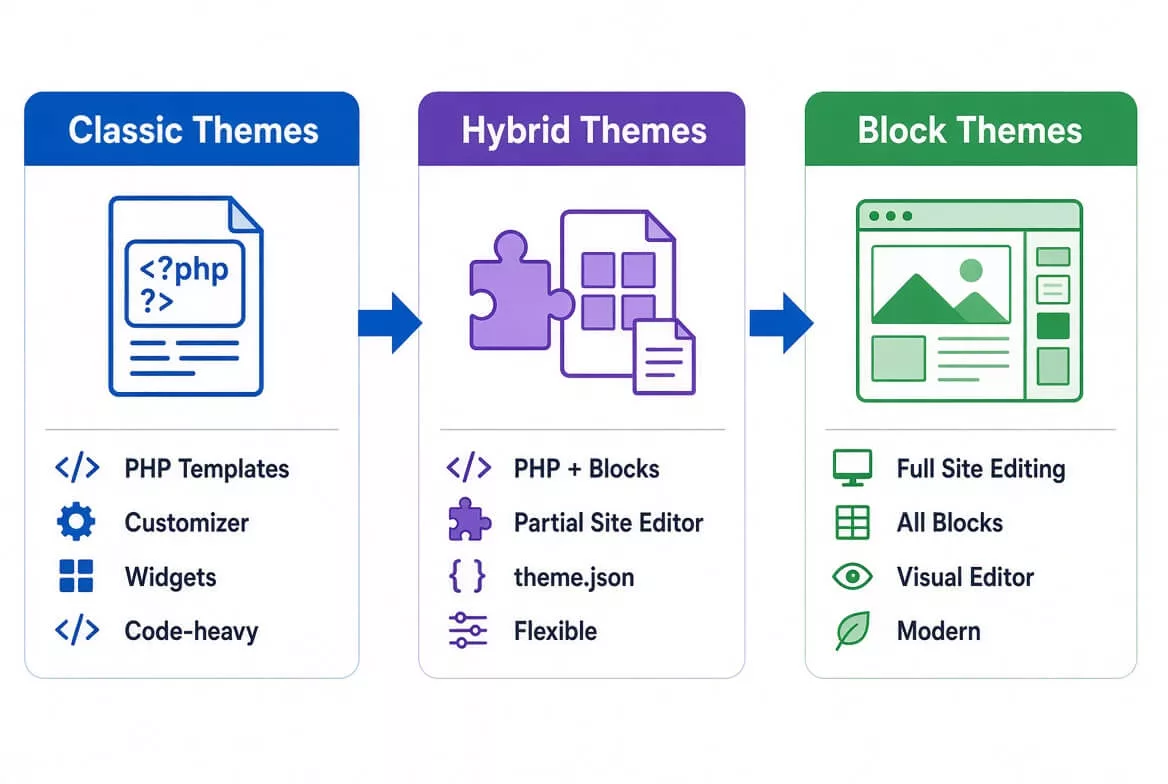
4. WordPress Block Themes vs Classic Themes: 10 Key Differences
Here is the heart of the classic theme vs block theme comparison. The diagram below shows the structural split first, then we walk through each difference one by one.
1. Site Editing
Block themes: the Site Editor gives you one place to edit your entire site, from the homepage to the 404 page. Classic themes: editing is split. You write content in the block editor, adjust design in the Customizer, manage sidebars in Widgets and fix layout in code. Neither approach is wrong, but the block approach removes a lot of “where do I change that?” moments.
2. Template Editing
In a block theme you can open the single post template, drag in a featured image block, add a related posts section and save, all without code. In a classic theme, changing a template means editing single.php (ideally inside a child theme) or paying a developer. The exceptions are themes that ship their own template builder.
3. Header and Footer Customisation
Block themes treat the header and footer as template parts you can rebuild with the Site Editor: swap a logo, add a search block, create a sticky promo bar. Classic themes usually expose a fixed set of header layouts in the Customizer. Beyond those presets you are into PHP, a page builder, or a plugin.
4. Content Layout
Block themes define content width, wide width and spacing in theme.json, so the Group, Columns and Cover blocks behave consistently everywhere. Classic themes define layout in CSS and PHP, and the block editor may need extra “editor styles” so the back end matches the front end. Modern classic themes handle this well, older ones do not.
5. Theme Configuration
Block themes are configured through theme.json: a single, structured file for color palettes, font sizes, spacing scales and block-level defaults. Classic themes scatter the same decisions across functions.php, Customizer controls and stylesheet rules. The block approach is easier to read, audit and reuse across projects.
6. Global Styles
This is where block themes feel most different. With Global Styles you change a font once and every heading, button and quote follows. You can also switch between built-in style variations like swapping a light look for a dark one in a couple of clicks. Classic themes can approximate this with Customizer options, but each theme invents its own system, so skills do not transfer between themes.
7. Template Structure
Classic templates are PHP files with logic mixed into markup: loops, conditionals, function calls. Block templates are declarative HTML made of block comments, with the logic handled by blocks such as Query Loop, Post Title and Post Content. That means fewer places for a beginner to break the site, but also less room for custom logic unless you build a custom block.
8. Customisation Without Coding
If your goal is “change the layout without opening a code editor,” block themes win clearly. Almost every visual decision is available in the Site Editor. Classic themes can match that only when the theme author has built extensive options panels, and those options usually lock you into that one theme.
9. Widgets and Navigation
Classic themes register widget areas (sidebar, footer columns) and use Appearance → Menus to build navigation. Block themes drop widget areas by default and use the Navigation block and ordinary blocks inside template parts instead. If your site leans on sidebar widgets, such as a related content box, check that your plugins offer blocks. Our list of WordPress related posts plugins is a good place to find ones that do.
10. Compatibility and Workflow
Classic themes are compatible with a decade of plugins that rely on PHP hooks, shortcodes and widgets. Block themes are compatible with everything built for the block editor, but older plugins that inject content through classic hooks may not appear where you expect. Workflow also differs: block themes suit visual editors and content teams, while classic themes suit developers who live in Git and an IDE. Always test your must-have plugins on a staging copy first.
5. Neither Classic Themes nor Block Themes Is Universally “More Developer-Friendly”
You will see confident claims online that block themes are “for beginners” and classic themes are “for developers,” or the reverse. Both are oversimplifications.
Classic themes feel friendlier when you already know PHP, hooks and the template hierarchy. You can solve almost any problem with a filter and a few lines of code, and the tooling around it is mature.
Block themes feel friendlier when you think in components, JavaScript, CSS Grid and design tokens. theme.json is clean, patterns are reusable and the block system matches how modern front-end teams already work. Developers who come from React or design-system backgrounds often prefer it.
The honest truth is that block themes shift the workload instead of removing it. Simple layout work becomes easier, while advanced behavior such as custom queries, dynamic data or complex checkout logic may need custom blocks and some JavaScript. The better question is not “which is easier?” but “which matches the skills on my team?”
6. Choosing Between a Block Theme and a Classic Theme for WooCommerce
This is where the decision gets practical, because an online store has more moving parts than a blog. A product page, shop archive, cart, checkout and mini cart all need to look right, load fast and stay compatible with payment and shipping extensions.
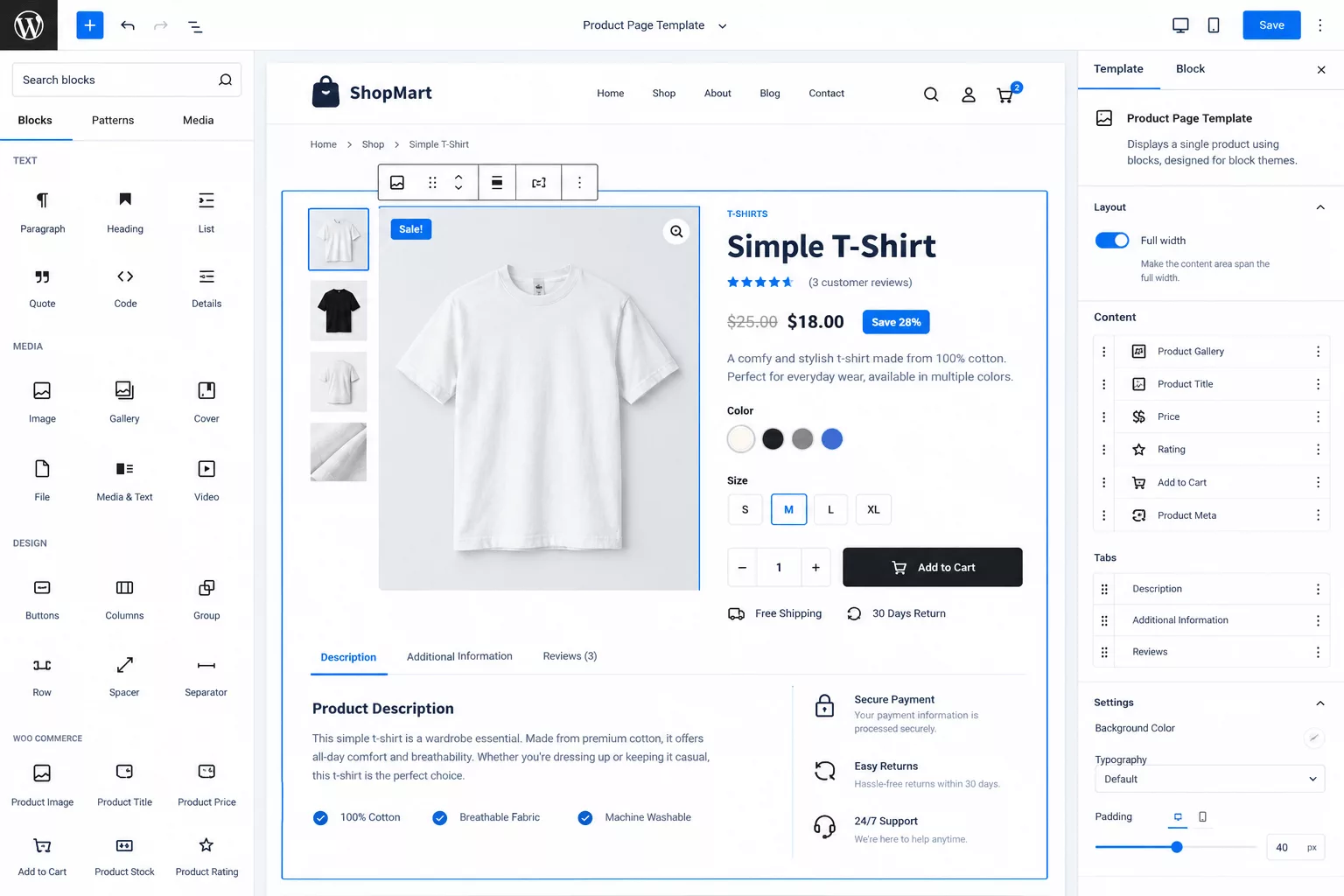
According to the WooCommerce developer documentation, classic themes use PHP templates to override key store pages, and many of those templates cannot be edited in the block editor. Block themes, on the other hand, let you design product pages, archives, cart and checkout inside the Site Editor. WooCommerce’s own guide to choosing a WooCommerce theme points the same direction: block themes make global store templates far easier to customize without code.
Where Block Themes Help Your Store
- Visual product page design. Rearrange the title, price, gallery, add-to-cart button and tabs without template overrides.
- Cart and Checkout blocks. Newer WooCommerce stores use block-based Cart and Checkout, which sit naturally inside block themes.
- Product Collection and Mini-Cart blocks. Build “best sellers,” “new arrivals” and sale rows anywhere, and style the mini cart from the editor.
- Consistent design. One set of Global Styles controls the blog, shop and checkout, so the whole store feels like one brand.
- Easier future switching. Because the design lives in blocks and
theme.jsonrather than proprietary code, changing themes later is less painful.
Where Classic Themes Still Win for Stores
- Legacy extensions. Many older WooCommerce add-ons attach to PHP hooks on the product or cart page. Those hooks behave differently, or not at all, when the page is made of blocks.
- Heavy PHP customization. Membership portals, complex bundles, custom pricing logic and multi-vendor layouts are often already built on classic template overrides in a
woocommerce/folder. - Proven stability. If your current store converts well and nothing is broken, a rebuild is a risk with no guaranteed return.
One more distinction matters: a true block theme supports WooCommerce blocks across every store template, while a partial (hybrid) block theme may still rely on shortcodes or classic PHP templates for the shop pages. If you are starting fresh, look for a modern store theme that is built for WooCommerce from the first line. For a ready-made layout with product grids, promo sections and checkout styling already designed, an eCommerce website template can save weeks of setup.
A Simple Rule for Store Owners
New store, no legacy plugins, no custom PHP? Start with a block theme. Existing store with revenue and a dependable classic setup? Keep it, build a staging site and test a block theme before you commit.
Whichever route you take, performance and security affect sales. Keep an eye on Core Web Vitals using Google’s Web Vitals guide, and protect checkout pages with one of the best WordPress security plugins.
7. Block Theme vs Classic Theme: Best Factors Compared (Table)
Use this table as a quick scorecard. “Best fit” shows which type is usually the stronger choice for that factor, but your own plugins and skills can change the answer.
| Factor | Block Theme | Classic Theme | Best Fit |
|---|---|---|---|
| Main editing tool | Site Editor (Appearance → Editor) | Customizer, Widgets, theme files | Block |
| Template format | HTML with block markup | PHP template files | Depends on skills |
| Header and footer changes | Rebuild visually as template parts | Preset options or code edits | Block |
| Global design control | Global Styles via theme.json |
Theme-specific Customizer options | Block |
| Learning curve for non-coders | Moderate, then very flexible | Easy at first, harder to go beyond presets | Block (long term) |
| Deep PHP customization | Possible, needs custom blocks or hybrid approach | Direct, with hooks and filters | Classic |
| Legacy plugin compatibility | Good with block-ready plugins, mixed with older ones | Excellent | Classic |
| WooCommerce templates | Editable with blocks, including cart and checkout | PHP overrides in woocommerce/ |
Block for new stores, Classic for legacy |
| Performance potential | Lean when it loads only the blocks it uses | Fast when well coded, slower with heavy bundles | Tie (depends on the theme) |
| Future-proofing | Aligned with WordPress’s direction | Fully supported, fewer new features | Block |
| Switching themes later | Content and design largely portable | Often tied to theme-specific shortcodes | Block |
Block theme strengths
- One editor for the whole site
- Visual control of header, footer and templates
- Global Styles keep design consistent
- Great for WooCommerce block pages
- Less reliance on extra plugins
Classic theme strengths
- Mature, predictable and well documented
- Works with older plugins and snippets
- Total control for PHP developers
- No need to rebuild a working site
- Huge catalog of niche themes
8. Block Theme vs Classic Theme Usage Statistics
How many sites really use block themes? The honest answer is “it depends on who you ask,” because no one measures theme types in exactly the same way. Studies that scan thousands of live sites, tools that read page code and industry roundups all produce different numbers. The chart below shows the spread of published estimates for the share of WordPress sites running a block theme.
Here is what the broader data tells us:
- WordPress itself is still huge. W3Techs reported WordPress on roughly 41% of all websites in mid-2026, and about 59% of sites with a known CMS. You can check the latest figure on the W3Techs WordPress usage page.
- Block themes are growing fast but are not yet the majority. One scan of 50,000 sites found block themes growing about 50% year over year while still accounting for under 18% of total theme usage.
- The supply is expanding. Industry trackers report that block themes in the WordPress.org directory grew from about 400 in 2023 to more than 2,500 by 2026, and that over 60% of newly released themes now use Full Site Editing. Browse the current list in the official Full Site Editing theme directory.
- Page builders still dominate. Roughly 60% of WordPress sites use some page builder, and the native block editor is detected on a much smaller share of sites. In other words, many sites run a classic theme plus a builder, which is why this decision is more nuanced than “block versus classic.”
The takeaway: block themes are no longer a niche experiment, but classic themes still power most live sites today. That means plugin and theme developers will support both for a long time, so you are not forced to rush.
9. Should You Switch From a Classic Theme to a Block Theme?
Switching is a design project, not a toggle. Your posts and pages will survive, but your header, footer, widgets, menus and Customizer settings will not carry over automatically. Use these two checklists to decide.
Switch to a Block Theme If:
- You want to edit headers, footers and templates without touching code.
- You are launching a new site or redesigning an existing one anyway.
- Your key plugins already offer blocks and mention Site Editor support.
- You want consistent typography and colors across blog, shop and landing pages.
- You are tired of paying for small layout tweaks.
- You want a setup that follows where WordPress is heading.
Stay With a Classic Theme If:
- Your site is stable, fast and converting well.
- You depend on plugins that only work through classic hooks, widgets or shortcodes.
- Your developers have deep PHP customizations and a tested Git workflow.
- You run a membership, community or LMS site that is tightly tied to its theme. See our picks for WordPress BuddyPress themes and our comparison of Teachable vs WordPress for examples.
- You have no time or budget for a redesign this quarter.
How to Switch Safely
- Back up everything. Take a full file and database backup before you change anything.
- Clone your site to staging. Test the new theme there, never on the live site.
- List your plugins. Note which ones add widgets, shortcodes or template hooks, and check whether each has a block version.
- Rebuild header, footer and menus in the Site Editor, using the new theme’s patterns as a starting point. Need layout inspiration? Our roundups of food blog WordPress themes and wedding WordPress themes show how different niches handle the same structure.
- Re-check SEO settings. Titles, schema and breadcrumbs sometimes depend on theme support. If you are still choosing a plugin, read Rank Math vs Yoast SEO.
- Test checkout end to end if you run WooCommerce: add to cart, apply a coupon, pay, receive the email.
- Scan for problems. Run our free WordPress security audit tool after the switch to catch outdated components or exposed files.
- Go live during a quiet traffic window and watch your analytics and error logs for the first few days.
If you want to speed up repetitive parts of the migration, such as drafting patterns, writing alt text or generating test content, see our list of AI tools for WordPress developers and website owners.
10. FAQs on WordPress Block Themes vs Classic Themes
What is the main difference between block themes and classic themes?
Block themes are built from HTML block templates and edited in the Site Editor, so the whole site, including header, footer and templates, is made of blocks. Classic themes are built from PHP template files and rely on the Customizer, Widgets and code for design changes.
Are block themes better than classic themes?
Not automatically. Block themes are better for visual editing, consistent design and future alignment with WordPress. Classic themes are better when you need deep PHP control, legacy plugin support or a stable setup you do not want to rebuild. The best choice is the one that fits your skills, plugins and goals.
Are classic themes going away?
No. Classic themes are still fully supported and widely used. WordPress is putting new design features into the block and Site Editor system, but there is no announced plan to stop classic themes from working.
Can I use the block editor with a classic theme?
Yes. The block editor for posts and pages works in classic themes. What a classic theme lacks is the Site Editor for templates, header and footer, unless it is a hybrid theme that adds some of those features.
Which is better for WooCommerce, a block theme or a classic theme?
For new stores, a true block theme is usually better because you can edit product pages, the shop, the cart and checkout visually. For established stores that depend on classic template overrides or older extensions, a classic theme can be safer until you have tested a block theme on staging.
Will switching to a block theme delete my content?
No. Posts, pages, media and products stay in your database. What changes is the design layer: header, footer, menus, widgets and Customizer settings need to be rebuilt in the new theme. Always back up and test on staging first.
Are block themes faster than classic themes?
They can be, because they often need fewer plugins and can load only the styles for blocks used on a page. But a well-built classic theme can be just as fast, and a bloated block theme can be slow. Test any theme with real content and a tool like PageSpeed Insights.
What is a hybrid theme?
A hybrid theme is a classic PHP theme that adds block features such as theme.json, patterns or editor styles. It lets you use blocks for content while keeping classic control over parts like the header or WooCommerce templates.
Do I need to know code to use a block theme?
No. Most customization happens visually in the Site Editor. Code becomes useful only when you want custom blocks, advanced queries or unusual behavior.
How can I tell if my current theme is a block theme?
Go to Appearance in your dashboard. If you see Editor and no Customize or Widgets options, you are on a block theme. If you see Customize, Widgets and Menus, you are on a classic theme.
11. Wrapping Up: Which Theme Type Is Right for You?
The block themes vs classic themes question has no universal winner, but it does have a sensible default for most people:
- Starting a new site or store? Pick a true block theme and enjoy one editor, Global Styles and visual WooCommerce templates.
- Running a stable site with custom PHP or older plugins? Stay classic, or move to a hybrid theme and adopt blocks gradually.
- Not sure? Clone your site, test a block theme on staging, and let the results make the decision.
Whichever way you go, choose a theme that is fast, well supported and built for what you actually sell or publish. If you are building an online shop, start with a polished store theme, or launch faster with a complete eCommerce website template that already has the product, cart and checkout design done for you.
Got a question about moving from classic to block? Leave a comment below and we will help you pick the right path.