
Walk into a physical store with a price tag you like and a budget in mind, and you will probably ask whether there is room to move. Shoppers expect that conversation. Online, however, most WooCommerce stores present one fixed price, and the customer either pays it or leaves. Some of those customers would have bought at a slightly lower number. Others were ready to buy in bulk if someone had simply asked. A surprising number of them simply close the tab.
A “Make an Offer” feature gives your shoppers a respectful way to propose a different price. They enter the amount they are willing to pay, you decide whether to accept, reject, or counter, and the deal happens inside your store instead of over email or a contact form. This guide explains what a make an offer plugin does, how negotiation works in WooCommerce, which features matter most, and how to set everything up through the admin screens without writing a single line of code.
Throughout the guide we use the MOAW – Make an Offer & Negotiation Add-on as the working example, and the screenshots come from a demo store selling a few simple products. If you are still deciding which kind of tool fits your business, our roundup of WooCommerce make an offer plugins compares the options side by side. You can also skip ahead to the step-by-step section if you already know you want negotiation on your products.
1. Introduction: Why Add Make an Offer to WooCommerce?
The honest answer is that a fixed price leaves money on the table in two directions. On one side, you lose sales from buyers who think your price is slightly too high for their budget. On the other side, you sell at full price to buyers who would have happily paid a little less, or who would have bought two or three units if the per-unit price had been negotiable. Both losses are invisible in your sales reports, because a customer who never checks out does not show up anywhere.
Negotiation also solves problems that discounts handle badly. A blanket sale price signals to everyone that the item is discounted, which can hurt the perceived value of your catalog. Coupons are easy to share and hard to control. Make an offer lets you respond to each buyer individually. A customer who is serious gets a fair deal, a casual browser sees a respectful response, and you keep the fixed price visible for everyone else.
There is a practical efficiency argument as well. Without a built-in system, price negotiation happens through contact forms, direct messages, and inbox threads that are hard to track. Important offers get buried, customers wait days for replies, and nobody knows which offers have already been answered. A dedicated offer dashboard turns that chaos into a queue you can work through in minutes. If you already run a store with a broad mix of products, you may find it useful to review our list of essential plugins for WooCommerce to see where negotiation tools fit into your wider setup.
2. What Is a WooCommerce Make an Offer Plugin?
A make an offer plugin adds a button, usually labeled “Make an Offer,” to your product pages and, optionally, to your shop and category pages. Clicking the button opens a short form. The customer enters a proposed price, a quantity, and their contact details, then submits. The store owner receives the offer in an admin area, reviews it against the store’s rules, and responds. The plugin handles the back-and-forth, the notifications, and the checkout at the agreed price.
Because WooCommerce already manages products, carts, and orders (if you are new to the platform, our beginner’s explanation of what WooCommerce is is a good starting point), a good negotiation plugin does not replace any of that. It sits on top of the store you already have. Your product prices stay exactly as you entered them. Your payment gateways keep working. Your existing cart and checkout flow remains in place. The negotiated price is applied only when a customer completes a legitimate offer.
How Price Negotiation Works in WooCommerce
Negotiation in WooCommerce follows a simple sequence that most customers understand immediately. A shopper finds a product, decides the listed price is a bit high, and submits an offer. The store then has three possible responses. It can accept the offer, reject it, or send a counter-offer that proposes a new number. If the customer accepts a counter, or if the store accepts the original offer, the customer receives a checkout link that carries the agreed price. Completing checkout through that link creates a normal WooCommerce order at the negotiated amount.
The diagram below shows how an offer moves through the system from the moment it is submitted until the order is placed. The exact path depends on the rules you configure, but every offer follows this general logic.
Make an Offer vs. Request a Quote vs. Name Your Price
Three similar-sounding features often get confused, and the differences matter when you choose a tool. “Request a Quote” is a lead-generation form. The customer describes what they want, and the store replies with a price, usually outside the normal cart flow. It suits custom work, large projects, and services where the final price depends on requirements that cannot be captured in a product listing. “Name Your Price” is usually a single-step system where the customer types an amount and buys immediately if that amount clears a minimum. There is no real back-and-forth. “Make an Offer” sits between the two. The customer proposes a price against a product that already has a listed price, the store can respond, and the conversation can continue for several rounds before a sale is confirmed.
| Feature | Make an Offer | Request a Quote | Name Your Price |
|---|---|---|---|
| Starts from a listed product price | Yes | Usually no | Yes |
| Store can accept, reject, or counter | Yes | Yes, as a quote reply | Rarely |
| Multiple negotiation rounds | Yes | Yes, by email thread | No |
| Best fit | Retail and wholesale products with room to negotiate | Custom and project-based work | Pay-what-you-want campaigns and donations |
If your catalog contains standard products with stable prices but you want flexibility on volume and margin, Make an Offer is usually the right fit. If you sell bespoke services where every job differs, a quote form may serve you better.
Why Choose MOAW for WooCommerce?
MOAW was built to handle the parts of negotiation that simple form plugins tend to ignore. Most lightweight tools collect an offer and send an email. That is a start, but it leaves you to manage the price rules, the rounds, the checkout links, the expiry dates, and the customer’s account history by hand. MOAW keeps those pieces inside WooCommerce and within a single settings area, so the negotiation feels like part of your store rather than a bolt-on.
Three reasons come up most often when store owners explain their choice. First, the price rules are configurable without code, including minimum and maximum amounts, percentage limits, quantity ranges, and expiration timing. Second, the offer dashboard is organized by status, so pending offers are easy to find and bulk actions save time when volume rises. Third, the checkout is secure, because each accepted offer produces a single-use link tied to the negotiated price, which prevents a customer from reusing that link or changing the amount.
3. Key Features of MOAW – Make an Offer & Negotiation Add-on
The plugin is organized around five settings tabs: General, Offer Rules, Product Rules, Notifications, and Display. Almost every feature in this section can be adjusted from one of those tabs, which is why the whole setup can be completed without touching a theme file or a snippet.
Customizable Make an Offer Button and Popup Form
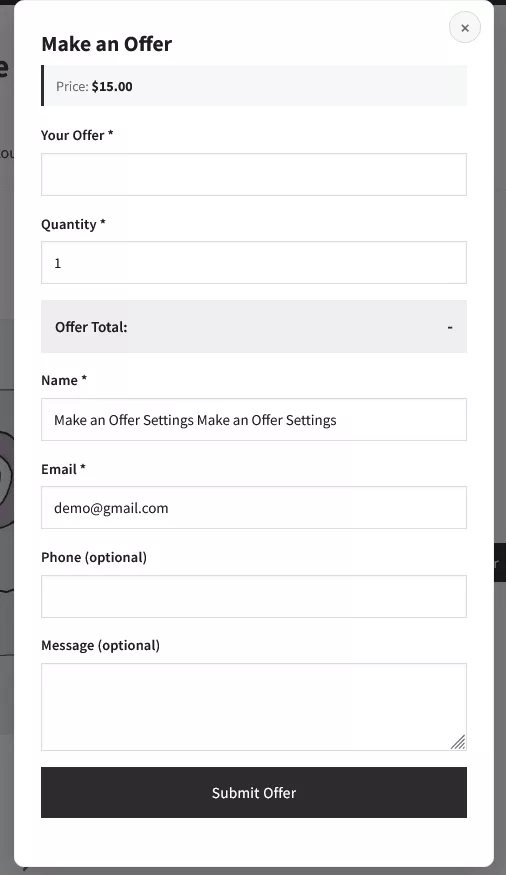
The button is the first thing a shopper sees, so it deserves attention. You can change the button text, the form title, and the success message that appears after submission. The colors are adjustable too. You can set the button background and text color to match your brand, and you can decide where the offer fields appear within the product form. The offer form itself is a clean popup that asks for the offer amount, quantity, and contact details, then calculates the total as the customer types so there is no confusion about what they are proposing.
Smart Offer Rules and Automatic Price Decisions
Not every offer needs your personal attention. A customer who proposes 95 percent of the listed price on a product you were happy to sell at 90 percent should probably be accepted immediately. A customer who proposes a token 10 percent of the price should be turned down without tying up your time. Smart offer rules let you define those boundaries once. Offers above your auto-accept line are approved automatically, offers below your auto-reject line are declined, and everything in between lands in your dashboard for a human decision. Automatic decisions keep response times short and protect your margins without requiring constant monitoring.
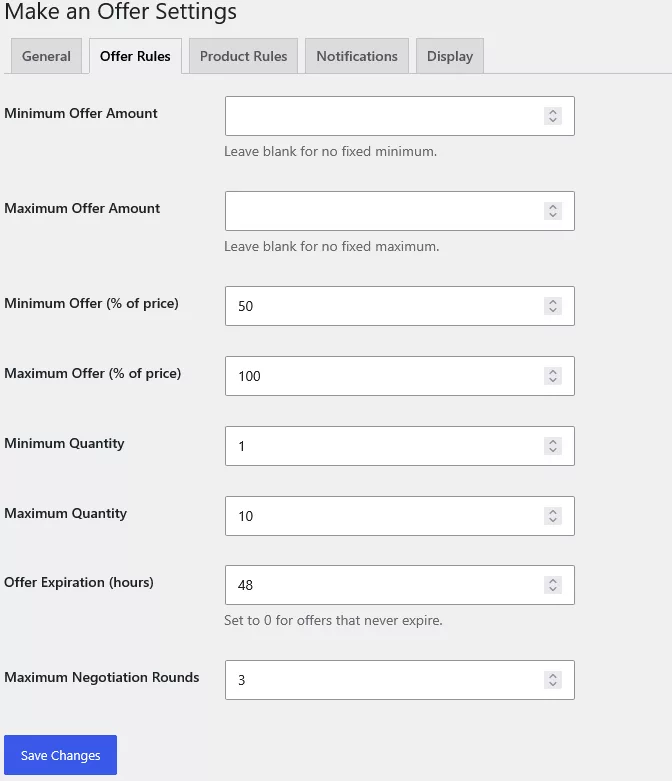
The Offer Rules tab holds the numeric guardrails that sit underneath those decisions. You can set a fixed minimum and maximum offer amount, a minimum and maximum percentage of the listed price, a quantity range, an expiration window in hours, and the number of negotiation rounds allowed before an offer is closed.
Simple and Variable Product Support
Negotiation works best when it fits the way your products are sold. Simple products have one price, so an offer is a straightforward comparison against that number. Variable products complicate things because a T-shirt in size large may cost more than the same shirt in small. MOAW treats each product according to the price the customer is actually looking at, so the offer is calculated against the selected variation. That keeps the maths honest and prevents a customer from offering against the cheapest option and then checking out with a more expensive one.
Dedicated Offer Management Dashboard
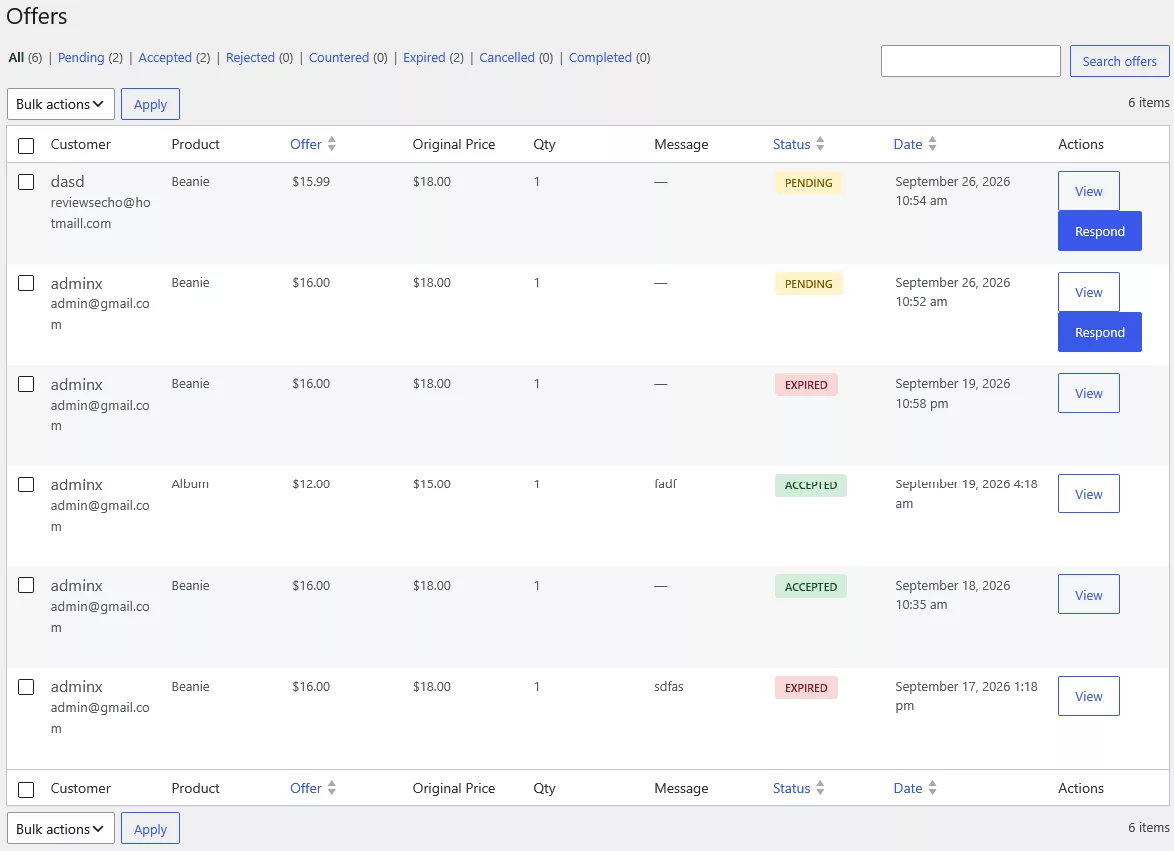
Every offer lands in a central dashboard rather than in your inbox. The dashboard lists the customer, product, offered price, original price, quantity, message, status, and submission date in one table. Status filters at the top let you jump straight to pending, accepted, rejected, countered, expired, cancelled, or completed offers, and a search box finds a specific customer or product in seconds. Bulk actions let you act on several offers at once, which is useful after a promotion or a busy weekend.
Multi-Round Price Negotiation
Most real negotiations take more than one exchange. A customer offers 70 percent, you counter at 85 percent, and they come back with 80 percent. MOAW supports multiple rounds, and you control the limit in the Offer Rules tab. Each round is recorded against the same offer, so you can see the full history when you respond. Once the maximum number of rounds is reached, the offer closes, which stops endless haggling while still giving both sides room to find a number.
My Account – My Offers Integration
Logged-in customers can see their offers without emailing you for an update. The My Account area includes a My Offers view where the customer can check each proposal, see its current status, read counter-offers, and act on them. This reduces support questions, because the customer can answer “what happened to my offer?” without leaving the site. It also gives returning customers a clear history of their negotiations, which is valuable if they buy from you regularly.
Guest Offer Submission
Not every shopper wants to create an account before they have decided to buy. The Enable Guest Offers setting lets visitors submit an offer with only their name, email address, and proposed price. If you prefer tighter control, you can turn on the Require Login option so that only registered customers can negotiate. Many stores start with guest offers enabled because it removes friction, then move to login-only once they have seen how their audience behaves.
Secure, Single-Use Negotiated Checkout Links
When an offer is accepted, the customer receives a checkout link that carries the agreed price. The link is single-use, which means it cannot be forwarded to a friend or reused for another purchase after the order is placed. Because the price is tied to the link rather than to a coupon or a manual edit to the product, the original product price stays untouched for every other shopper. The negotiated price is also reflected in the order, so your accounting remains accurate.
Automatic Email Notifications
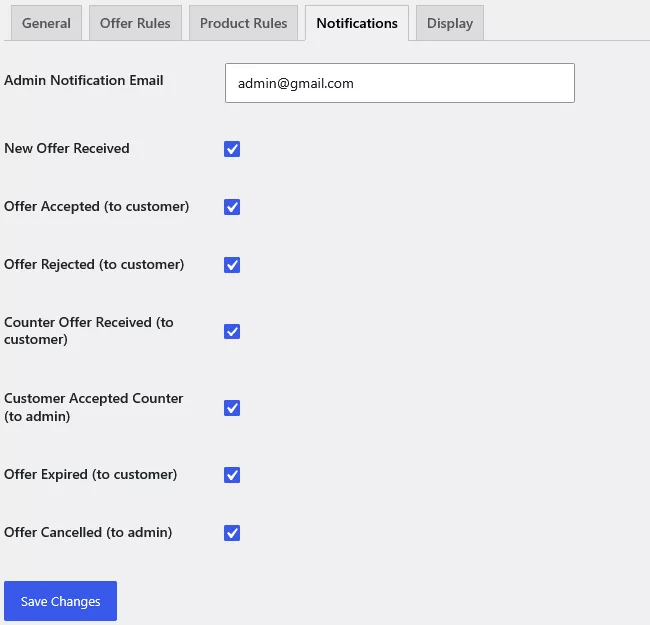
Notifications keep both sides informed without anyone checking a dashboard. You choose an admin notification address and then decide which events trigger an email. The available events include a new offer received, an offer accepted or rejected for the customer, a counter-offer sent to the customer, a customer accepting your counter, an offer expiring, and an offer being cancelled. Each event can be toggled on or off independently, so you can receive alerts for the things you need to act on and skip the ones you do not.
WooCommerce HPOS Compatibility
WooCommerce’s High-Performance Order Storage, usually called HPOS, changes where order data lives in your database so that large stores run faster. MOAW is designed to work with HPOS, which means you can enable it without a conflict and keep the performance benefits. If you are running an older store that has not yet migrated, the plugin still functions with the standard order storage. Either way, you should test your setup on a staging site before making structural changes to a live store.
Customized Display on Shop, Category, and Tag Pages
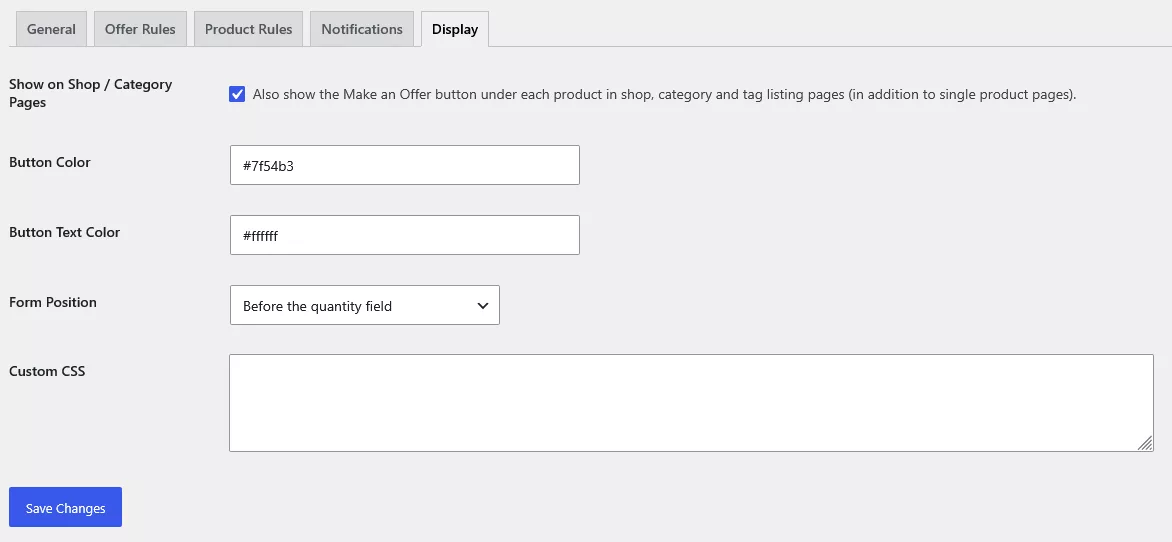
Product pages are not the only place where shoppers decide whether to negotiate. The Display tab can show the Make an Offer button under each product on shop, category, and tag listing pages, in addition to the single product page. That matters for stores with long catalogs, because a shopper browsing a category may never click into a product that interests them unless the option is visible. The Display tab also includes a Form Position setting, so you can place the offer fields before or after the quantity field depending on how your product layout is built.
Personalized Pricing for Accepted Offers
One feature that sets negotiation apart from discounting is personalized pricing. When an offer is accepted, the plugin can show that customer their negotiated price on the product and shop pages, with a label you choose such as “Your Price.” For logged-in customers, the price follows their account. For guests, it follows their browser. Other visitors continue to see the standard price, so the negotiation stays private, and your original catalog pricing is never rewritten.
Personalized pricing is a small feature with an outsized effect on conversion. A customer who sees the agreed price waiting on the product page feels that the deal is real, and it removes the awkward moment where they wonder whether they will be charged the listed amount at checkout.
4. How to Add Make an Offer to WooCommerce Without Code
The setup process has eight steps. Each one takes place in the plugin’s settings screens, and none of them requires editing theme files, adding custom functions, or writing CSS. If you want to see how a developer would build a similar feature from scratch, our tutorial on WooCommerce hooks with examples shows the code side of the platform. For most store owners, the settings-based approach described here is faster and easier to maintain.
Step 1: Install and Activate MOAW
Start by installing the plugin on your WordPress site. Upload the plugin file through the Plugins screen, or install it from your account download, then activate it. Once activation is complete, a new Make an Offer Settings area appears in your WordPress admin. Before changing anything, confirm that WooCommerce is installed and active, because the negotiation features depend on it. Make sure your product pages load correctly and that you can add an item to the cart. That baseline check saves time later if something needs troubleshooting.
Step 2: Configure the Make an Offer Button
Open the General tab of the Make an Offer Settings page. The first decision is whether the plugin is switched on store-wide. The Enable Plugin checkbox is the master switch, so you can pause negotiation during a sale or a stock change without deactivating the plugin. Below it you will find the button text, the form title, and the success message. The default wording is clear, but you may want to adapt it to your brand voice. A friendly, short success message helps the customer understand that a human will review the offer and reply.
Next, visit the Display tab to decide where the button appears and how it looks. Turn on the option to show the button on shop, category, and tag pages if you want shoppers to negotiate directly from listings. Then set the button color and text color so the button stands out without clashing with your theme. High contrast between the button and the background usually performs better than a subtle color match, because the button is a call to action.
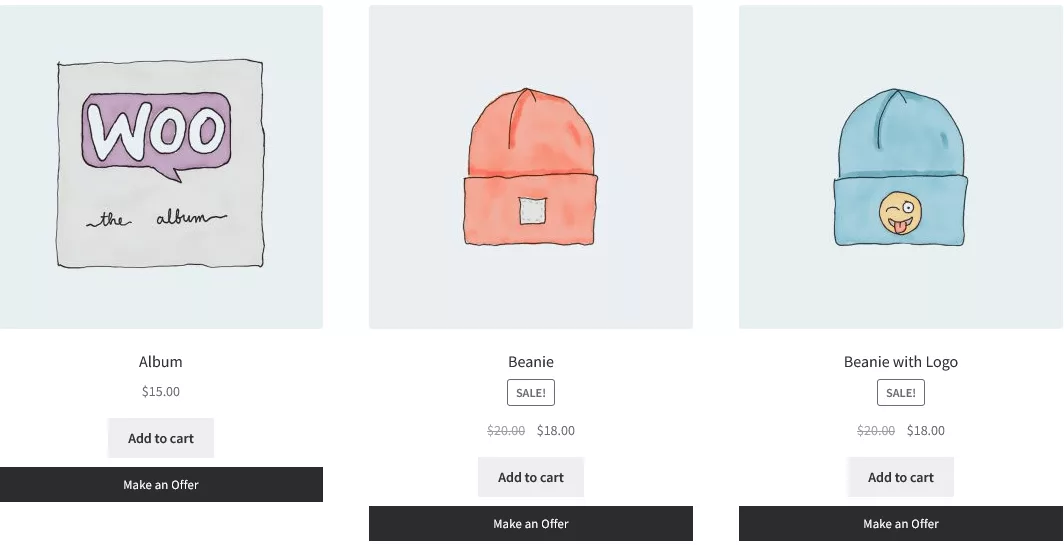
Step 3: Customize the Offer Submission Form
The offer form is where customers commit to a number, so its wording should be clear. Edit the form title to match your tone. A title such as “Make an Offer” is direct and works well for most stores, while “Name Your Price” or “Let’s Make a Deal” suits more playful brands. Set the Form Position in the Display tab so the offer fields appear where they make the most sense for your layout. Placing the offer fields before the quantity field works well when the offer amount is the most important decision, while placing them after the quantity field can work better when customers tend to choose a quantity first.
Keep the required fields to a minimum. Name and email are essential because they let you reply. Phone and message are optional, and the message field is valuable because customers often explain why they are asking for a lower price, such as a bulk purchase or a budget constraint. Every extra required field reduces the number of offers you receive, so only require what you genuinely need.
Step 4: Configure Minimum and Maximum Offer Prices
Go to the Offer Rules tab and set your price floor and ceiling. The plugin lets you define these boundaries in two ways. A fixed minimum or maximum amount applies a dollar value, which is useful when a product has a clear cost floor you never want to go below. Percentage limits apply a ratio of the listed price, which scales automatically when you change a product’s price. The demo store in the screenshot uses a minimum of 50 percent and a maximum of 100 percent, which means a shopper cannot offer less than half the listed price and cannot offer more than the listed price.
Percentage limits are usually the better choice for stores with many products, because a single rule covers the whole catalog. Fixed amounts make more sense for high-value items where a specific floor price has been agreed with suppliers. You can combine both approaches by setting a percentage for general products and a fixed minimum for sensitive items, then restricting offers on the special products through the Product Rules tab, which is covered later in this guide.
Step 5: Set Auto-Accept and Auto-Reject Thresholds
Automatic decisions are where negotiation becomes efficient. Choose an auto-accept threshold, which is the offer level that you would happily accept without reviewing it. Then choose an auto-reject threshold, which is the lowest level you are willing to consider. Anything between the two goes to your dashboard for a manual decision. Think about your margins before setting these numbers. If your product costs you 60 percent of the listed price, an auto-accept threshold at 65 percent is safe, while an auto-reject threshold at 62 percent would still leave room to counter.
The diagram below illustrates how a single product might be divided. The example uses an $18 beanie, with a 50 percent floor, an auto-reject line at 60 percent, and an auto-accept line at 90 percent. The exact numbers are yours to set, but the principle is the same for any product.
Step 6: Configure Quantity Limits and Offer Expiration
Quantity limits protect you from unrealistic requests and make bulk deals easier to manage. In the Offer Rules tab, set the minimum and maximum quantity a customer can include in one offer. The demo store allows between 1 and 10 units per offer. If you regularly sell in larger lots, raise the maximum, but keep in mind that a large quantity at a steep discount can change your margins quickly. Quantity and price work together, so a 10-unit offer at 80 percent may be a good deal, while the same discount on a single unit might not be.
Offer expiration keeps the pipeline clean. The Offer Expiration setting is measured in hours. The demo store uses 48 hours, which means an offer that has not been answered within two days is closed. Setting the value to 0 keeps offers open indefinitely, which is rarely a good idea because stale offers clutter your dashboard and can create awkward situations if a product price changes. Expiration also creates a natural sense of urgency, which we discuss in the best practices section. Finally, the Maximum Negotiation Rounds setting caps the number of counter-offers. The demo store allows three rounds, which is enough for most deals to settle without becoming a drawn-out exchange.
Step 7: Enable Guest Offers or Require Customer Login
Decide who is allowed to negotiate. The General tab includes two related checkboxes. Enable Guest Offers allows visitors to submit an offer without an account. Require Login forces visitors to sign in before they can make an offer. Turning on guest offers and leaving login optional is the most common starting point, because it removes friction and lets you collect leads from people who may not otherwise create an account. Requiring login is useful for wholesale stores, members-only catalogs, or any situation where you need verified customer records before you negotiate.
If you enable guest offers, check that your notification email is set correctly, because guest offers will reach you without an account attached. Make sure the success message tells guests how to check on their offer, such as by watching their inbox for your reply.
Step 8: Save Settings and Test Your Configuration
Once every tab is configured, click Save Changes on each one. Testing is the step most store owners skip, and it is the one that catches mistakes. Open a product page in a private browser window so you see the store as a guest would. Click Make an Offer, enter an amount that should be accepted, and submit. Then submit an amount that should be rejected, and another that should land in manual review. Check your dashboard to confirm each offer arrived with the correct status. Finally, check your email for the notifications you enabled. If an offer is not behaving as expected, go back to the Offer Rules and Product Rules tabs, because most issues come from a percentage limit or a product restriction set one level too tight.
5. How to Manage WooCommerce Offers Using MOAW
A negotiation feature is only as good as your ability to respond to it. The offer dashboard is designed to make responding quick, so you can handle a steady stream of offers without losing track of anything. This section walks through the daily workflow.
Access the Dedicated Offers Dashboard
The Offers screen is the place you will spend most of your negotiation time. It opens with every offer listed, and the status filter links across the top show counts for each category, such as Pending, Accepted, Rejected, Countered, Expired, Cancelled, and Completed. Clicking a status narrows the list immediately. Most store owners leave the default All view open and rely on the Pending filter when they want to see what needs an answer. Keeping the dashboard open in a browser tab during business hours is a simple way to respond quickly.
Review Pending Customer Offers
Pending offers are the ones waiting for your decision. Each row shows who sent the offer, what product they want, the amount they proposed, the original price, the quantity, and any message they included. Start with the message, because it often explains the offer. A customer who says they are buying for a team of ten is in a very different position from one who simply typed a low number. Then compare the offered price against the original price and your margins. The status column tells you whether the offer is still open or has already expired, so you do not waste time on an offer nobody can accept.
Accept or Reject an Offer
To act on a single offer, click View to read the full details, or click Respond on a pending row. From there you can accept the offer, which triggers the checkout link and the customer notification, or reject it, which informs the customer that the offer was declined. If you handle a batch of offers at once, the bulk actions menu at the top or bottom of the table lets you apply the same decision to several selected rows. Use bulk acceptance carefully. It is convenient after a clearance event, but it should only be applied to offers that clearly meet your floor.
Send a Counter Offer
A counter-offer is the most valuable tool in negotiation, because it keeps a deal alive when the customer’s number is too low but the sale is still worth pursuing. Instead of rejecting an offer outright, use Respond to propose a new price. The customer receives a notification with your counter, and they can accept it, decline it, or come back with another number. The counter-offer status appears in the Countered filter, so you can find those conversations easily. Counter-offers work best when they move in reasonable steps, because a large gap can make the customer feel insulted and abandon the deal.
Manage Multiple Negotiation Rounds
Each back-and-forth exchange counts as a round, and the maximum you set in the Offer Rules tab determines when the conversation ends. When a customer makes their final counter, the round limit prevents a loop of endless proposals. Before a round limit is reached, review the full history of the offer. The history shows each proposal, each response, and each timestamp, which helps you see whether the customer is moving toward your number or drifting away. If a negotiation is stalling, a short personal message can sometimes break the deadlock more effectively than another counter-offer.
Track Accepted, Rejected, Expired, and Completed Offers
The status filters give you a running picture of how your negotiation program is performing. Accepted offers that have not yet converted to orders are worth following up on. Expired offers show where you may need a shorter expiration window or a more competitive counter. Rejected offers reveal the price points customers consider too high, which can inform future product pricing. Completed offers are the ones that turned into orders at the negotiated price, and they are the clearest measure of return on the feature. Reviewing these numbers once a month is a good habit, because patterns become visible over time that are invisible in any single offer.
6. How Customers Submit and Negotiate Offers
The customer side of negotiation should feel simple and fair. Shoppers do not need to understand the rules behind the scenes. They need to know what they can offer, what will happen next, and how to check on their proposal. The plugin is built around that experience.
Submit an Offer from a Product Page
A customer who wants to negotiate clicks the Make an Offer button on a product page or in the shop listing. The popup opens with the listed price displayed at the top, so the customer begins with the right reference point. They do not need to leave the page or hunt for a contact form. The button is visible at the moment the customer is deciding whether to buy, which is exactly where a negotiation option is most useful.
Enter a Proposed Price and Quantity
The customer types a proposed price and selects a quantity. As they type, the Offer Total updates to show the combined value of their offer. That small feature prevents misunderstandings, because the customer sees exactly what they are proposing for the number of units they want. They then enter their name, email, and optionally a phone number and message, and submit. A clear success message confirms the offer was received and explains that the store will respond. Customers who know what happens next are far less likely to send duplicate offers out of impatience.
Track Offers from My Account
Registered customers can review every offer in their My Account area. The My Offers view lists each proposal with its current status, so a customer can see whether an offer is pending, accepted, countered, or expired without contacting the store. This reduces the number of “any news?” messages you receive and gives customers a sense of control over the process.
Accept or Decline a Counter Offer
When you send a counter-offer, the customer receives a notification and can respond from the same place. They can accept your number, which moves the offer to checkout, or decline it. If they accept, the checkout link is generated and sent to them. Making the response easy to find matters, because a counter-offer that sits unanswered in an inbox is a lost sale. The notification email and the My Account view work together so the customer has more than one way to act.
Complete Checkout at the Negotiated Price
The final step is checkout. The customer opens the single-use link, which takes them to the normal WooCommerce checkout with the agreed price applied. They choose a payment method, enter their shipping details, and place the order. Because the checkout is standard WooCommerce, every payment gateway you already use continues to work. The order records the negotiated amount, and it moves through your usual fulfillment process. From the customer’s perspective, the purchase feels like any other order, with one important difference: the price is the one they negotiated.
7. How MOAW Protects Your WooCommerce Product Prices
A common worry about negotiation is that it might damage your catalog. Store owners ask whether customers will see strange prices, whether the original product price will change, and whether someone could exploit the system to buy at an unreasonable discount. These are fair questions, and the design of the plugin addresses each of them.
Keep Original Product Prices Unchanged
The most important principle is that negotiation never edits your products. The price you set in WooCommerce stays exactly as you entered it. Accepted offers do not rewrite the product record, and rejected or countered offers do not change anything in the catalog. This matters for SEO, for Google Shopping feeds, for marketplace listings, and for the trust of every shopper who sees your published price. Negotiation is a layer on top of the catalog, not a replacement for it.
Generate Secure One-Time Checkout Links
Checkout links are where the negotiated price is applied, so they need to be controlled. Each accepted offer generates a single-use link tied to that specific agreement. The link carries the negotiated price, and it stops working after it has been used to place an order. A customer cannot forward the link to someone else for a discount, and the same link cannot be reused for a second purchase. If you are curious about how checkout behaves more broadly, our guide to add to cart popups in WooCommerce explains the cart-side experience that surrounds these links.
Prevent Unauthorized Price Manipulation
Every offer is checked against the rules you have configured before it can become a price. The minimum and maximum amounts, the percentage limits, the quantity range, and the product restrictions all apply to each submission. A customer who tries to offer below your floor or above your ceiling is stopped by the rules, and an offer on a product you have excluded cannot be submitted at all. Those guardrails are the reason it is worth taking time over the Offer Rules and Product Rules tabs during setup.
Maintain Normal WooCommerce Cart and Checkout Functionality
Negotiation is designed to coexist with the rest of your store. Customers who prefer to buy at the listed price can still add items to the cart and check out as usual. Coupons, shipping calculations, taxes, and payment gateways work the way they did before. Accepted offers simply provide an alternative route to the same checkout. Because nothing about the standard cart flow has been replaced, your store retains the reliability and familiarity that customers expect from WooCommerce.
8. Compatible WooCommerce Product Types
Not every product in your store needs to be negotiable, and not every product type behaves the same way. MOAW supports several WooCommerce product types, and the Product Rules tab lets you decide exactly which items accept offers.
Simple Products
Simple products are the easiest to negotiate because they have a single price and no variations. A customer offers against the listed amount, and the plugin compares the offer directly to your rules. Most stores start by enabling offers on simple products because the setup is straightforward and the results are easy to measure. If you sell standard items such as books, accessories, or single-model electronics, simple products will likely make up the bulk of your negotiations.
Variable Products
Variable products, such as clothing sold in several sizes or accessories sold in several colors, need more careful handling. Each variation can have a different price, so the offer must be measured against the variation the customer has chosen. This is the right behavior, because it prevents a shopper from offering against the lowest-priced option and then purchasing a more expensive one. Store owners who manage complex variations often find it helpful to review how prices are structured. Our article on WooCommerce variation swatches covers how shoppers choose between options, which affects how they will approach an offer. For stores that need to adjust variation prices in bulk, our guide to moving WooCommerce variation prices is a useful companion.
Virtual Products
Virtual products, such as online courses, consultation packages, or memberships that have no shipping component, work well with negotiation. A customer offers a price, you accept or counter, and the checkout proceeds without any shipping step. Virtual products are often the most flexible category for negotiation because the marginal cost of an extra sale is low, which gives you room to accept reasonable offers without worrying about inventory.
Downloadable Products
Downloadable products, such as templates, fonts, music, or software licenses, are similar to virtual products but deliver files after purchase. Negotiation suits them well when you want to reach price-sensitive buyers without permanently lowering your list price. Downloadable items also benefit from a clean checkout link, because the file delivery begins immediately after payment. Make sure your licensing terms are visible on the product page so a customer who negotiates a lower price understands what they are buying.
Controlling Which Products Accept Offers
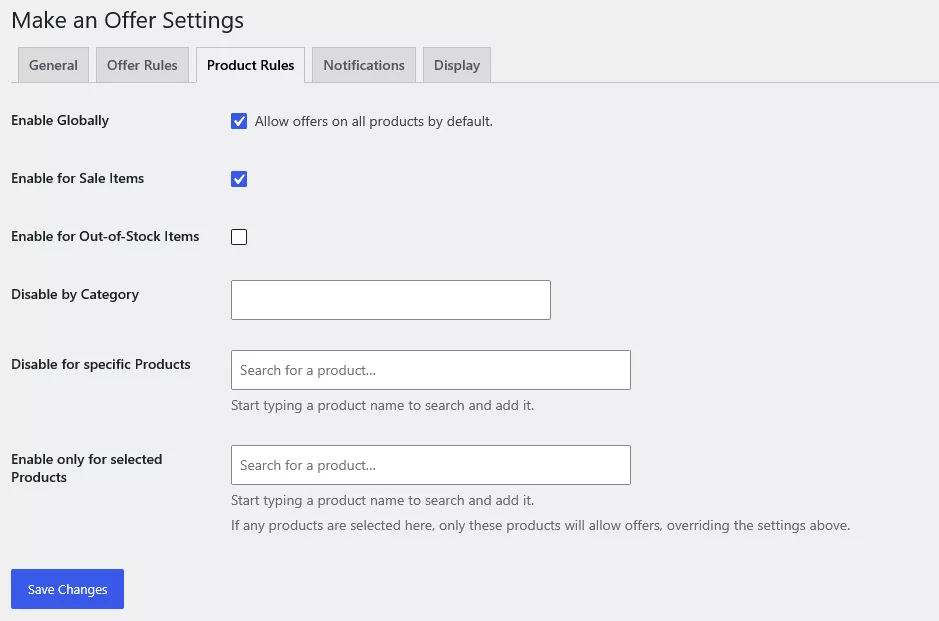
The Product Rules tab gives you several levers. You can allow offers on all products by default, then carve out exceptions. You can allow offers on sale items, or exclude them if you do not want to stack discounts. You can decide whether out-of-stock products accept offers, which is usually a bad idea unless you are taking pre-orders. You can disable offers for an entire category, such as limited-edition items, or search for individual products to exclude. If you prefer a more selective approach, you can enable offers only for a chosen list of products. In that mode, the selected products are the only ones that accept offers, and the global setting is overridden. Selective enablement is a useful way to begin, because you can test negotiation on a small group before rolling it out across the catalog.
9. Who Should Use MOAW?
Negotiation is not right for every store, but it fits a wider range of businesses than most owners expect. The clearest candidates share one trait: their prices have some flexibility, and their customers value the chance to be heard. The following categories show where the feature tends to deliver the most value.
Wholesale and B2B WooCommerce Stores
Wholesale buyers almost always negotiate. They order in volume, they compare suppliers, and they expect a conversation about price. A make an offer system fits this model well, because it lets you set a retail price for general shoppers while still responding to bulk requests. Requiring login for wholesale negotiations means you can verify accounts and track history for repeat buyers. If you are building a trade-focused storefront, our overview of wholesale WooCommerce themes can help you match the design to the audience.
Furniture and Home Decor Stores
Furniture and decor are high-consideration purchases. Shoppers compare prices across many sites, and they often hesitate on large items where a few percent makes a real difference. Negotiation gives them a respectful way to ask for a better deal without leaving your store. Because the items are often one-off pieces or limited runs, the expiration timer and round limit also help you close sales without tying up your inventory for weeks.
Electronics and Refurbished Product Stores
Electronics prices move quickly, and refurbished stock varies in condition and availability. A negotiation system helps you respond to competitor prices without constantly updating your catalog. Shoppers who have already researched a model often know roughly what it should cost, so an offer is a natural expression of that research. Pairing offers with a tight product rule set, such as restricting negotiation to refurbished items, keeps your new-product pricing consistent.
Handmade and Custom Product Businesses
Makers often price their work to cover materials and time, but customers sometimes want a slightly different arrangement, such as a smaller size, a bundle, or a bulk order for an event. Negotiation lets you say yes to reasonable adjustments without rewriting every product listing. Customers who submit a message explaining their project give you the context you need to decide quickly. The feature works best for makers who sell repeatable items in multiple quantities.
Clearance and Liquidation Stores
Clearance is where negotiation shines most visibly. Excess inventory needs to move, and shoppers who came for a deal are primed to make an offer. Setting a lower auto-accept threshold on clearance products, combined with bulk quantity limits, lets you clear stock faster. Keep the minimum price firm enough to protect your cost of goods. Our article on WooCommerce inventory management explains how to keep stock levels accurate, which matters when you are moving large quantities quickly.
Digital Products and Premium Services
Digital products and premium services are often priced on value rather than cost, which makes them open to negotiation. A course creator might accept a lower price from a student who buys a bundle of three. A designer might accept a counter-offer for a retainer package. Because digital delivery has little marginal cost, you can use negotiation to fill seats, grow your audience, or reward loyal customers without any physical inventory risk.
10. Best Practices for Successful WooCommerce Price Negotiation
Turning on negotiation is easy. Getting consistent value from it takes a little discipline. The practices below reflect what works across the store types described above, and they will help you avoid the common pitfalls of over-discounting or under-responding.
Set Realistic Minimum Offer Prices
Your minimum offer is your most important number, so set it with your costs in mind. Work out the lowest price at which a sale still covers materials, shipping, payment fees, and a reasonable margin. Then set the minimum a little above that point, leaving room for counter-offers. A floor that is too low invites offers that cost you money. A floor that is too high frustrates customers and drives them to competitors. Revisit your minimums whenever your costs change, because a rule that worked last year may no longer protect your margin.
Use Automatic Acceptance and Rejection
Automatic decisions keep response times short, which is one of the strongest predictors of a completed sale. A customer who gets an instant answer is far more likely to buy than one who waits two days. Set your auto-accept threshold at a level you genuinely would not mind, and set your auto-reject threshold at a level you would never consider. Review the automatic decisions periodically, because the thresholds that felt right at launch may need adjusting once you see real offer patterns.
Encourage Bulk Quantity Offers
Negotiation is an excellent way to sell more units per order. Customers who would hesitate to buy a single item at full price may happily offer for three or four if the per-unit price is attractive. Encourage this by highlighting bulk negotiation in your product descriptions and by setting quantity limits that allow meaningful orders. Pairing negotiation with a clear bulk strategy, such as the approaches in our guide to WooCommerce bulk discount plugins, lets you reward volume in a consistent way.
Respond to Counter Offers Strategically
When you counter, think about the customer’s likely next move. A counter that is close enough to their offer signals that you are serious about closing the deal, and it often produces an acceptance. A counter that is far from their offer can feel dismissive, especially if you did not include a message. Adding a short note explaining your reasoning, such as the product’s materials or a limited stock position, makes your counter feel considered rather than arbitrary. Keep track of how many rounds remain, so you are not surprised when the limit closes the conversation.
Use Offer Expiration to Create Urgency
Expiration is a gentle way to encourage decisions. When customers know an offer will expire in 48 hours, they tend to respond rather than letting the conversation drift. Use the expiration setting to match your business rhythm. A short window works well for limited stock, while a longer window suits considered purchases. Pair expiration with an email reminder where it makes sense, and consider our advice on WooCommerce sales notification plugins if you want to show social proof of recent purchases alongside the urgency.
11. Frequently Asked Questions
Can I add a Make an Offer button without coding?
Yes. MOAW is configured entirely through the Make an Offer Settings screens in WordPress. You turn the feature on, set the button text and colors, define your price rules, and choose notifications from the admin tabs. No theme edits, snippets, or custom CSS are required, although the Custom CSS field is available if you want to fine-tune appearance later.
Can customers negotiate product prices?
Yes. Customers can submit a proposed price and quantity on any product you allow, and the store can accept, reject, or counter the offer. Negotiation happens within the limits you set, including minimum and maximum amounts, percentage ranges, and quantity limits. Accepted offers lead to a checkout link at the agreed price.
Can I automatically accept or reject offers?
Yes. You can set an auto-accept threshold for offers you are happy to approve immediately and an auto-reject threshold for offers that fall below what you will consider. Offers between the two thresholds are sent to your dashboard for a manual decision, which keeps you in control of the deals that matter most.
Does MOAW support variable products?
Yes. Offers on variable products are calculated against the variation the customer has selected, so the price comparison reflects the actual item they are considering. This prevents offers from being made against the cheapest variation and then applied to a more expensive one.
Can guest visitors submit offers?
Yes, if you enable guest offers in the General tab. Guests provide their name, email, and proposed price, and you respond by email. If you prefer to limit negotiation to registered customers, turn on the Require Login option instead.
Can customers send counter offers?
Customers can respond to a counter-offer by accepting it, declining it, or proposing a new number, up to the negotiation round limit you set in the Offer Rules tab. Each response is recorded against the same offer, so the full history is visible in the dashboard and in the customer’s My Account area.
Does the plugin change the original product price?
No. Your product prices remain exactly as you entered them in WooCommerce. Accepted offers create a single-use checkout link at the negotiated price, and the personalized pricing feature shows that price only to the customer who negotiated it. Other shoppers continue to see the standard listed price.
Does MOAW work with WooCommerce HPOS?
Yes. MOAW is designed to be compatible with WooCommerce High-Performance Order Storage. You can use the plugin with HPOS enabled, and it continues to work if your store is still using the standard order storage. As with any plugin update to a live store, test on a staging site first.
Can customers use any payment gateway?
Customers can use any payment gateway that is already active in your WooCommerce checkout. Because the negotiated checkout is a standard WooCommerce checkout with an adjusted price, your existing gateways, such as card processors and wallets, remain available. Check your gateway settings to make sure the methods you want are enabled.
Can I limit how long an offer remains valid?
Yes. The Offer Expiration setting in the Offer Rules tab is measured in hours. The demo store uses 48 hours, and setting the value to 0 means offers never expire. Expired offers appear under their own status filter, and customers receive a notification when an offer expires if you have that event enabled.
12. Conclusion: Start Negotiating Prices with MOAW
A fixed price is a sensible default, but it is not always the best one for every shopper or every product. Make an offer gives your store the flexibility to say yes to fair deals, politely decline the ones that do not work, and keep negotiations moving until a sale is agreed. You do not need to write code, hire a developer, or manage a tangle of email threads. The settings are in one place, the dashboard keeps everything organized, and the checkout links protect the price you agreed.
If you are ready to add negotiation to your store, start with a small group of products, set conservative floors and generous auto-accept thresholds, and watch how customers respond over two or three weeks. Adjust the rules as you learn, then expand to the rest of the catalog. You can explore the full feature set and get started on the MOAW – Make an Offer & Negotiation Add-on product page, where you will find the details you need to choose the right plan for your store.