
A dropdown asks shoppers to imagine a product. A swatch lets them see it. That one difference is why WooCommerce variation swatches have become a standard upgrade for any store that sells clothing, furniture, cosmetics, phone cases, gifts, or anything else that comes in more than one color, size, or material.
Out of the box, WooCommerce shows every attribute as a plain select box. Customers have to click, scroll, guess what “Heather Grey” looks like, and then click again. A good variation swatches for WooCommerce plugin replaces that with visible color circles, product photos, text labels, or buttons, so the choice is obvious at a glance, on desktop and on a phone.
We compared ten swatch plugins for this guide: our own Smart Variation Swatches Pro, six CodeCanyon options, and three well-known commercial plugins. Below you will find what each one does, what it costs, who it suits, and what to check before you pay. If you are still getting familiar with the platform, start with what WooCommerce is and how it works, then come back here.
Why variation swatches matter for sales
Roughly seven in ten online shopping carts are abandoned, according to Baymard Institute’s meta-analysis of dozens of studies. That number is about checkout, not swatches, and we do not want to oversell the connection. But it frames the real problem: every bit of friction before the cart (hunting for a color, opening a dropdown, picking a size that turns out to be sold out) makes a purchase a little less likely to finish.
Swatches attack the friction that sits earlier in the journey:
- Faster decisions. Visible options remove the click-open-scroll-select routine, which matters most on phones.
- Fewer wrong-variation orders. A real color chip or photo is harder to misread than a name like “Sage”.
- Stock honesty. Blurred or crossed-out swatches tell shoppers what is unavailable before they pick it, so they do not hit a dead end after choosing.
- Better browsing. With shop-page (archive) swatches, shoppers can see color options on the category grid without opening every product.
- A more polished store. Swatches signal care and make a standard theme feel custom.
The effect on your variable product conversion rate depends on your catalog and traffic, so treat any promised percentage lift with suspicion and test it yourself (we cover how in the best-practices section).
Swatch types explained
Before comparing plugins, it helps to know the vocabulary. Most WooCommerce swatch plugins offer some mix of the following display types for product attribute swatches:
- Color swatches fill a circle or square with a hex color. Best for apparel, accessories, and paint.
- Dual-color swatches split the chip in two for two-tone products (a white sneaker with a navy stripe).
- Image swatches show a photo or image pattern swatch (fabric, wood grain, tile). Best when color names do not describe the look.
- Label and text swatches show sizes, materials, or capacities as text.
- Button swatches are label swatches styled as clickable buttons.
- Radio swatches present options as a radio list, handy when each option needs a longer description.
- Shapes: most plugins let you choose rounded or square swatches and set the size.
What to look for in a variation swatches plugin
Many roundups compare plugins by swatch type alone. In practice, the features below separate a plugin you will keep from one you will replace in six months:
- Swatch types you actually need: color, image, label, button, radio, dual color.
- Global attributes and per-product overrides. Set a color once for “Navy” across the store, then override it on a single product when needed.
- Shop, catalog, and archive page swatches. These let shoppers pick options on the product grid and add to cart without a page load.
- Quick view support. If your theme has a quick view popup, swatches must work inside it.
- Out-of-stock handling. Look for options to blur, cross out, or hide disabled swatches, plus an optional stock count (see our guide to WooCommerce inventory management).
- Tooltips and image tooltips. A hover or tap preview helps with fabrics, finishes, and size notes.
- Variation image gallery. Picking “Red” should swap the whole gallery, not only the main photo.
- Auto-convert dropdowns. A one-click conversion of existing dropdowns saves hours on big catalogs.
- Theme and builder compatibility. Check your theme, your page builder, and whether you use a classic or block theme. Our list of free WooCommerce themes and our WooCommerce Elementor theme roundup are good places to confirm a compatible base.
- Performance and AJAX variation loading. Swatches should not add heavy scripts or cause layout shift.
- Developer hooks, REST API support, and WPML. Useful for custom builds, headless setups, and multilingual stores.
- Accessibility. Keyboard focus, readable contrast, and screen-reader labels.
- Licensing and updates. One-time or yearly, how many sites, and when the plugin was last updated.
Quick comparison table
Pricing and update details come from each vendor’s listing in November 2026 and can change, so confirm them on the product page before buying.
| # | Plugin | Pricing at time of writing | Standout feature | Best for |
|---|---|---|---|---|
| 1 | Smart Variation Swatches Pro | $16 on aThemeArt | Shop-page swatches plus a “products by attributes” filter widget | Value-focused stores |
| 2 | CleverSwatches | $35 regular license | Multiple gallery images per variation, WPML ready | Multilingual stores |
| 3 | WooCommerce Variation Swatches Images | Around $60 on its CodeCanyon listing | Swaps default variation display for swatch style | Dropshipping imports |
| 4 | Color or Image Variation Swatches Style | See CodeCanyon listing | Color and image swatch styling | Simple setups |
| 5 | WooCommerce Attribute Images | Around $39 on its CodeCanyon listing | Attribute images and swatches | Image-led catalogs |
| 6 | WooCommerce Colors and Swatches for Variations | See CodeCanyon listing | Color and swatch display for variations | Basic color-first shops |
| 7 | WooCommerce Variation Master | CodeCanyon (1,000+ sales) | Import/export of swatches, cart-page variation edits | Large catalogs |
| 8 | GetWooPlugins Variation Swatches | Free version; Pro from $49/year or $149 lifetime | Dual color, variation links, stock info, 300,000+ active installs | Most stores |
| 9 | Barn2 Variation Swatches (Product Options) | Premium, 30-day guarantee | Swatches plus pricing rules and conditional logic | Custom and configurable products |
| 10 | YITH Color and Label Variations | Free version; premium upgrade | Bicolor swatches and shop-page display (premium) | Stores in the YITH ecosystem |
1. Smart Variation Swatches for WooCommerce Pro
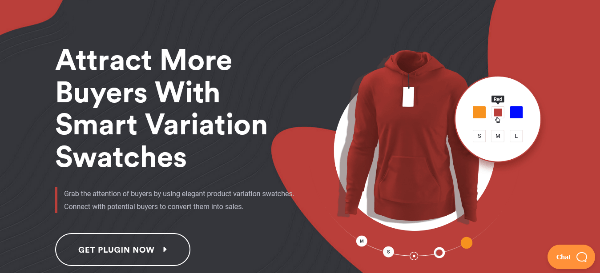
Our own plugin leads the list because it covers the features most stores ask for at a low one-time price. Smart Variation Swatches Pro converts standard attribute dropdowns into color, image, and label swatches, and lets you choose a round, rounded, or square style with custom width, height, and alignment.
Where it earns its place is the attribute workflow. On the attribute management screen you can assign a default color, picture, or label to each term, then override it on a single product when you need to. You can also attach extra gallery images to a swatch, so choosing a variation swaps in its own photos instead of the main gallery.
- Swatch types: unlimited color, label, and image swatches.
- Shop and archive swatches: show swatches on category and shop pages, with settings for single product pages and archives managed independently.
- Tooltips: text or image tooltips on hover, with background and text colors you can change.
- Filter widget: a “products by attributes” widget so shoppers can filter by color, size, or brand.
- Price change on select: the displayed variable price updates when a shopper picks an image, color, or label.
- Compatibility: tested by the author with OceanWP, Astra, Divi, Avada, Hello Elementor, Neve, Hestia, and Storefront, and works with WooCommerce Multilingual.
- Control: a toggle to show or hide the “Clear” variation link, and the plugin can be disabled without damaging your WooCommerce data.
Best for: small and mid-size stores that want shop-page swatches, tooltips, and a filter widget without a subscription.
Before you buy: the price is $16 at the time of writing. Try the live demo and skim the documentation to confirm it matches your theme.
2. CleverSwatches – WooCommerce Color or Image Variation Swatches

CleverSwatches by CleverSoft turns attribute dropdowns into color or image selectors in round or square form, in several sizes from small to large. Its standout feature is a per-variation gallery: add several images to each variation and they replace the main product gallery when that variation is selected.
- Swatch types: color, image, and text swatches, plus a dropdown fallback per attribute.
- Global and per-product control: set swatches per attribute globally, then override them on any product.
- Archive support: show one attribute’s swatches on shop, category, and tag pages.
- Tooltips and pre-select: enable or disable tooltips and default variation pre-selection.
- Translation: full WPML compatibility with .po and .mo files included.
- Theme testing: the author lists popular themes it has been tested with, including Avada, Flatsome, Porto, WoodMart, Astra, GeneratePress, and OceanWP.
Best for: multilingual stores and shops built on popular ThemeForest themes.
Before you buy: the regular license is $35 and the Extended License is $155 (needed if you bundle it in a theme sold to others). The author states that refunds are only accepted if the plugin cannot be integrated with your theme, so ask before purchasing if your theme is unusual. The listing also notes that CleverSoft does not currently provide support for this item, and the update dates we saw were inconsistent, so check the changelog and treat it as self-service.
3. WooCommerce Variation Swatches Images
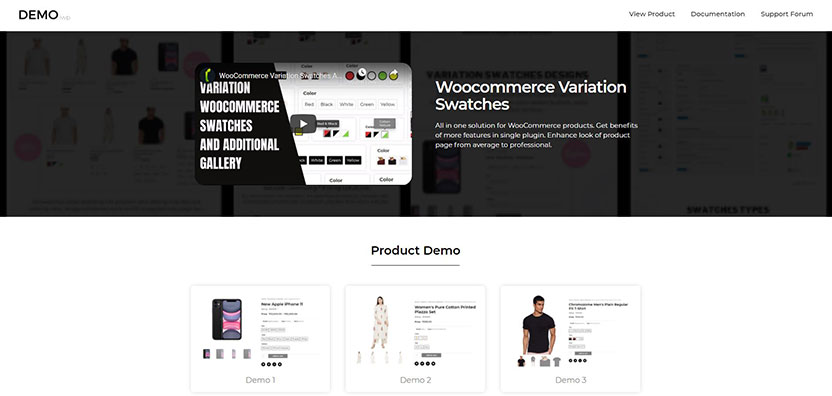
WooCommerce Variation Swatches Images changes the default WooCommerce variation display to a swatch style, so each option can appear as an image instead of a dropdown entry. Support replies on the Ali2Woo listing point buyers to this item when they want swatches for AliExpress-imported products, which makes it a natural fit for dropshipping stores that already have photo-rich variations.
- Image-first display: turns variation options into visual swatches for products with distinct photos.
- Translation: its CodeCanyon listing mentions WPML compatibility.
- Setup: the author’s guidance is to activate the add-on and the swatch display appears in place of the default dropdown.
Best for: dropshipping stores with large imported catalogs and image-based variations.
Before you buy: the CodeCanyon listing shows a price around $60 and compatibility tags that look dated (WooCommerce 5–6, last listed update in 2021). A reply on the Ali2Woo listing says it was tested with WooCommerce 9, but ask the author for current compatibility details and test on a staging site first.
Check Variation Swatches Images Now
4. Color or Image Variation Swatches Style for WooCommerce
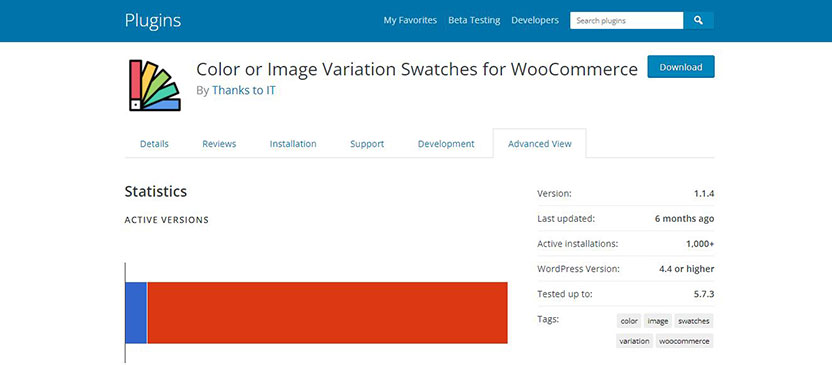
This CodeCanyon item sits in the classic “color or image swatches” category: it replaces the standard variation select with color chips or images and lets you style how they look. It is aimed at store owners who want a visual upgrade without a large feature set.
We could not find enough recent public documentation to confirm its newest features, so we are keeping this entry deliberately short. Judge it on the checklist below rather than on marketing copy.
- Confirm the swatch types you need: color, image, label, or button.
- Look for shop-page support if you want swatches on category grids.
- Check tooltip and out-of-stock options in the item description and screenshots.
- Read the latest comments to see how the author responds to bug reports.
Best for: simple stores that only need clean color or image swatches on single product pages.
Before you buy: verify the last update date, the “compatible with” WooCommerce and WordPress versions, and whether the author offers support under your license. Compare the price with the better-documented options above.
5. WooCommerce Attribute Images
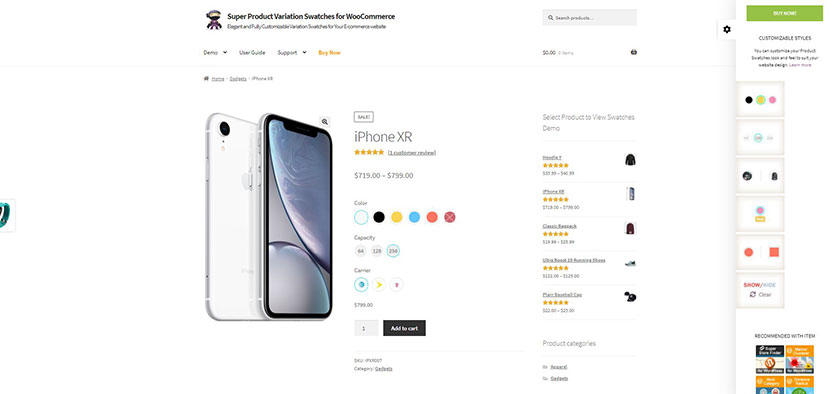
WooCommerce Attribute Images focuses on attaching images to product attributes and presenting them as swatches. That makes it a good match for catalogs where the image is the choice: tile patterns, upholstery fabrics, wood finishes, wallpaper, or phone-case designs.
- Image-driven attributes: assign an image to an attribute term and show it as a swatch.
- Global reuse: define the image once and reuse it across products that share the attribute.
Best for: furniture, interiors, and fashion stores selling patterns or textures.
Before you buy: the CodeCanyon listing we found shows roughly $39, WooCommerce compatibility tags up to version 8, and a last update in March 2024. Test it on staging if you run a current WooCommerce release, and confirm it works with your theme and any caching plugin.
6. WooCommerce Colors and Swatches for Variations
As the name says, this plugin brings color swatches and related swatch displays to WooCommerce variations. It is a candidate when your catalog is mostly color-driven and you want a lightweight, no-frills approach.
Public details on this item were limited when we reviewed it, so we are not going to claim features we could not verify. Use the checklist below, and compare it with the CodeCanyon options above before deciding.
- Swatch coverage: does it support image and label swatches too, or color only?
- Archive pages: can swatches appear on the shop grid?
- Variation gallery: does selecting a color change the product images?
- Maintenance: when was the last release, and are bug reports answered?
Best for: small, color-first catalogs with a limited budget.
Before you buy: check the price, the changelog, and the author’s support policy on the listing, and test on a staging copy of your store.
7. WooCommerce Variation Master
WooCommerce Variation Master is one of the more feature-rich CodeCanyon options and has passed 1,000 sales. It replaces the variation dropdown with color and image swatches and adds a gallery of images for each variation.
- Swatches: color or image swatches, or a combination of both, set globally per attribute or per variable product.
- Custom attributes: add color and image swatches for each variation of a custom attribute.
- Sizing: define a swatch size globally and override it where needed.
- Import and export: move swatches, attributes, and variation gallery images in bulk, which is a real time-saver on large catalogs.
- Cart-page editing: let customers update a product’s variation from the cart page.
Best for: large catalogs and stores that migrate products often.
Before you buy: the listing shows compatibility tags covering WooCommerce 6 to 9 and WordPress 5.1 to 6.8. Check the latest changelog against the WooCommerce version you run, and test the cart-page variation editing with your cart or side-cart plugin (see our WooCommerce side cart plugins roundup).
8. Variation Swatches for WooCommerce by GetWooPlugins
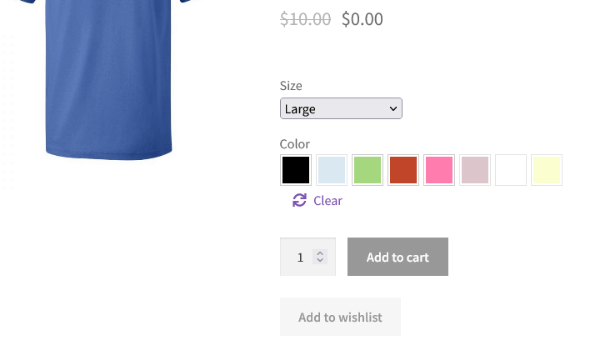
This is the plugin most store owners have in mind when they search for variation swatches for WooCommerce. The free version has 300,000+ active installs and a 4.8 rating on WordPress.org, and the Pro version adds the advanced features. It turns dropdowns into color, image, button, and radio swatches and is actively maintained: version 2.6.2 shipped on October 28, 2026 with WooCommerce 11.2+ compatibility.
- Auto-convert: turns dropdowns into image swatches automatically if the variation has a featured image.
- Catalog and archive swatches: show swatches on shop pages, with image or text tooltips and quick view support.
- Dual-color swatches: two colors in one chip for two-tone products.
- Gallery behavior: change the product gallery after selecting just one attribute (for example color), like Amazon-style pages.
- Direct variation links: generate a link that opens the product with a variation preselected, handy for ads and email campaigns.
- Stock tools: blur or hide out-of-stock variations, and show the remaining stock per variation.
- Archive controls: show only a chosen attribute on the shop page and use a “more” link to keep rows aligned.
- Filter widget and block: convert attribute filter widgets into swatches and use a swatches filter block.
- Developer-friendly: hooks and filters, REST API data for swatches, caching, and WPML support. Recent releases add block-theme support, including an Interactivity API add-to-cart button for variable products.
Best for: most WooCommerce stores, from first shop to agency client work.
Before you buy: start with the free version on WordPress.org. Pro pricing is $49 per year for one site, $149 for five sites, or $299 for unlimited sites, with lifetime options from $149. A 30-day money-back guarantee applies. Requirements: WordPress 6.8+, WooCommerce 8.5+, PHP 7.4+.
Check GetWooPlugins Swatches Now
9. Barn2 Variation Swatches (WooCommerce Product Options)
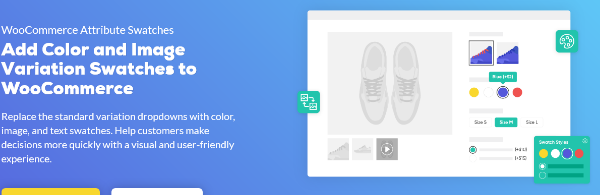
Barn2’s swatches live inside its WooCommerce Product Options plugin, and that is the point: it handles swatches and product customization in one tool. You can convert your existing variations into swatches, or build swatches as standalone options that do not need real WooCommerce variations at all.
- Two paths: use existing attributes and variations, or create swatches directly in the plugin.
- Swatch styles: color, image, text, and button swatches, plus other field types such as checkboxes, radio buttons, text input, and file upload.
- Pricing: flat or percentage price changes and formula-based pricing when a swatch is selected.
- Conditional logic: show or hide swatches based on other choices.
- Min/max quantities: set limits per swatch when options are built inside the plugin.
- Works with: Barn2’s Product Table and Quick View Pro plugins, so swatches can appear in tables and lightboxes. See our own take on WooCommerce product tables if you sell wholesale.
Best for: made-to-order, personalized, and configurable products where price depends on the options.
Before you buy: it is a premium plugin with a 30-day money-back guarantee. If you only need simple color or size swatches, a dedicated swatches plugin is lighter. If you need custom fields too, read our guides to WooCommerce product options and fields and custom fields in WooCommerce first.
10. YITH WooCommerce Color and Label Variations
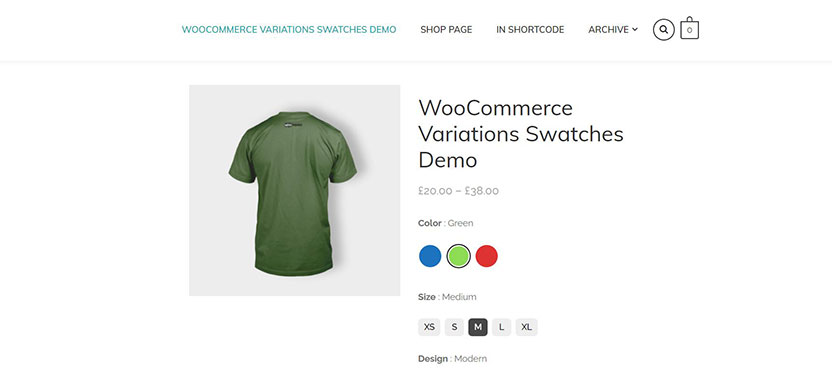
YITH WooCommerce Color and Label Variations replaces the default select menu with color swatches, images, and labels. YITH is a long-standing WooCommerce plugin brand, so this is a comfortable pick if you already run other YITH plugins and want a consistent admin experience.
- Free version: create color swatches, image attributes, and label attributes, set swatch size and border radius, and customize the option border color.
- Premium version: adds extras such as showing attributes on additional pages (like the shop page), bicolor swatches, and a customizable add-to-cart button.
- Ecosystem fit: integrates with YITH Product Add-Ons, which can take over management of attributes and variations when both are active.
Best for: stores already invested in YITH plugins.
Before you buy: the free plugin on WordPress.org shows fewer installs and a lower public rating than the leading swatch plugins, and its last public update tag looked older than rivals when we checked. Confirm current WooCommerce compatibility, and test shop-page display with your theme, since some themes need CSS tweaks for clean alignment.
Which plugin should you choose?
Choose a dedicated swatches plugin if
- You mainly need color, image, and label swatches
- You want shop-page swatches and tooltips
- You prefer a lighter plugin with fewer settings
Choose a product options plugin if
- Price changes with the selected option
- You need conditional logic or file uploads
- You sell personalized or made-to-order products
How to set up variation swatches in WooCommerce (step by step)
The exact screens differ by plugin, but the workflow is almost always the same. If you are new to variable products, the official WooCommerce variable product documentation covers the basics.
- Create global attributes. Go to Products → Attributes and add attributes such as Color and Size. Add terms like Red, Navy, and Green.
- Choose a swatch type per attribute. Edit each attribute and pick color, image, label, button, or radio. For color terms, set a hex value. For image terms, upload a clean, square image.
- Build the variable product. Create the product, set the type to Variable product, add the attributes, and tick Used for variations.
- Generate variations. Create variations from all attributes, then add price, SKU, stock, and an image to each. Variation images are what make swatches feel real.
- Configure display settings. Pick round or square swatches, set sizes, choose how out-of-stock options appear, and enable tooltips.
- Turn on shop-page swatches if your plugin supports them, then check the result in your theme’s grid and quick view.
- Test on mobile. Check tap size, spacing, and what happens when a color is sold out.
- Use staging for premium plugins. Always test on a copy of your store first.
Optional: raise the AJAX variation threshold
By default, WooCommerce loads variation data through AJAX when a product has more than 30 variations. That keeps big products fast but can feel slow on swatch-heavy pages. If your products have many variations and your hosting is strong, you can raise the limit with a small snippet in a code snippets plugin or a child theme:
add_filter( 'woocommerce_ajax_variation_threshold', function ( $limit, $product ) {
    return 100;
}, 10, 2 );
Fast hosting helps here, so see our list of the fastest WooCommerce hosting options. If you work headless or build custom integrations, WooCommerce’s REST API exposes variations at /wp-json/wc/v3/products/<id>/variations, and several swatch plugins also expose their own swatch data.
Best practices that lift variable product conversion rates
- Use real photos for image swatches. Crop them consistently, in the same aspect ratio. Serve them in modern formats; our guide to WebP in WordPress shows how.
- Swap the gallery on selection. Shoppers expect a color change to show that color. If you want richer galleries, see our WooCommerce product slider plugins.
- Show stock status clearly. Blur or cross out unavailable options rather than hiding them if shoppers might come back when they restock.
- Keep labels short. “M” beats “Medium (Fits 38–40 in)”. Put detail in a tooltip.
- Set a sensible default. Preselect your most popular variation to reduce clicks, but keep the choice obvious.
- Make tap targets big enough. A tap area of around 44 by 44 pixels is a widely used guideline for touch screens.
- Show the right price. When variation prices differ, the price should update in a place shoppers notice. See how to move the WooCommerce variation price.
- Add swatch filters. Color and size filters on category pages help shoppers narrow results. Our roundup of WooCommerce product filter plugins has options.
- Enable quick add on the grid. Pair shop-page swatches with an add to cart popup so the next step is frictionless.
- Test, do not guess. Run an A/B test with swatches on one category first, and compare add-to-cart rate and revenue per visitor.
Performance, accessibility, and SEO considerations
Performance and layout shift
Swatches that render with JavaScript after the page loads can push content down and hurt Cumulative Layout Shift. Learn what CLS measures on web.dev, then check your product pages in a performance test with swatches on and off. Prefer plugins that load assets only on product, shop, and cart pages, and reserve space for swatches with a consistent size.
Accessibility
Swatches are interactive controls, so they need to work with a keyboard and a screen reader, and each one should have a text label (for example “Color: Navy”), not just a color. The WCAG non-text contrast guidance asks for at least a 3:1 contrast ratio on user interface components, which means pale swatches on a white background need a visible border and the selected state must be obvious without relying on color alone.
SEO
Swatches are a display layer. They do not replace good product data. Make sure each variation has accurate price, availability, and images, and read Google’s guidance on product structured data, including how variants are described. If your plugin can generate direct variation links, use them in ads and email so shoppers land on the exact option they clicked.
Common mistakes to avoid
- Installing two swatch plugins. They fight over the same templates. Use one.
- Skipping staging. Theme and cache conflicts show up on live product pages first.
- Using tiny swatches on mobile. If a thumb cannot hit it, it will not convert.
- Using color-only cues. Add borders, checkmarks, and text labels for accessibility.
- Ignoring stale plugins. A plugin that has not been updated for current WooCommerce and WordPress versions is a risk.
- Forgetting the rest of the funnel. Swatches help product pages, but checkout, speed, and trust signals still matter. Our guide to essential WooCommerce plugins covers the rest of the stack.
Frequently asked questions
What are WooCommerce variation swatches?
They are visual selectors, such as color circles, product photos, text labels, or buttons, that replace the default dropdown on variable products. They use the same WooCommerce variations underneath, so prices, stock, and SKUs keep working.
What is the best variation swatches plugin for WooCommerce?
For most stores, a dedicated plugin with a free tier, such as the GetWooPlugins plugin, is the safest start. If you want a low one-time price with shop-page swatches, try Smart Variation Swatches Pro. If price depends on the option, a product options plugin like Barn2’s is a better fit.
Can I show variation swatches on shop and category pages?
Yes, with plugins that support archive swatches. They let shoppers choose options and add to cart from the product grid. Check that your theme’s grid and quick view work with the plugin.
Do variation swatches slow down my store?
A well-built plugin adds very little. Problems come from heavy scripts, loading assets on every page, or rendering swatches late. Test your product pages before and after installation, and use good hosting.
Do swatches work with Elementor and block themes?
Many do, but support varies. Some plugins add dedicated blocks or Elementor widgets, while others only change the default template. Check the plugin’s compatibility notes for your builder and theme type.
Can I use image swatches with variation photos?
Yes. Some plugins auto-convert a dropdown into image swatches when each variation has a featured image, and others let you upload a separate swatch image per attribute term.
How do I handle out-of-stock variations?
Most plugins let you blur, cross out, or hide unavailable swatches. Blurring or crossing out is usually friendlier because shoppers still see the full range, and some plugins can show remaining stock for each variation.
Are free swatches plugins enough?
For many small stores, yes. Free versions typically cover color, image, and label swatches. Premium versions add shop-page swatches, dual colors, advanced styling, or stock features, so upgrade when you actually need them.
Do swatches change my product SEO?
Not directly. They change how options are displayed, not your product data. Keep your variation data and structured data accurate and your pages fast.
Final verdict
Variation swatches are one of the highest-leverage upgrades you can make to a WooCommerce product page, because they remove a small but constant source of friction. The right plugin depends on what you sell:
- Best value: Smart Variation Swatches Pro for shop-page swatches, tooltips, and a filter widget at a low one-time price.
- Best all-rounder: GetWooPlugins Variation Swatches for a free start, steady updates, and strong stock and catalog features.
- Best for configurable products: Barn2 Product Options when swatches must change the price or trigger conditional logic.
- Best for big or imported catalogs: Variation Master or Variation Swatches Images, after testing on staging.
Whichever you choose, install it on a staging site, convert your best-selling variable product first, and measure add-to-cart rate for two to four weeks before rolling it out store-wide.




GBPlus
I Already Use WooCommerce variation plugin It is helps me a lot Thanks For It Admin.